A simple, passive HDMI to USB cable for video display does not exist because HDMI and USB ports use fundamentally different electrical signaling and data protocols. To connect an HDMI source to a USB port for video, you need an active device: either an HDMI to USB-C adapter (for display output to a monitor with DisplayPort Alt Mode) or an HDMI to USB video capture card (for video input to a computer for recording or streaming).
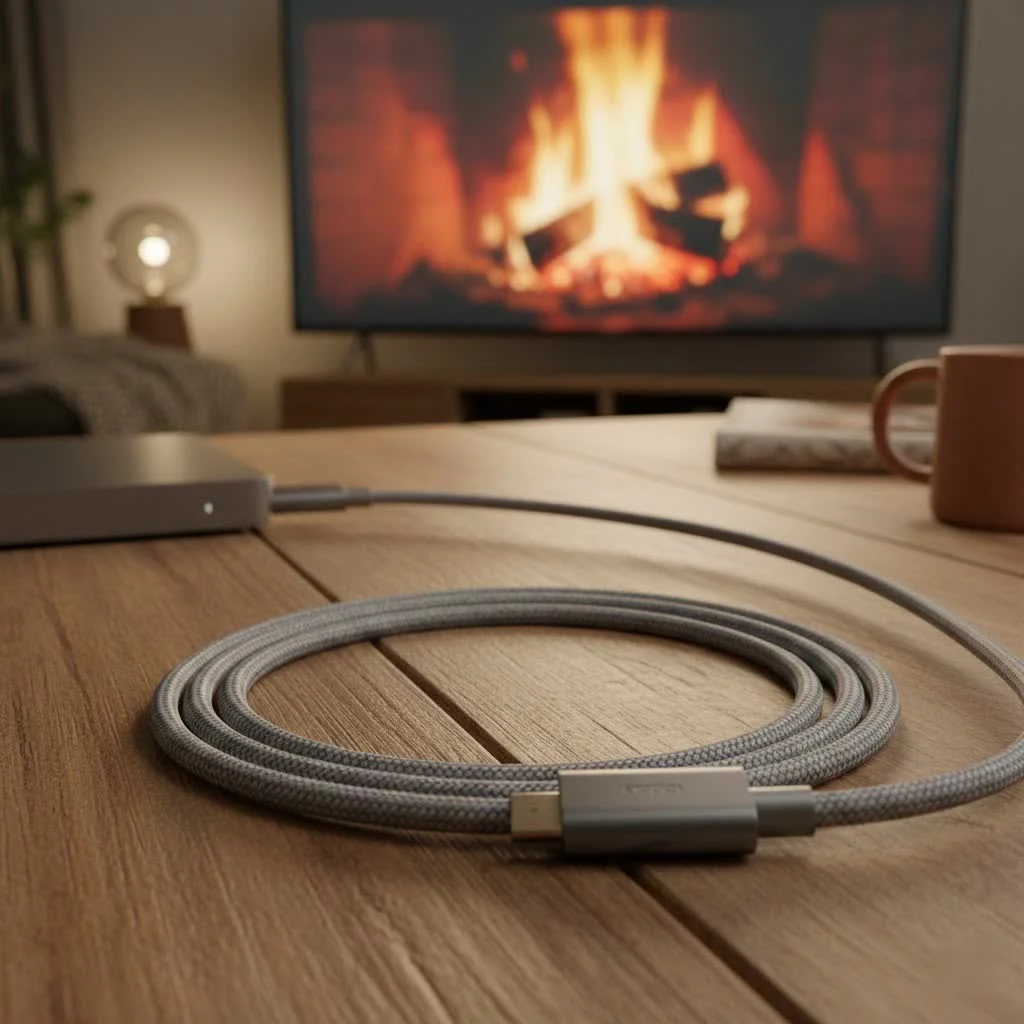
At Iecfl Tech, we’ve seen countless users searching for this cable. The truth is, a simple, passive HDMI to USB cable for video display is a technological myth. The two ports speak entirely different languages, and a direct wire connection is like trying to have a conversation where one person only speaks Spanish and the other only Japanese, with no translator in sight. This guide will serve as your translator, explaining why it doesn’t work and introducing you to the devices that do. For more hdmi cables guides on this site.
Why a Simple Cable Isn’t the Answer
To understand why a direct cable fails, we need to look at the fundamental purpose of each connection. They weren’t designed to be interchangeable.
- HDMI (High-Definition Multimedia Interface): This is a one-way street for audio and video. It’s designed to send a massive stream of uncompressed digital data from a source device (like a Blu-ray player, game console, or laptop) to a display device (like a TV or monitor). It doesn’t know how to handle data in the way a USB port does.
- USB (Universal Serial Bus): This is a two-way data highway. It’s designed for transferring files, connecting peripherals (like keyboards and mice), and charging devices. While modern USB-C ports can handle video signals, it requires special technology and is not a native function of all USB ports, especially the older USB-A type.
Trying to connect them directly is like trying to fit a square peg in a round hole. The electrical signaling and data protocols are completely incompatible. You need an active device to process the signal from one format and convert it into another.
The Real Solutions: Adapters and Capture Cards
Since a passive cable is off the table, what are the real solutions? Your choice depends entirely on what you’re trying to accomplish. The two primary tools for this job are specialized adapters and video capture cards.
For Connecting to a Monitor: The HDMI to USB-C Adapter
This is the most common scenario for modern users. You have a laptop with an HDMI port and want to connect it to a newer monitor that has a USB-C input. This can work, but only if the monitor’s USB-C port is equipped with a special feature.
You need to look for a USB-C port that supports DisplayPort Alternate Mode (DP Alt Mode) or Thunderbolt. This technology allows the USB-C port to accept a native video signal.
An “HDMI to USB-C” adapter for this purpose isn’t just a cable; it’s a small device with a chip inside that actively converts the HDMI signal into the DisplayPort signal that the USB-C port can understand.
How to know if this is the right solution for you:
- Your Goal: To use a USB-C monitor as a display for your HDMI laptop, console, or other source device.
- Check Your Monitor: Look at the specifications for your monitor’s USB-C port. The manufacturer’s website or manual should explicitly state that it supports “DisplayPort Alternate Mode” or “video input.”
- What to Buy: A dedicated “HDMI to USB-C Adapter with DisplayPort Alt Mode support.”
For Video Input: The HDMI to USB Video Capture Card
|
Our Picks for the Best HDMI Cable in 2026
As an Amazon Associate I earn from qualifying purchases.
|
||
| Num | Product | Action |
|---|---|---|
| 1 | Short HDMI Cable 1 FT 2-Pack, 8K HDMI 2.1 48Gbps Ultra High Speed Braided HDMI Cords, 1 Foot HDMI Cable for Camera, Field Monitor, External Recorder, Laptop, PC |

|
| 2 | Anker HDMI Cable 8K@60Hz, 6FT Ultra HD 4K@120Hz HDMI Cord,48 Gbps Certified Ultra High-Speed,Compatible with PlayStation 5,Xbox,Samsung TVs,and More |
|
| 3 | Highwings Long HDMI Cable 15 FT, 4K 8K 10K HDMI 2.1 Cord Ultra High Speed [in-Wall CL3 Rated, 8K@60Hz 4K@120Hz Video 48Gbps], Fit, Durable, Flexible, eARC, HDCP, Compatible for Ethernet SoundBar |
|
| 4 | Highwings 4K HDMI Cable 6.6FT/2m - High-Speed HDMI 2.0 Quality Cord 4K@60Hz, Braided Nylon & Gold Connectors, HDR, Ethernet, ARC, 3D, HDCP 2.2, Compatible for PS-5/4/3/ HDTV/Monitor/DVD/Streaming |
|
| 5 | Highwings 8K 10K 4K HDMI Cable 48Gbps 6.6FT/2M, Certified Ultra High Speed HDMI Cable Braided Cord-4K@120Hz 8K@60Hz, DTS:X, HDCP 2.2 & 2.3, HDR 10 Compatible with Roku TV/PS5/HDTV/Blu-ray |
|
| 6 | Highwings 8K@60 HDMI Cable 10FT/3M, 48Gbps 2.1 High Speed HDMI Braided Nylon 4K120 144Hz RTX 3090 eARC HDR10 4:4:4 HDCP 2.2&2.3 Compatible for PS5, PS4, UHD TV and PC |
|
| 7 | 10K 8K HDMI 2.1 Cable 2-Pack 6.6FT, Highwings Certified 48Gbps Ultra High Speed Slim HDMI Cord,Support 4K@120Hz 8K@60Hz, HDCP 2.2&2.3, Dynamic HDR,eARC,DTS:X, Compatible with Roku TV/HDTV/PS5/Blu-ray |
|
| 8 | 15 Pack of 10 Foot hdmi Cables |
|
| 9 | Highwings Long HDMI Cable 20 FT, 10K 8K 4K Ultra HD High Speed 2.1 HDMI Cable 48Gbps Braided Cord-4K@120Hz 8K@60Hz, DTS:X, HDCP 2.2&2.3, Dynamic HDR 10 Compatible with Roku TV/PS5/HDTV/Blu-ray |
|
| 10 | Highwings High Speed 8K 60Hz HDMI Cable 3.3FT/1M, 2.1 48Gbps HDMI Braided Cable-4K@120Hz 7680P,DTS:X,HDCP 2.2 & 2.3, HDR 10,eARC,Dynamic HDR,Compatible for Laptop, Monitor, Roku TV |
|
What if you want to do the opposite? Instead of sending video out to a monitor, you want to bring video in to your computer. For example, you might want to play a game on your PlayStation 5 and see the gameplay on your laptop’s screen, or use a high-quality DSLR camera as a webcam for streaming.
In this case, you don’t need an adapter; you need an HDMI to USB Video Capture Card.
A capture card is a powerful device that takes the HDMI output from your source (console, camera, etc.), processes it, and sends it as a video data stream to your computer through a USB port. Your computer then sees this stream as if it were a webcam, which you can view, record, or stream using software like OBS Studio, Streamlabs, or even Zoom.
“People often search for a simple ‘HDMI to USB cable’ hoping for a cheap, easy fix,” says Mark O’Brien, a home theater installation expert with over 15 years of experience. “The reality is that these are two different languages. You need a translator—an active adapter or a capture card—to make them talk to each other. Don’t waste your money on a passive cable; it’s a dead end.”
How to Choose the Right HDMI to USB Solution
Let’s break it down into common scenarios to help you find exactly what you need.
Scenario 1: Connecting a Laptop to a New USB-C Monitor
- Confirm: Your monitor’s USB-C port supports DP Alt Mode.
- Purchase: An HDMI to USB-C adapter. Look for one that supports the resolution and refresh rate you need (e.g., 4K at 60Hz).
- Connect: Plug the HDMI end into your laptop and the USB-C end into the correct port on your monitor. It should work just like any other display connection.
Scenario 2: Using Your Laptop Screen for a Game Console (PS5, Xbox, Switch)
- Confirm: Your goal is to view and capture the gameplay on your laptop.
- Purchase: An HDMI to USB video capture card. Key features to consider:
- Resolution: Do you need 1080p or 4K capture?
- Frame Rate: 60fps is the standard for smooth gameplay.
- Latency: Look for low or near-zero latency for a responsive experience.
- Passthrough: Many capture cards have an HDMI output port so you can also connect to a TV at the same time, playing on the TV while your computer captures the footage.
- Connect: Plug your console’s HDMI cable into the capture card’s “HDMI In” port. Then, use a USB cable to connect the capture card to your computer. Open your streaming or recording software to see the video feed.
Scenario 3: Using a DSLR or Mirrorless Camera as a Pro Webcam
- Confirm: Your camera has a clean HDMI output (meaning it doesn’t show the on-screen display menus).
- Purchase: A compact HDMI to USB capture card. Many small, affordable “cam link” style devices are perfect for this. Most are UVC (USB Video Class) compliant, meaning they are plug-and-play with no drivers needed.
- Connect: Connect your camera’s HDMI output to the capture card, and the capture card to your computer’s USB port. Your video conferencing or streaming software will now list the capture card as a webcam source.
Frequently Asked Questions (FAQ)
What’s the difference between an HDMI to USB adapter and a capture card?
An adapter is for display output—sending video from your computer to a monitor. A capture card is for video input—bringing video from an external source into your computer to be recorded or streamed.
Will an HDMI to USB solution add lag?
For display adapters connecting to a monitor, there is no noticeable lag. For capture cards, there is always some latency, but high-quality models offer ultra-low latency that is barely perceptible, making them suitable for gaming. Cheaper capture cards may have more noticeable delays.
Do I need to install drivers?
Most modern adapters and capture cards are plug-and-play, especially those that are UVC compliant. However, some high-end, professional-grade capture cards may require specific drivers and software for advanced features.
Can I get a 4K resolution with these devices?
Yes, but you must buy a device that specifically supports it. Both adapters and capture cards come in various resolutions, from 1080p to 4K and even 8K. Always check the product specifications to match your needs.
Why do I see cheap HDMI to USB cables for sale online?
Many of these are misleadingly labeled or intended for very specific, non-video industrial uses. They will not work for connecting a display or capturing video. They are a waste of money for the average consumer.
Conclusion: Choose the Right Tool for the Job
While the dream of a universal, simple HDMI to USB cable remains just that—a dream—the real solutions are more powerful and versatile than a simple cable could ever be. By understanding the difference between an active adapter for display output and a video capture card for video input, you can confidently bridge the gap between these two essential technologies. Before you buy, take a moment to identify your specific goal, check the specs of your devices, and invest in the correct tool. This will save you from the frustration of a cable that can’t deliver and unlock new possibilities for your setup.
Frequently Asked Questions
What is the fundamental difference between HDMI and USB ports?
HDMI (High-Definition Multimedia Interface) is a one-way connection designed exclusively for transmitting uncompressed digital audio and video data. USB (Universal Serial Bus) is a two-way data highway primarily for file transfers, peripherals, and charging, though modern USB-C can support video with specific technologies like DisplayPort Alt Mode.
When should I use an HDMI to USB-C adapter?
You should use an HDMI to USB-C adapter when your goal is to connect an HDMI source device (like a laptop or game console) to a monitor that has a USB-C input. This only works if the monitor's USB-C port supports DisplayPort Alternate Mode (DP Alt Mode) or Thunderbolt, which allows it to receive a native video signal.
What is an HDMI to USB video capture card used for?
An HDMI to USB video capture card is used to bring video from an external HDMI source (such as a game console, camera, or another computer) into your computer via a USB port. This allows you to view, record, or stream the video feed using software like OBS Studio or Zoom, effectively turning your computer into a display and recording device.
Will using an HDMI to USB solution introduce noticeable lag?
For HDMI to USB-C display adapters, there is typically no noticeable lag, ensuring a smooth display experience. For HDMI to USB video capture cards, some latency is always present, but high-quality models offer ultra-low latency, making them suitable for gaming where responsiveness is crucial. Cheaper capture cards may exhibit more perceptible delays.
Can these HDMI to USB devices support 4K resolution?
Yes, many HDMI to USB adapters and video capture cards support 4K resolution, but it is crucial to verify the product specifications before purchasing. These devices are available in various resolutions, including 1080p, 4K, and even 8K, so always ensure the chosen device matches your desired resolution and refresh rate, such as 4K at 60Hz.
Choose the Right HDMI to USB Solution
Determine the correct device to connect your HDMI source to a USB port based on your specific needs: display output to a monitor or video input to a computer.
First, clarify what you want to achieve. Are you trying to send video from an HDMI device to a USB-C monitor, or are you trying to bring video from an HDMI source into your computer for recording or streaming?
If connecting to a USB-C monitor, verify that its USB-C port supports DisplayPort Alternate Mode (DP Alt Mode) or Thunderbolt. If using a camera as a webcam, ensure it has a clean HDMI output.
For display output to a monitor, choose an HDMI to USB-C adapter. For video input to a computer (e.g., gaming, streaming, webcam), select an HDMI to USB video capture card. Consider resolution (e.g., 4K), frame rate (e.g., 60fps), and latency for capture cards.
Buy the appropriate adapter or capture card. Connect the HDMI end to your source and the USB end to your target device. For capture cards, you'll also need to use software like OBS Studio to view or record the video feed.
Get our weekly buyer guide
Practical specs, not advice. Unsubscribe anytime.
The breakdown of why a passive cable doesn’t work was good, but I felt like it could have offered more specific product recommendations for the video capture cards. It’s still a bit overwhelming trying to pick one out from all the options. Still, it clarified the core issue I was having.
Finally, someone explains this clearly! I kept buying those cheap ‘HDMI to USB’ cables online and getting frustrated. Understanding that HDMI and USB use fundamentally different electrical signaling saved me from wasting more money. I’m going to invest in a proper active device now for my setup.
This was super helpful! I was totally confused why my ‘HDMI to USB cable’ wasn’t working with my old monitor. The explanation about DisplayPort Alt Mode made so much sense. I ended up getting an HDMI to USB-C adapter and it works perfectly now. Thanks for clearing up the myth!
Good info here. I’ve been trying to figure out how to get my game console onto my laptop for streaming, and the part about the HDMI to USB video capture card was exactly what I needed. It’s a bit more involved than I hoped, but at least I know what to look for now. Wish I’d found this guide sooner.