The MacBook Air is a marvel of portable power and sleek design. But that minimalist aesthetic, with its reliance on versatile USB-C (Thunderbolt) ports, often leaves users asking a simple question: “How do I connect this to my TV or monitor?” The answer lies in finding the right HDMI cable for your MacBook Air. This isn’t just about plugging in a cable; it’s about unlocking the full visual potential of your laptop on a larger screen, whether for work presentations, streaming 4K movies, or immersive gaming. This guide will walk you through everything you need to know to make the perfect connection.
Does Your MacBook Air Even Have an HDMI Port?
Let’s get this out of the way first. If you’ve purchased a MacBook Air in the last several years (generally from 2018 onwards), you won’t find a traditional, rectangular HDMI port. Apple has embraced the slim, powerful, and versatile USB-C (also known as Thunderbolt 3 or 4) port for charging, data transfer, and video output.
While this simplifies the design of the laptop, it means you need an intermediary to connect to the vast majority of monitors and TVs that use HDMI as their standard input. This is where a dedicated USB-C to HDMI cable or adapter becomes an essential accessory.
The Two Main Choices: A Direct Cable vs. A Flexible Adapter
When it comes to connecting your MacBook Air to an HDMI display, you have two excellent options. The best one for you depends entirely on your setup and how you plan to use it.
The All-in-One: USB-C to HDMI Cables
This is the most straightforward solution. A USB-C to HDMI cable has a USB-C connector on one end (for your MacBook Air) and an HDMI connector on the other (for your display). It’s a single, elegant piece of equipment.
- Pros:
- Simplicity: No extra parts to lose or forget. Just one cable to do one job perfectly.
- Less Clutter: Creates a cleaner, more minimal desk setup.
- Reliable Connection: A single cable means fewer potential points of failure.
- Cons:
- Less Versatile: The length is fixed. If you need a longer or shorter connection, you need a whole new cable.
- Best For: Users with a dedicated desk setup, like connecting to a permanent external monitor where the cable can be set and forgotten.
The Flexible Friend: USB-C to HDMI Adapters
An adapter is a small dongle with a male USB-C connector and a female HDMI port. You plug the adapter into your MacBook Air and then plug any standard HDMI cable into the adapter.
- Pros:
- Highly Versatile: You can use any standard HDMI cable you already own, regardless of its length.
- Travel-Friendly: A small adapter is easy to pack, and hotels or conference rooms often have spare HDMI cables available.
- Multi-Purpose: Many adapters come as part of a larger multiport hub, giving you extra USB-A ports, SD card readers, and more.
- Cons:
- More Parts: You need to have both the adapter and a separate HDMI cable.
- Best For: Professionals who present on the go, travelers, and anyone who values flexibility and already has HDMI cables.
Key Features in a MacBook Air HDMI Cable
Not all cables and adapters are created equal. To avoid a flickering screen or a fuzzy picture, you need to look for a few key technical specifications.
Resolution and Refresh Rate: Don’t Settle for 4K@30Hz
|
Our Picks for the Best HDMI Cable in 2026
As an Amazon Associate I earn from qualifying purchases.
|
||
| Num | Product | Action |
|---|---|---|
| 1 | 15 Pack of 10 Foot hdmi Cables |

|
| 2 | 10K 8K HDMI 2.1 Cable 2-Pack 6.6FT, Highwings Certified 48Gbps Ultra High Speed Slim HDMI Cord,Support 4K@120Hz 8K@60Hz, HDCP 2.2&2.3, Dynamic HDR,eARC,DTS:X, Compatible with Roku TV/HDTV/PS5/Blu-ray |
|
| 3 | Highwings Long HDMI Cable 20 FT, 10K 8K 4K Ultra HD High Speed 2.1 HDMI Cable 48Gbps Braided Cord-4K@120Hz 8K@60Hz, DTS:X, HDCP 2.2&2.3, Dynamic HDR 10 Compatible with Roku TV/PS5/HDTV/Blu-ray |
|
| 4 | Highwings 4K HDMI Cable 6.6FT/2m - High-Speed HDMI 2.0 Quality Cord 4K@60Hz, Braided Nylon & Gold Connectors, HDR, Ethernet, ARC, 3D, HDCP 2.2, Compatible for PS-5/4/3/ HDTV/Monitor/DVD/Streaming |
|
| 5 | Highwings 8K 10K 4K HDMI Cable 48Gbps 6.6FT/2M, Certified Ultra High Speed HDMI Cable Braided Cord-4K@120Hz 8K@60Hz, DTS:X, HDCP 2.2 & 2.3, HDR 10 Compatible with Roku TV/PS5/HDTV/Blu-ray |
|
| 6 | Highwings High Speed 8K 60Hz HDMI Cable 3.3FT/1M, 2.1 48Gbps HDMI Braided Cable-4K@120Hz 7680P,DTS:X,HDCP 2.2 & 2.3, HDR 10,eARC,Dynamic HDR,Compatible for Laptop, Monitor, Roku TV |
|
| 7 | Anker HDMI Cable 8K@60Hz, 6FT Ultra HD 4K@120Hz HDMI Cord,48 Gbps Certified Ultra High-Speed,Compatible with PlayStation 5,Xbox,Samsung TVs,and More |
|
| 8 | Highwings 8K@60 HDMI Cable 10FT/3M, 48Gbps 2.1 High Speed HDMI Braided Nylon 4K120 144Hz RTX 3090 eARC HDR10 4:4:4 HDCP 2.2&2.3 Compatible for PS5, PS4, UHD TV and PC |
|
| 9 | Highwings Long HDMI Cable 15 FT, 4K 8K 10K HDMI 2.1 Cord Ultra High Speed [in-Wall CL3 Rated, 8K@60Hz 4K@120Hz Video 48Gbps], Fit, Durable, Flexible, eARC, HDCP, Compatible for Ethernet SoundBar |
|
| 10 | Short HDMI Cable 1 FT 2-Pack, 8K HDMI 2.1 48Gbps Ultra High Speed Braided HDMI Cords, 1 Foot HDMI Cable for Camera, Field Monitor, External Recorder, Laptop, PC |
|
This is arguably the most critical factor. While most cables today advertise “4K support,” the devil is in the details—specifically, the refresh rate, measured in Hertz (Hz).
- 4K@30Hz: This is the baseline. While it can display a 4K image, the screen only refreshes 30 times per second. This is fine for watching movies, but for general computer use, it will make your mouse cursor feel laggy and create a choppy experience.
- 4K@60Hz: This is the gold standard for most users. At 60 refreshes per second, everything is smooth and responsive. It’s ideal for office work, video editing, and streaming.
- 4K@120Hz or Higher: This is primarily for serious gamers using a high-end gaming monitor. It requires a more advanced cable that meets the HDMI 2.1 specification to deliver an ultra-smooth gaming experience.
For the vast majority of MacBook Air users, a cable or adapter that explicitly supports 4K@60Hz is the sweet spot.
Build Quality and Durability
A cable is only as good as its construction. Look for features that suggest longevity:
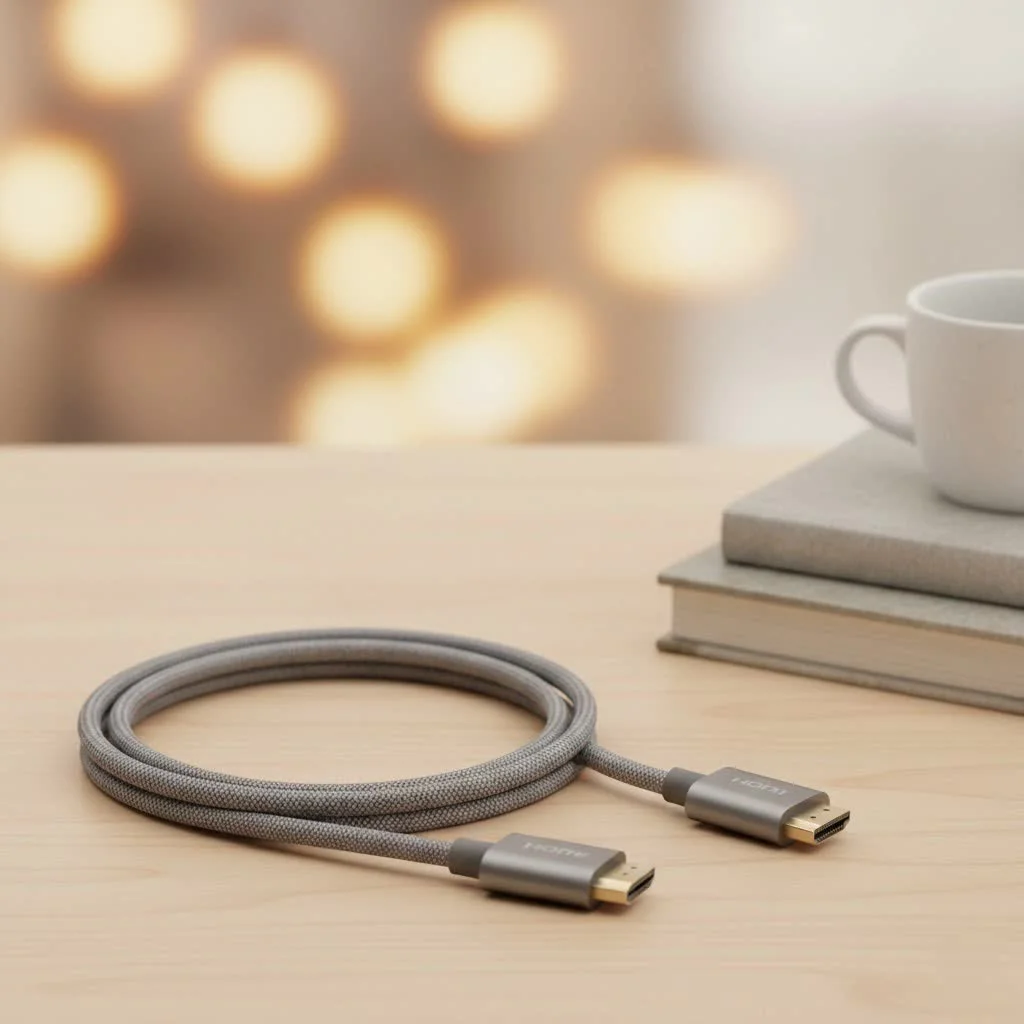
- Braided Nylon Jacket: This provides superior durability over standard plastic or rubber, preventing kinks, frays, and everyday wear and tear.
- Aluminum Housing: The connector heads should be housed in aluminum. This not only feels more premium but, more importantly, helps dissipate heat, preventing the adapter or connector from getting too hot during extended use.
- Gold-Plated Connectors: This isn’t just for looks. Gold plating resists corrosion and ensures a stable, reliable signal transfer between your MacBook and the display.
Plug-and-Play Simplicity
The beauty of the USB-C ecosystem is its simplicity. Any cable or adapter you buy should be “plug and play,” meaning it works the moment you connect it without requiring any special software or drivers. This functionality is enabled by a technology called DisplayPort Alternate Mode, which is natively supported by your MacBook Air’s Thunderbolt ports.
“People often overspend on ‘premium’ HDMI cables,” notes John Carter, a home theater installation specialist. “For a MacBook Air, the most important thing is ensuring the cable or adapter explicitly supports 4K at 60Hz. A well-made cable from a reputable brand will perform just as well as one costing five times as much.”
How to Choose the Right HDMI Cable for Your MacBook Air
Let’s match the right tool to the job.
- For the 4K Movie Streamer: Your priority is a stable, high-quality picture. A reliable USB-C to HDMI cable that supports 4K@60Hz and HDR (High Dynamic Range) for better colors will give you a fantastic cinematic experience.
- For the Competitive Gamer: You need speed. Look for a cable that specifically supports HDMI 2.1, which is necessary to achieve refresh rates like 4K@120Hz on a compatible gaming monitor.
- For the Office Professional or Student: Flexibility is your best friend. A compact USB-C to HDMI adapter is perfect. It’s small enough to throw in your bag and ensures you can connect to any projector or monitor you encounter.
Frequently Asked Questions (FAQ)
What kind of HDMI cable does a MacBook Air use?
A MacBook Air doesn’t use a standard HDMI cable directly. It requires either a USB-C to HDMI cable or a USB-C to HDMI adapter connected to a standard HDMI cable, utilizing its Thunderbolt/USB-C port for video output.
Can I connect my MacBook Air to a 4K TV?
Absolutely. To get the best experience, you should use a cable or adapter that is rated for 4K resolution at a 60Hz refresh rate. This will ensure a smooth and crisp image.
Will a cheap, no-name adapter work with my MacBook Air?
It might, but it’s risky. Cheaper adapters often cut corners on shielding, build quality, and internal components. This can lead to issues like screen flickering, overheating, or a failure to support the advertised 4K@60Hz resolution. It’s always safer to invest a little more in a reputable brand.
Do I need to install any software or drivers?
No. All modern USB-C to HDMI solutions for the MacBook Air are plug-and-play. Your macOS operating system has everything it needs to recognize and use the external display instantly.
What’s the difference between HDMI 2.0 and 2.1 for a MacBook Air user?
HDMI 2.0 is the standard that enables 4K@60Hz, which is perfect for most activities. HDMI 2.1 is a newer, more powerful standard required for much higher bandwidth, such as 4K@120Hz or even 8K resolutions. Unless you’re a hardcore gamer with a top-of-the-line monitor, an HDMI 2.0-compliant cable is all you need.
The Final Connection
Your MacBook Air is a powerful and versatile laptop, and connecting it to an external display shouldn’t be a headache. By understanding the difference between a direct cable and a flexible adapter, and by paying close attention to key features like 4K@60Hz support and build quality, you can easily find the perfect solution for your needs. Whether you choose the simplicity of a single cord or the versatility of a dongle, the right HDMI cable for your MacBook Air will bridge the gap between your portable powerhouse and the big-screen experience you deserve.
Get our weekly buyer guide
Practical specs, not advice. Unsubscribe anytime.