In a world filled with sleek laptops, powerful tablets, and stunning 4K TVs, connecting them all should be simple. You have a movie ready to go on your MacBook, but you want to enjoy it on your big-screen TV. That’s where the mighty HDMI to USB-C cable comes in, acting as the essential bridge between your portable devices and larger displays. But not all cables are created equal, and understanding how they work is key to getting that perfect picture.
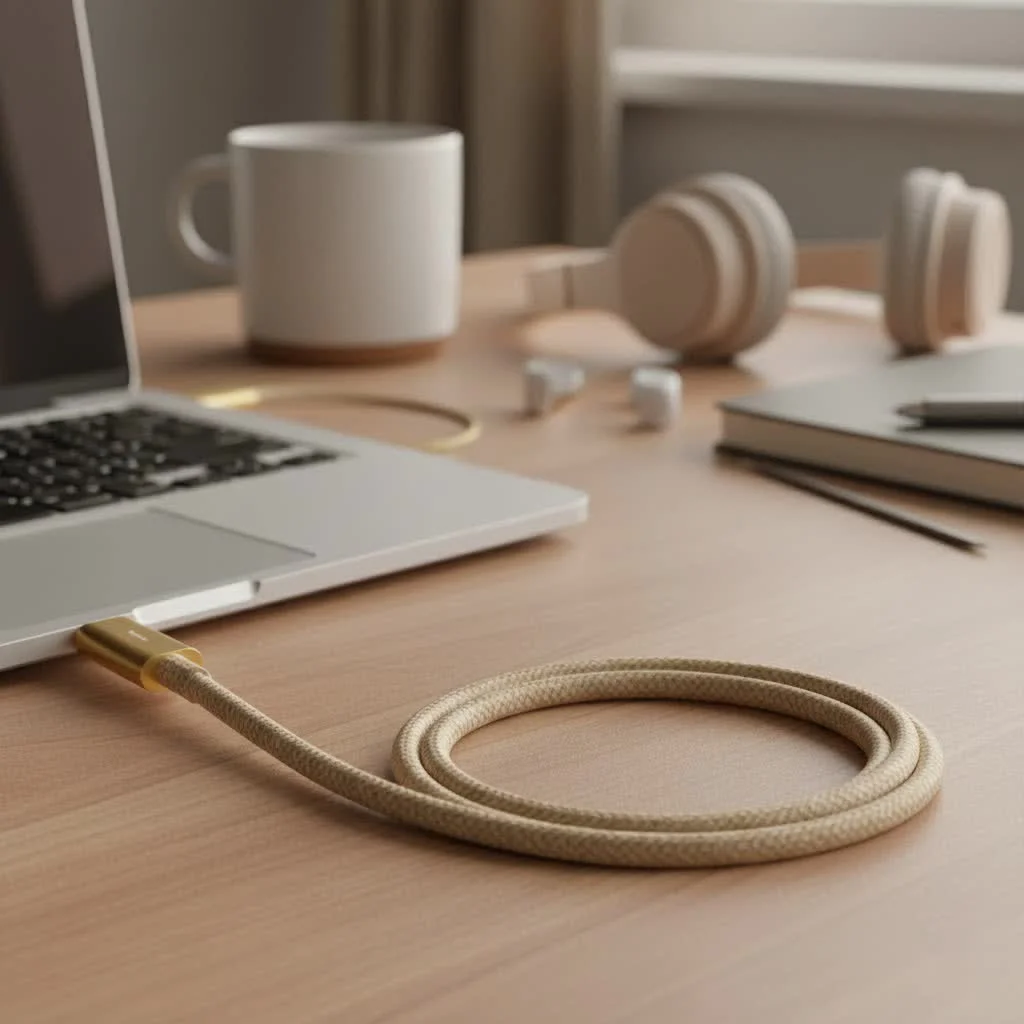
This guide will walk you through everything you need to know. We’ll demystify the technology, show you how to pick the right cable for your needs, and troubleshoot common issues. By the end, you’ll be a connectivity expert, ready to make the most of your tech setup. For shop curated hdmi cables on this site.
What is an HDMI to USB-C Cable, Really?
First, let’s clear up the most common point of confusion. While we call it an “HDMI to USB-C cable,” for 99% of users, the cable actually works in one direction: from a USB-C source device to an HDMI display.
Think of it like this:
- Source (Output): Your laptop, tablet, or smartphone with a USB-C port.
- Destination (Input): Your TV, monitor, or projector with an HDMI port.
So, a more accurate name is a USB-C to HDMI cable. This simple, single-cable solution allows you to send both high-definition video and audio from your modern gadget to a standard display. It’s perfect for movie nights, presentations, or setting up a more ergonomic workstation with an external monitor.
Important Note: A standard HDMI to USB-C cable will not work in reverse. You cannot use it to connect an HDMI source like a PlayStation 5 or Blu-ray player to a monitor that only has a USB-C input. That requires a more complex and specialized adapter.
How It Works: The Magic of “Alternate Mode”
Ever wondered how a versatile USB-C port can suddenly speak the language of HDMI? The secret is a clever piece of technology called DisplayPort Alternate Mode (DP Alt Mode) or HDMI Alternate Mode.
Essentially, this feature allows a USB-C port to transmit non-USB signals—in this case, native DisplayPort or HDMI video and audio data. The cable then acts as a passive bridge, converting the signal format at the HDMI end so your display can understand it.
However, there’s a catch: not all USB-C ports are created equal. For a cable to work, the USB-C port on your source device must support one of these video alternate modes. Many ports, especially on older or budget devices, are for charging and data transfer only.
Before buying a cable, check your device’s specifications for phrases like:
- USB-C with DisplayPort
- DP Alt Mode
- Thunderbolt 3 or Thunderbolt 4 (as these always include video output capabilities)
How to Choose the Perfect HDMI to USB-C Cable
Selecting the right cable is about more than just finding one that fits. To avoid frustration and ensure the best performance, consider these key factors.
Resolution and Refresh Rate Support
|
Our Picks for the Best HDMI Cable in 2026
As an Amazon Associate I earn from qualifying purchases.
|
||
| Num | Product | Action |
|---|---|---|
| 1 | Anker HDMI Cable 8K@60Hz, 6FT Ultra HD 4K@120Hz HDMI Cord,48 Gbps Certified Ultra High-Speed,Compatible with PlayStation 5,Xbox,Samsung TVs,and More |

|
| 2 | Highwings 8K 10K 4K HDMI Cable 48Gbps 6.6FT/2M, Certified Ultra High Speed HDMI Cable Braided Cord-4K@120Hz 8K@60Hz, DTS:X, HDCP 2.2 & 2.3, HDR 10 Compatible with Roku TV/PS5/HDTV/Blu-ray |
|
| 3 | 15 Pack of 10 Foot hdmi Cables |
|
| 4 | Short HDMI Cable 1 FT 2-Pack, 8K HDMI 2.1 48Gbps Ultra High Speed Braided HDMI Cords, 1 Foot HDMI Cable for Camera, Field Monitor, External Recorder, Laptop, PC |
|
| 5 | Highwings Long HDMI Cable 15 FT, 4K 8K 10K HDMI 2.1 Cord Ultra High Speed [in-Wall CL3 Rated, 8K@60Hz 4K@120Hz Video 48Gbps], Fit, Durable, Flexible, eARC, HDCP, Compatible for Ethernet SoundBar |
|
| 6 | Highwings High Speed 8K 60Hz HDMI Cable 3.3FT/1M, 2.1 48Gbps HDMI Braided Cable-4K@120Hz 7680P,DTS:X,HDCP 2.2 & 2.3, HDR 10,eARC,Dynamic HDR,Compatible for Laptop, Monitor, Roku TV |
|
| 7 | Highwings 8K@60 HDMI Cable 10FT/3M, 48Gbps 2.1 High Speed HDMI Braided Nylon 4K120 144Hz RTX 3090 eARC HDR10 4:4:4 HDCP 2.2&2.3 Compatible for PS5, PS4, UHD TV and PC |
|
| 8 | Highwings Long HDMI Cable 20 FT, 10K 8K 4K Ultra HD High Speed 2.1 HDMI Cable 48Gbps Braided Cord-4K@120Hz 8K@60Hz, DTS:X, HDCP 2.2&2.3, Dynamic HDR 10 Compatible with Roku TV/PS5/HDTV/Blu-ray |
|
| 9 | 10K 8K HDMI 2.1 Cable 2-Pack 6.6FT, Highwings Certified 48Gbps Ultra High Speed Slim HDMI Cord,Support 4K@120Hz 8K@60Hz, HDCP 2.2&2.3, Dynamic HDR,eARC,DTS:X, Compatible with Roku TV/HDTV/PS5/Blu-ray |
|
| 10 | Highwings 4K HDMI Cable 6.6FT/2m - High-Speed HDMI 2.0 Quality Cord 4K@60Hz, Braided Nylon & Gold Connectors, HDR, Ethernet, ARC, 3D, HDCP 2.2, Compatible for PS-5/4/3/ HDTV/Monitor/DVD/Streaming |
|
This is the most critical technical specification. It determines how sharp and smooth your picture will be.
- 4K@60Hz: This is the gold standard for most users. It provides ultra-high-definition resolution (3840 x 2160 pixels) at a smooth 60 frames per second, which is ideal for streaming 4K movies and for most productivity tasks.
- 4K@30Hz: A more basic option. While it supports 4K resolution, the lower refresh rate can make mouse movements and on-screen motion appear choppy. It’s fine for static presentations but not recommended for video or gaming.
- 1080p@120Hz or 1440p@144Hz: Gamers might prioritize higher refresh rates over 4K resolution for ultra-smooth gameplay on compatible monitors.
Build Quality and Durability
A cable is only as good as its construction. A poorly made cable can lead to signal dropouts and a short lifespan.
- Braided Nylon Jacket: This adds a layer of protection against kinking, fraying, and daily wear and tear.
- Reinforced Connectors: Look for sturdy aluminum alloy housings that can withstand frequent plugging and unplugging.
- Gold-Plated Contacts: These offer better corrosion resistance and can ensure a more reliable signal transfer over time.
Cable Length
Consider your setup. A shorter 3-foot cable might be perfect for connecting a laptop to a monitor on your desk, keeping things tidy. For connecting to a wall-mounted TV from a couch, you’ll likely need a longer 6-foot or even 10-foot cable to provide enough slack.
Extra Features
Some cables come with added functionality. A popular feature is Power Delivery (PD) integration. These cables often have an extra USB-C port on the HDMI connector, allowing you to charge your laptop or tablet while it’s connected to the display. This is incredibly useful for long movie sessions or workdays, preventing your device’s battery from draining.
Common Problems and Easy Fixes
Even with the right cable, you might run into hiccups. Here’s how to solve the most common issues.
Why am I getting “No Signal” on my display?
This is the most frequent problem and usually comes down to one of three things:
- Incompatible Port: Your device’s USB-C port may not support DP Alt Mode. Check the device specifications to confirm it allows video output.
- Loose Connection: Ensure both the USB-C and HDMI ends are plugged in firmly.
- Incorrect Input: Make sure your TV or monitor is set to the correct HDMI input channel (e.g., HDMI 1, HDMI 2).
Why does the video look blurry or keep cutting out?
Poor video quality or an unstable signal often points to a bandwidth issue.
- Cable Quality: A low-quality, unshielded cable might struggle to handle a 4K signal. Investing in a reputable brand often solves this.
- Cable Length: Very long cables (over 15 feet) can sometimes cause signal degradation.
- Driver Issues: Ensure your computer’s graphics drivers are up to date.
I have video but no sound. What’s wrong?
This is almost always a software setting. Your source device hasn’t automatically switched the audio output.
- On Windows: Right-click the speaker icon in the taskbar, go to “Sound settings,” and choose your TV or monitor from the output device dropdown menu.
- On macOS: Open “System Settings,” go to “Sound,” and in the “Output” tab, select your HDMI-connected display.
As a final piece of advice, we spoke with David Chen, a lead technician with over a decade of experience in home theater installations.
“The number one issue people face is assuming every USB-C port does video. A quick Google search of your laptop’s model number plus ‘video out USB-C’ before you buy a cable can save you a world of frustration. Also, remember that your TV has settings too. If the picture looks odd, check your TV’s picture mode and aspect ratio settings.”
Frequently Asked Questions (FAQ)
Q: Does a USB-C to HDMI cable reduce video quality?
A: No, not if you use a quality cable. Both USB-C (via Alt Mode) and HDMI are digital standards capable of transmitting a perfect, lossless signal. Any quality loss would likely be due to a faulty or poorly made cable that fails to transmit the data correctly.
Q: Can I connect my smartphone or tablet to a TV with this cable?
A: Yes, provided the phone or tablet’s USB-C port supports video output. This feature is common on higher-end devices like Samsung’s Galaxy S series (using DeX mode), iPads with USB-C, and Microsoft Surface devices. Always check your specific model’s compatibility.
Q: What’s the difference between a cable and a small adapter/dongle?
A: Functionally, they do the same thing. A cable is an all-in-one solution. An adapter is a small dongle with a female HDMI port, which then requires a separate, standard HDMI cable to connect to your display. Cables are simpler and create less clutter, while adapters can be more versatile if you already own HDMI cables of various lengths.
Q: Why is my MacBook’s screen flickering when connected?
A: This can sometimes be related to HDCP (High-bandwidth Digital Content Protection), the anti-piracy protocol used by streaming services. Try unplugging and replugging the cable. If that fails, using a certified, high-quality cable from a reputable brand often resolves these handshake issues.
Q: Are all 4K HDMI to USB-C cables the same?
A: No. While many claim 4K support, the key differentiator is the refresh rate. Cheaper cables often only support 4K at 30Hz, while better ones support the much smoother 4K at 60Hz. For the best experience, always look for 4K@60Hz.
The Final Connection
The HDMI to USB-C cable is a simple yet powerful tool for unlocking the full potential of your devices. By understanding the importance of video output support on your source device and choosing a cable that matches your resolution and quality needs, you can ensure a seamless, high-quality viewing experience. Whether for work or play, it’s an essential accessory for modern tech life.
Get our weekly buyer guide
Practical specs, not advice. Unsubscribe anytime.
I got one of these cables for my gaming laptop to connect to my monitor, and while it mostly works, sometimes the audio doesn’t come through right away. I have to unplug and replug it a few times to get it to register. The video is fine, but that audio glitch is a bit annoying. Maybe I just got a slightly faulty one.
I was so confused about connecting my new MacBook to my older 4K TV, and this guide really helped me understand the ‘HDMI to USB-C’ concept. I picked up one of the recommended cables and it works perfectly. The picture quality is stunning, and there’s no lag at all. Definitely a game-changer for movie nights!
Finally, a simple solution for my Samsung tablet! I wanted to mirror my screen to my big display for drawing and editing, and this HDMI to USB-C cable makes it effortless. The clarity is fantastic, and it feels really responsive. I appreciate knowing how to pick the right cable after reading up on it.
This cable has been a lifesaver for presentations. I used to struggle with adapters, but having a single HDMI to USB-C cable makes connecting my tablet to various projectors so much easier. The build quality feels solid, and I haven’t had any issues with signal dropouts. It’s exactly what I needed for my portable setup.