A VGA to HDMI cable, more accurately an active converter, allows users to connect older computers with analog VGA outputs to modern displays with digital HDMI inputs. This device is essential for bridging the gap between analog and digital video technologies, enabling older laptops or desktops to display content on HDMI-only monitors or TVs. Unlike simple cables, these converters contain an active chipset that transforms the analog VGA signal into a digital HDMI signal, often requiring a USB power source and a separate audio input for full functionality.
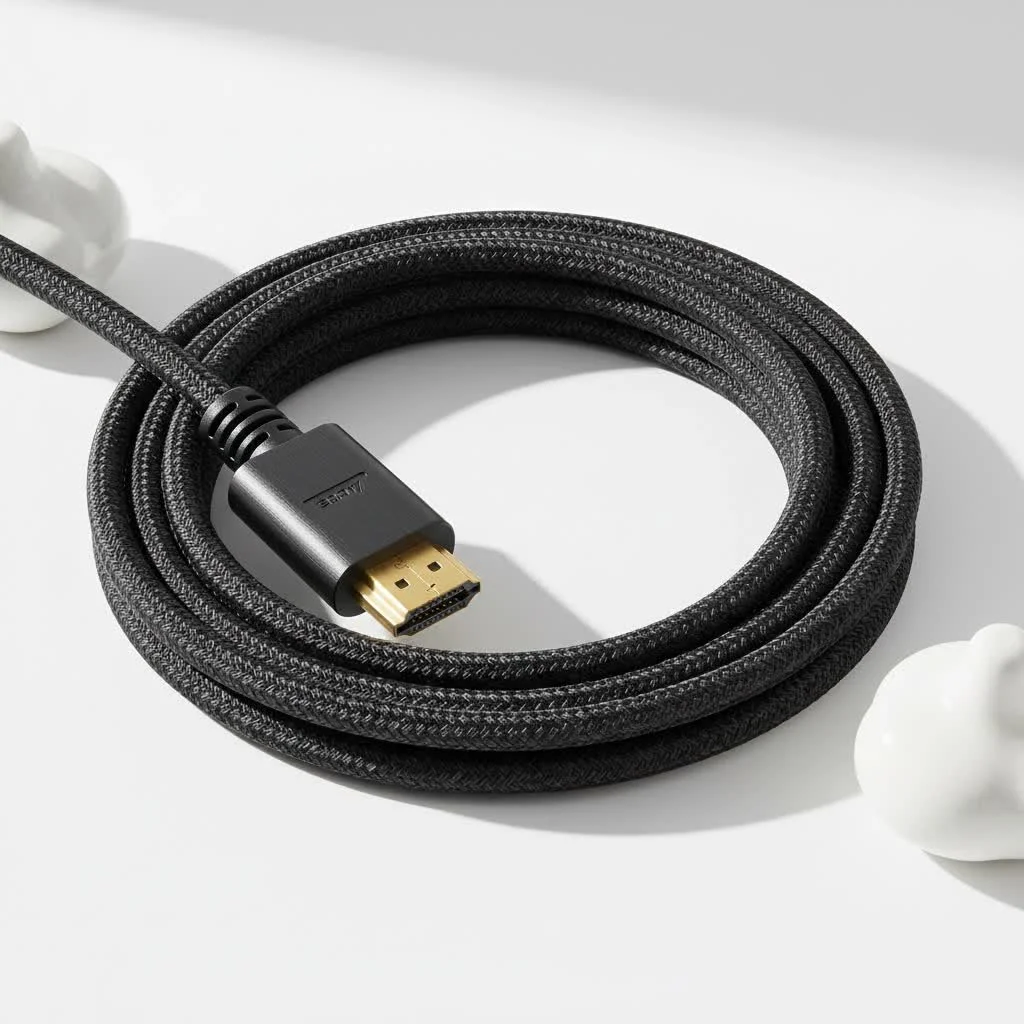 to HDMI converter connecting an old laptop to a modern monitor” style=”margin: 20px auto;width: 800px;max-width: 100%;height: auto” />
However, it’s not always a simple plug-and-play affair. Understanding what these cables do, and more importantly, what they don’t do, is key to getting your picture-perfect setupLet’s dive in and demystify the world of VGA to HDMI conversion.
What is a VGA to HDMI Cable and Why Do You Need It?
A VGA to HDMI cable, more accurately called a VGA to HDMI adapter or converter, is a device designed to connect a computer with an analog VGA (Video Graphics Array) output to a display with a digital HDMI (High-Definition Multimedia Interface) input. Think of it as a bridge connecting two different generations of video technology.
The core issue is that VGA is an analog signal, while HDMI is a digital one. They speak fundamentally different languages.
- VGA: Sends video information as a continuous wave. It’s an older standard, and it only carries video, no audio.
- HDMI: Sends video and audio information as a series of ones and zeros. It’s the modern standard for TVs, monitors, and projectors.
You can’t just have a simple cable that connects the pins; you need a device with an active chipset inside to perform a digital-to-analog conversion. This chip takes the analog signal from your VGA source, converts it into a digital signal, and then sends it out through the HDMI connector to your display.
“A common misconception is that a simple cable can connect VGA to HDMI,” notes tech installation expert, Michael Chen. “In reality, an active converter is required to process the signal. Without that conversion chip, you’ll get no picture at all. It’s the most frequent issue we see in the field.”
How to Choose the Right VGA to HDMI Cable
Not all converters are created equal. When shopping for a VGA to HDMI cable, there are a few critical features to look for to ensure you get a reliable connection and the best possible quality.
Active Conversion is a Must
As mentioned, the device must be an active converter. Passive cables that simply map VGA pins to HDMI pins do not work and are often sold by misleading sellers. Always check the product description for terms like “active converter,” “adapter with chipset,” or “built-in IC chip.”
The Crucial Role of USB Power
|
Our Picks for the Best HDMI Cable in 2026
As an Amazon Associate I earn from qualifying purchases.
|
||
| Num | Product | Action |
|---|---|---|
| 1 | 10K 8K HDMI 2.1 Cable 2-Pack 6.6FT, Highwings Certified 48Gbps Ultra High Speed Slim HDMI Cord,Support 4K@120Hz 8K@60Hz, HDCP 2.2&2.3, Dynamic HDR,eARC,DTS:X, Compatible with Roku TV/HDTV/PS5/Blu-ray |

|
| 2 | Highwings Long HDMI Cable 20 FT, 10K 8K 4K Ultra HD High Speed 2.1 HDMI Cable 48Gbps Braided Cord-4K@120Hz 8K@60Hz, DTS:X, HDCP 2.2&2.3, Dynamic HDR 10 Compatible with Roku TV/PS5/HDTV/Blu-ray |
|
| 3 | Highwings High Speed 8K 60Hz HDMI Cable 3.3FT/1M, 2.1 48Gbps HDMI Braided Cable-4K@120Hz 7680P,DTS:X,HDCP 2.2 & 2.3, HDR 10,eARC,Dynamic HDR,Compatible for Laptop, Monitor, Roku TV |
|
| 4 | Highwings 8K 10K 4K HDMI Cable 48Gbps 6.6FT/2M, Certified Ultra High Speed HDMI Cable Braided Cord-4K@120Hz 8K@60Hz, DTS:X, HDCP 2.2 & 2.3, HDR 10 Compatible with Roku TV/PS5/HDTV/Blu-ray |
|
| 5 | Anker HDMI Cable 8K@60Hz, 6FT Ultra HD 4K@120Hz HDMI Cord,48 Gbps Certified Ultra High-Speed,Compatible with PlayStation 5,Xbox,Samsung TVs,and More |
|
| 6 | Highwings Long HDMI Cable 15 FT, 4K 8K 10K HDMI 2.1 Cord Ultra High Speed [in-Wall CL3 Rated, 8K@60Hz 4K@120Hz Video 48Gbps], Fit, Durable, Flexible, eARC, HDCP, Compatible for Ethernet SoundBar |
|
| 7 | Short HDMI Cable 1 FT 2-Pack, 8K HDMI 2.1 48Gbps Ultra High Speed Braided HDMI Cords, 1 Foot HDMI Cable for Camera, Field Monitor, External Recorder, Laptop, PC |
|
| 8 | Highwings 4K HDMI Cable 6.6FT/2m - High-Speed HDMI 2.0 Quality Cord 4K@60Hz, Braided Nylon & Gold Connectors, HDR, Ethernet, ARC, 3D, HDCP 2.2, Compatible for PS-5/4/3/ HDTV/Monitor/DVD/Streaming |
|
| 9 | Highwings 8K@60 HDMI Cable 10FT/3M, 48Gbps 2.1 High Speed HDMI Braided Nylon 4K120 144Hz RTX 3090 eARC HDR10 4:4:4 HDCP 2.2&2.3 Compatible for PS5, PS4, UHD TV and PC |
|
| 10 | 15 Pack of 10 Foot hdmi Cables |
|
The conversion process requires power. This is typically supplied via a USB cable that is integrated into the adapter. You’ll need to plug this USB cable into a spare port on your computer or a separate USB wall adapter. Without this power source, the converter chip cannot function, and you won’t get a signal.
What About Audio?
This is one of the most important considerations. VGA does not transmit audio. To get sound to your HDMI-equipped TV or monitor (if it has speakers), you need a converter that includes a separate audio input. This is usually a 3.5mm audio jack and an accompanying cable that you plug into your computer’s headphone or line-out port. The converter then cleverly combines this audio signal with the converted video signal and sends them together over the single HDMI cable.
Resolution and Refresh Rate
Most VGA to HDMI converters support a maximum resolution of 1080p (1920×1080) at a 60Hz refresh rate. This is generally the limit for the VGA standard itself. While your modern TV might be 4K, the source device (your VGA computer) is the limiting factor. Ensure the adapter you choose explicitly supports the resolution you need, typically 1080p, for a clear and stable picture.
Step-by-Step: How to Connect Your Devices
Setting up your VGA to HDMI connection is straightforward if you follow these steps:
- Power Down: Turn off your computer and your display (TV or monitor).
- Connect the VGA Cable: Securely plug the VGA connector from the adapter into the VGA port on your computer. If your computer’s port has screw holes, tighten the thumbscrews on the cable to ensure a firm connection.
- Plug in the Audio: Connect the 3.5mm audio cable from the adapter into the headphone or audio-out port on your computer.
- Provide USB Power: Plug the adapter’s USB cable into an available USB port on your computer or a USB power adapter.
- Connect the HDMI Cable: Plug the HDMI end of the adapter (or a separate HDMI cable, if your adapter is a small box) into an available HDMI port on your TV or monitor.
- Power Up and Select Source: Turn on your display first, then your computer. Use your display’s remote or menu buttons to select the correct HDMI input (e.g., HDMI 1, HDMI 2).
- Configure Display Settings: Once your computer boots up, it should automatically detect the new display. If not, go to your display settings (in Windows or macOS) to detect the monitor and set the appropriate resolution, usually 1920×1080.
Common Problems and Troubleshooting Tips
Encountering a black screen or no signal? Don’t panic. The issue is usually one of these common culprits.
Why am I getting “No Signal” on my display?
This is the most frequent problem. The cause is almost always related to power or incorrect settings.
- Check USB Power: Is the USB cable firmly plugged into a working port? The small LED indicator on the converter (if it has one) should be lit. Try a different USB port or a wall charger to rule out a faulty port.
- Select the Right Input: Double-check that your TV or monitor is set to the correct HDMI input channel. It’s an easy mistake to make.
- Secure All Connections: A loose VGA or HDMI cable can interrupt the signal. Ensure all connections are snug.
Why is there no sound?
If you have a picture but no audio, the problem lies with the 3.5mm audio cable.
- Is it Plugged In? Ensure the audio cable is connected to both the adapter and your computer’s audio output (headphone) jack, not the microphone input.
- Check Sound Settings: On your computer, go to the sound settings and make sure the output device is set to “Speakers” or “Headphones,” not the HDMI output (as your computer doesn’t know the adapter is handling audio).
Is a VGA to HDMI Cable Unidirectional?
Yes, absolutely. A VGA to HDMI cable is a one-way street. It only converts a signal from a VGA source to an HDMI display. It cannot be used in reverse to connect an HDMI source (like a PlayStation 5 or a modern laptop) to an older VGA monitor. For that, you would need a specific HDMI to VGA converter, which is a different device entirely.
Final Thoughts: A Smart Solution for Modern Connectivity
The VGA to HDMI cable is an invaluable tool for extending the life of older hardware. It allows you to enjoy content from a classic desktop or laptop on a modern, high-definition screen, perfect for presentations, streaming, or simply creating a larger workspace. By understanding that it’s an active converter requiring power and a separate audio connection, you can easily bridge the analog-digital divide. When choosing your cable, prioritize one with integrated USB power and a 3.5mm audio input to ensure you get the full audio-visual experience without any frustrating hiccups.
Frequently Asked Questions
What is the primary function of a VGA to HDMI cable?
The primary function of a VGA to HDMI cable, which is actually an active converter, is to transform an analog VGA video signal from an older computer into a digital HDMI signal for a modern display. This allows devices with only VGA output to connect to TVs or monitors that only have HDMI inputs, bridging two different video technology standards.
Do VGA to HDMI cables transmit audio signals?
No, standard VGA connections do not transmit audio. To get sound, a VGA to HDMI converter must include a separate 3.5mm audio input jack. You connect an audio cable from your computer's headphone port to this input, and the converter then combines the audio with the video signal for output via HDMI.
Is a USB power source required for a VGA to HDMI converter?
Yes, a USB power source is almost always required for a VGA to HDMI converter because the active chipset inside needs power to perform the analog-to-digital conversion. This power is typically supplied via an integrated USB cable that plugs into a computer's USB port or a separate USB wall adapter.
Can a VGA to HDMI cable be used to connect an HDMI source to a VGA monitor?
No, a VGA to HDMI cable is unidirectional and only converts signals from VGA to HDMI. It cannot be used in reverse to connect an HDMI source, such as a modern laptop or gaming console, to an older VGA monitor. For that specific purpose, a dedicated HDMI to VGA converter is required.
What is the maximum resolution supported by most VGA to HDMI converters?
Most VGA to HDMI converters support a maximum resolution of 1080p (1920x1080) at a 60Hz refresh rate. This resolution is generally the upper limit for the VGA standard itself, meaning that even if your display is 4K, the output will be limited by the VGA source and the converter's capabilities.
How to Connect Devices Using a VGA to HDMI Cable
Follow these steps to successfully connect your older computer with a VGA output to a modern display using an active VGA to HDMI converter, ensuring both video and audio are transmitted.
First, power down both your computer and display. Securely plug the VGA connector from the adapter into your computer's VGA port, tightening any thumbscrews. Then, connect the 3.5mm audio cable from the adapter into your computer's headphone or audio-out port.
Plug the adapter's USB cable into an available USB port on your computer or a dedicated USB power adapter. This step is crucial as the converter requires power to function and convert the analog signal to digital.
Plug the HDMI end of the adapter (or a separate HDMI cable) into an available HDMI port on your TV or monitor. Turn on your display first, then your computer. Use your display's remote to select the correct HDMI input source (e.g., HDMI 1).
Once your computer boots, it should automatically detect the new display. If not, navigate to your computer's display settings (in Windows or macOS) to manually detect the monitor and set the appropriate resolution, typically 1920x1080 for optimal clarity.
Get our weekly buyer guide
Practical specs, not advice. Unsubscribe anytime.
I needed to connect my old desktop to a new monitor and this converter worked perfectly. I was worried about the audio since my old PC only has VGA, but the separate audio input on the converter handled it like a champ. Setup was straightforward, and I’m really happy I didn’t have to buy a whole new computer just for a display upgrade.
This active converter is a lifesaver for my vintage gaming rig! I can finally play my old favorites on my modern TV. The picture quality is surprisingly good, much better than I expected for converting an analog signal. Just remember it needs that USB power source, which was a minor extra step but totally worth it.
Absolutely essential for my home office setup! I have an older work laptop that only has a VGA port, and my new external monitor is HDMI only. This converter bridges the gap perfectly. The active chipset really makes a difference in signal quality, and I haven’t experienced any lag or distortion. Highly recommend for anyone in a similar situation.
It mostly works, but I had a bit of a struggle getting it to recognize my laptop at first. It wasn’t quite the plug-and-play experience I hoped for, and I had to fiddle with display settings for a while. Once it connected, the video was fine, but the initial setup was a little frustrating. Good for the price though.