To connect a Mac to an external display via HDMI, users need to identify their Mac’s port type, which is typically USB-C (Thunderbolt 3/4/5) on newer models, a dedicated HDMI port on some 2021+ MacBook Pros, or Mini DisplayPort (Thunderbolt 2) on older Macs. The best HDMI cable for Mac depends on the Mac’s port and the desired resolution/refresh rate, with options including direct USB-C to HDMI cables, multi-port adapters, or standard HDMI to HDMI cables for built-in ports.
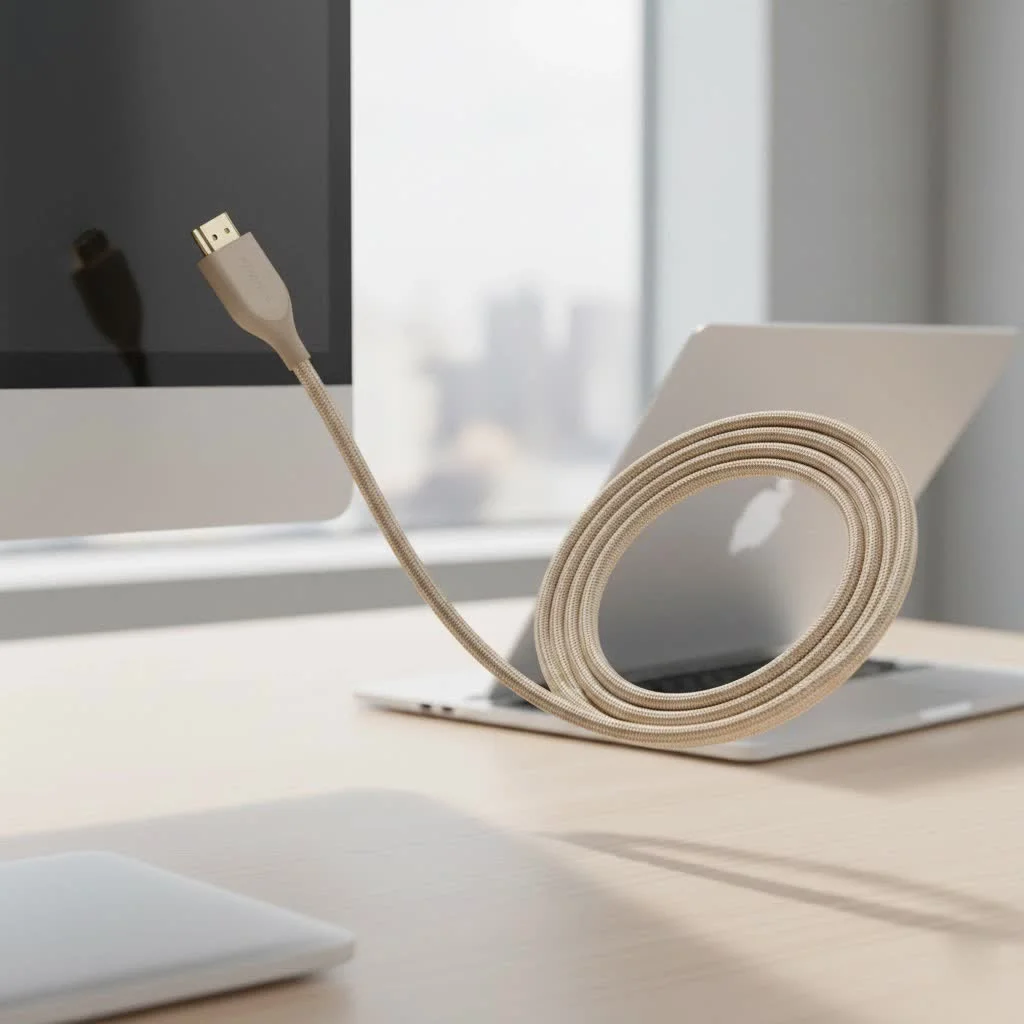
Whether you’re a creative professional needing pixel-perfect color accuracy, a student setting up a dual-monitor workstation, or just want to stream movies on the big screen, the right connection is crucial. This guide will walk you through everything you need to know, from identifying your Mac’s ports to choosing the cable with the features that matter most for your setup.
First Step: What Port Does Your Mac Have?
Before you can buy an HDMI cable for Mac, you need to know what you’re plugging it into. Apple has used a few different ports over the years, so a quick check is the most important first step.
-
USB-C (Thunderbolt 3/4/5): This is the modern standard on nearly all recent MacBook Pro, MacBook Air, iMac, and Mac mini models. It’s a small, oval-shaped port. These ports are incredibly versatile, handling data, power, and video. If your Mac has these, you have two main options: a direct USB-C to HDMI cable or a multi-port adapter.
-
HDMI Port: Some Mac models, particularly certain MacBook Pro (2021 and later), Mac mini, and Mac Studio models, come equipped with a built-in HDMI port. This is the familiar, trapezoid-shaped port you see on TVs. If you have one of these, you’re in luck—all you need is a standard HDMI to HDMI cable.
-
Mini DisplayPort (Thunderbolt 2): Found on older Mac models (typically from 2011 to 2015), this port is smaller and more rectangular than USB-C. If your Mac has this, you’ll need a Mini DisplayPort to HDMI adapter or cable.
To be certain, click the Apple logo in the top-left corner of your screen, select “About This Mac,” and then “System Report.” This will give you the exact model and year, making it easy to confirm your port types.
Cable vs. Adapter: Which is Right for You?
Once you’ve identified your ports, your next choice is between a single-purpose cable or a more versatile adapter.
The Case for a Direct Cable (USB-C to HDMI)
For a clean and simple setup, a direct USB-C to HDMI cable is often the best choice. This is a single cable with a USB-C connector on one end and an HDMI connector on the other.
- Pros: Minimal clutter, strong signal integrity, and less chance of a connection point failing. It’s a plug-and-play solution.
- Cons: It only serves one purpose. If you also need to connect USB-A devices or an SD card, you’ll need a separate adapter anyway.
The Case for an Adapter or Hub
|
Our Picks for the Best HDMI Cable in 2026
As an Amazon Associate I earn from qualifying purchases.
|
||
| Num | Product | Action |
|---|---|---|
| 1 | Anker HDMI Cable 8K@60Hz, 6FT Ultra HD 4K@120Hz HDMI Cord,48 Gbps Certified Ultra High-Speed,Compatible with PlayStation 5,Xbox,Samsung TVs,and More |

|
| 2 | Highwings 4K HDMI Cable 6.6FT/2m - High-Speed HDMI 2.0 Quality Cord 4K@60Hz, Braided Nylon & Gold Connectors, HDR, Ethernet, ARC, 3D, HDCP 2.2, Compatible for PS-5/4/3/ HDTV/Monitor/DVD/Streaming |
|
| 3 | Highwings Long HDMI Cable 15 FT, 4K 8K 10K HDMI 2.1 Cord Ultra High Speed [in-Wall CL3 Rated, 8K@60Hz 4K@120Hz Video 48Gbps], Fit, Durable, Flexible, eARC, HDCP, Compatible for Ethernet SoundBar |
|
| 4 | Highwings 8K@60 HDMI Cable 10FT/3M, 48Gbps 2.1 High Speed HDMI Braided Nylon 4K120 144Hz RTX 3090 eARC HDR10 4:4:4 HDCP 2.2&2.3 Compatible for PS5, PS4, UHD TV and PC |
|
| 5 | Highwings High Speed 8K 60Hz HDMI Cable 3.3FT/1M, 2.1 48Gbps HDMI Braided Cable-4K@120Hz 7680P,DTS:X,HDCP 2.2 & 2.3, HDR 10,eARC,Dynamic HDR,Compatible for Laptop, Monitor, Roku TV |
|
| 6 | Short HDMI Cable 1 FT 2-Pack, 8K HDMI 2.1 48Gbps Ultra High Speed Braided HDMI Cords, 1 Foot HDMI Cable for Camera, Field Monitor, External Recorder, Laptop, PC |
|
| 7 | 15 Pack of 10 Foot hdmi Cables |
|
| 8 | Highwings Long HDMI Cable 20 FT, 10K 8K 4K Ultra HD High Speed 2.1 HDMI Cable 48Gbps Braided Cord-4K@120Hz 8K@60Hz, DTS:X, HDCP 2.2&2.3, Dynamic HDR 10 Compatible with Roku TV/PS5/HDTV/Blu-ray |
|
| 9 | Highwings 8K 10K 4K HDMI Cable 48Gbps 6.6FT/2M, Certified Ultra High Speed HDMI Cable Braided Cord-4K@120Hz 8K@60Hz, DTS:X, HDCP 2.2 & 2.3, HDR 10 Compatible with Roku TV/PS5/HDTV/Blu-ray |
|
| 10 | 10K 8K HDMI 2.1 Cable 2-Pack 6.6FT, Highwings Certified 48Gbps Ultra High Speed Slim HDMI Cord,Support 4K@120Hz 8K@60Hz, HDCP 2.2&2.3, Dynamic HDR,eARC,DTS:X, Compatible with Roku TV/HDTV/PS5/Blu-ray |
|
A USB-C to HDMI adapter or a multi-port hub is the champion of versatility. These dongles plug into your Mac’s USB-C port and offer an HDMI port, along with other connections like USB-A, SD card readers, and even Ethernet.
- Pros: Connect multiple devices at once. A single hub can turn your MacBook into a full-fledged desktop workstation. It’s a great solution for users who need flexibility.
- Cons: Can be bulkier and adds another link in the connection chain where issues could potentially arise.
“For most users, especially those with a newer MacBook, a quality USB-C hub with HDMI is a fantastic investment,” notes Johnathan Carter, a home theater installation expert. “It solves the display connection issue while also bringing back the ports that many of us still rely on daily. Just ensure it explicitly supports the resolution and refresh rate you need.”
Key Features to Look For in an HDMI Cable for Mac
Not all HDMI cables are created equal. The version of the HDMI standard a cable supports determines its capabilities. Here’s what to look for based on your needs.
Resolution and Refresh Rate
This is the most critical specification. It dictates the clarity and smoothness of your picture.
-
4K at 60Hz (HDMI 2.0): This is the sweet spot for most users. It provides an ultra-sharp image at a smooth 60 frames per second, which is perfect for 4K video streaming, general productivity, and photo editing. Most modern Macs and 4K displays support this standard. To achieve this, you need a cable or adapter rated for HDMI 2.0 and ensure your Mac’s port supports it.
-
4K at 120Hz or 8K at 60Hz (HDMI 2.1): This is the high-performance tier, essential for serious gamers or professional video editors working with high-frame-rate 4K or 8K footage. HDMI 2.1 offers significantly more bandwidth. Only newer Mac models with advanced M-series chips (like the M2 Pro/Max and later) can output these higher refresh rates over their HDMI port. You must use a certified Ultra High Speed HDMI 2.1 cable to get these results.
HDR (High Dynamic Range)
HDR dramatically improves contrast and color, making for a more vibrant and lifelike picture. If you have an HDR-capable monitor or TV (like an OLED), ensure your cable and adapter both support HDR to take full advantage of it.
Build Quality
While you don’t need to spend a fortune, build quality matters for durability and signal reliability. Look for:
- Braided Nylon Jacket: Adds durability and prevents tangling.
- Gold-Plated Connectors: Resist corrosion and ensure a stable connection.
- Snug Fit: The connectors should fit securely into the ports without wiggling.
Common Scenarios and Recommendations
Let’s put it all together. Here’s how to choose the right HDMI cable for Mac based on your setup.
For the Everyday User (MacBook Air, iMac)
- Your Need: Connecting to a standard 1080p or 4K monitor/TV for web browsing, streaming, and office work.
- Our Recommendation: A reliable USB-C to HDMI cable that supports 4K at 60Hz. This provides a crisp, fluid experience for all general tasks and is future-proof for most common displays. A multi-port adapter with these specs is also a great choice if you need other ports.
For the Creative Professional (MacBook Pro, Mac Studio)
- Your Need: Connecting to a high-resolution, color-accurate 4K or 5K monitor for video editing, graphic design, or photography.
- Our Recommendation: Prioritize signal integrity. A high-quality, direct USB-C to HDMI 2.0 cable is ideal. If you’re working with 8K or high-frame-rate video, you’ll need a Mac that supports HDMI 2.1 and a certified Ultra High Speed HDMI 2.1 cable to match.
For the Gamer (Any M-Series Mac)
- Your Need: Connecting to a high-refresh-rate gaming monitor (120Hz or higher) to get the smoothest gameplay possible.
- Our Recommendation: This is where HDMI 2.1 becomes non-negotiable. Check that your Mac can output 4K at 120Hz over HDMI. If it can, you must buy an Ultra High Speed HDMI 2.1 cable. If your Mac only supports this over Thunderbolt/USB-C, you may need a specific USB-C to DisplayPort cable instead, as DisplayPort often offers higher refresh rates.
Frequently Asked Questions (FAQ)
1. Do I need a special Apple-branded HDMI adapter?
No, you don’t need an official Apple adapter. Many third-party brands like Anker, Belkin, and Uni make excellent, reliable cables and adapters that often offer better value or more features. Just stick to reputable brands with good reviews.
2. Can an HDMI cable for Mac also carry audio?
Yes, the HDMI standard carries both video and audio signals. Once connected, go to System Settings > Sound > Output and select your HDMI-connected device (your TV or monitor) as the audio output.
3. Why is my Mac not detecting the external display?
First, check that the cable is securely plugged in on both ends. Try a different HDMI port on your display. If you’re using an adapter, ensure it doesn’t require external power. Finally, go to System Settings > Displays and press the “Option” key; this should reveal a “Detect Displays” button.
4. What’s the difference between HDMI and DisplayPort for a Mac?
Both are digital video standards. For many users, the performance is identical. However, DisplayPort (often used over a USB-C connection) can sometimes support higher resolutions and refresh rates than the HDMI port on the same Mac. For gaming or ultra-high-res displays, it’s worth checking which connection gives you the best performance.
5. How long of an HDMI cable can I use?
For standard 4K at 60Hz, a passive HDMI cable can reliably run up to 15 feet (about 5 meters). For higher-bandwidth signals like 8K or 4K at 120Hz, it’s best to keep the cable length under 10 feet (3 meters) to avoid signal degradation. For longer runs, you may need an active (powered) optical HDMI cable.
Your Perfect Picture Awaits
Choosing the right HDMI cable for Mac doesn’t have to be complicated. By first identifying your Mac’s ports and then matching the cable’s features to your specific needs—whether it’s for 4K streaming or high-refresh-rate gaming—you can ensure a flawless and reliable connection every time. A stable, high-quality picture is the final step in unlocking your Mac’s full potential on a bigger screen. Now go ahead and get connected.
Get our weekly buyer guide
Practical specs, not advice. Unsubscribe anytime.
I got a multi-port adapter based on the advice here, and while it works for my dual-monitor setup, the adapter itself gets a bit warm. It’s not a huge deal, and the display quality is fine for my student workstation, but I was hoping for something that ran a little cooler. Still, it does the job.
Finally got my Mac Mini hooked up to my 4K TV for streaming movies! I used a standard HDMI to HDMI cable since my model had a dedicated port, and the clarity is amazing. No lag, perfect sound. This guide was spot on about checking for those built-in ports first. So happy with the results!
I was so confused about connecting my new MacBook Air to my old monitor. This guide really helped me figure out that I needed a USB-C to HDMI cable. The picture quality is fantastic, and it was super easy to set up. Definitely recommend checking your Mac’s port type first, it makes all the difference!
My older MacBook Pro has a Mini DisplayPort, and finding the right adapter was a bit of a pain. This guide pointed me in the right direction for a Mini DisplayPort to HDMI adapter. It works perfectly for my creative professional needs, giving me that pixel-perfect color accuracy on my external display. Just wish those older adapters were easier to find in stores.