HDMI and USB cables serve distinct purposes: HDMI (High-Definition Multimedia Interface) is designed exclusively for high-quality video and audio transmission, while USB (Universal Serial Bus) primarily handles data transfer and power delivery. They are not interchangeable without specific adapters or cables that convert signals, such as a USB-C to HDMI cable or an HDMI to USB capture card, which enable modern devices to bridge these functionalities.
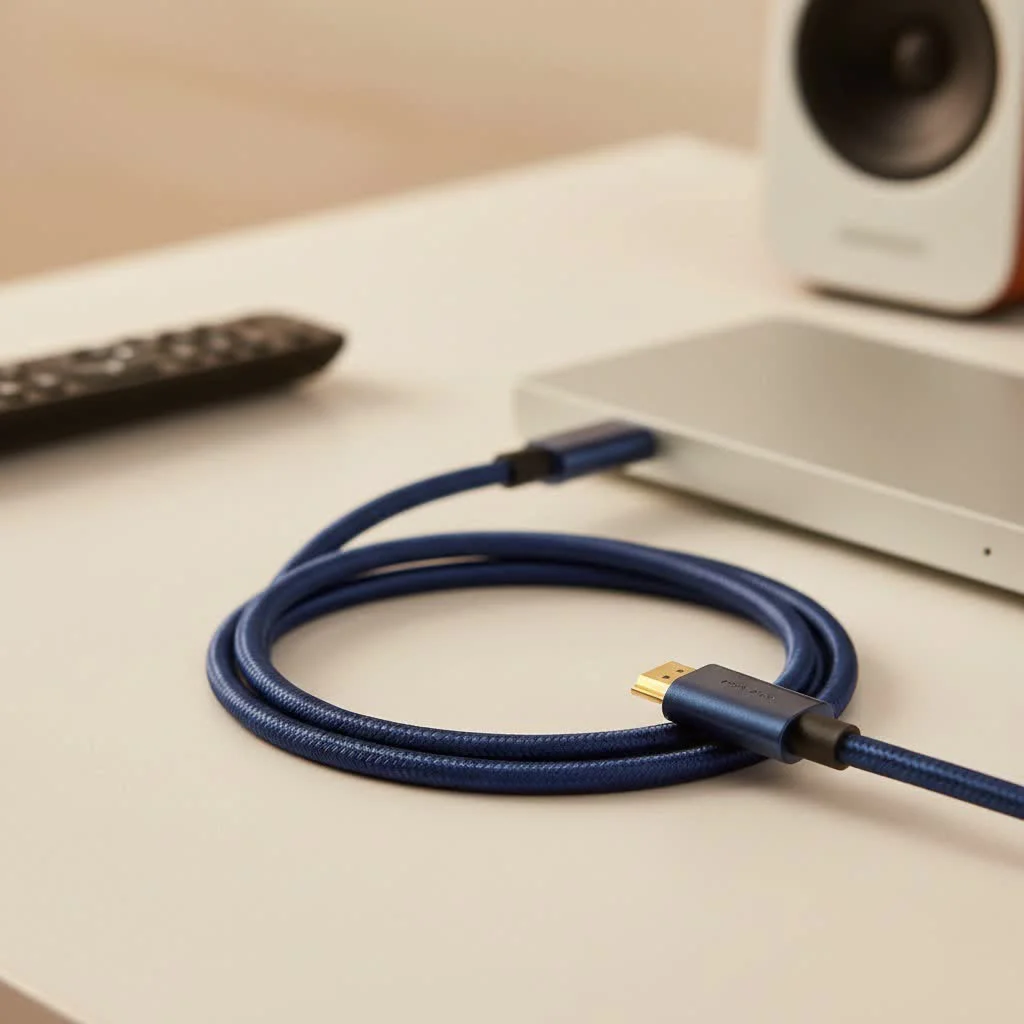
Welcome to the definitive Iecfl Tech guide. We’re here to cut through the jargon and demystify the relationship between HDMI and USB cables. By the end of this article, you’ll understand their core differences, know exactly which cable or adapter you need for any situation, and be able to build a more efficient and powerful tech setup, whether it’s for gaming, work, or home entertainment. For expert hdmi cables reviews on this site.
The Core Difference: Apples and Oranges
Before we dive into adapters and modern solutions, it’s crucial to understand that HDMI and USB were born for entirely different purposes. Think of them as two different languages; you can’t just connect them and expect them to communicate without a translator.
What is an HDMI Cable?
HDMI stands for High-Definition Multimedia Interface. Its name tells you everything. It was designed with one primary goal: to transmit huge amounts of uncompressed high-quality video and audio data over a single cable.
- Primary Use: Connecting video sources to displays.
- Common Devices: TVs, gaming consoles (PlayStation, Xbox), Blu-ray players, projectors, and AV receivers.
- Function: It’s a one-way street for a rich audio-visual experience.
What is a USB Cable?
USB, or Universal Serial Bus, is the jack-of-all-trades in the cable world. Its main job is data transfer and providing power between a host (like a computer) and various peripherals.
- Primary Use: Connecting peripherals and charging devices.
- Common Devices: Keyboards, mice, printers, external hard drives, smartphones, and webcams.
- Function: It’s a two-way street for data and power, but traditionally not for native video.
This fundamental difference is why a simple cable with an HDMI connector on one end and a standard rectangular USB-A connector on the other can’t transmit video from your laptop to your TV. They don’t speak the same language.
The major upgrade: USB-C and Video
The confusion between HDMI and USB truly began with the introduction of the USB-C connector. This small, reversible port is far more than just a new shape; it’s a powerhouse of versatility thanks to a feature called DisplayPort Alternate Mode (or Alt Mode).
In simple terms, Alt Mode allows a USB-C port to transmit a direct video signal—just like an HDMI or DisplayPort cable. This capability transforms USB-C from a simple data and power port into an all-in-one connectivity solution, making it a standard feature on modern laptops, tablets, and even phones.
The All-in-One Solution: USB-C to HDMI Cables
|
Our Picks for the Best HDMI Cable in 2026
As an Amazon Associate I earn from qualifying purchases.
|
||
| Num | Product | Action |
|---|---|---|
| 1 | Highwings Long HDMI Cable 20 FT, 10K 8K 4K Ultra HD High Speed 2.1 HDMI Cable 48Gbps Braided Cord-4K@120Hz 8K@60Hz, DTS:X, HDCP 2.2&2.3, Dynamic HDR 10 Compatible with Roku TV/PS5/HDTV/Blu-ray |

|
| 2 | Short HDMI Cable 1 FT 2-Pack, 8K HDMI 2.1 48Gbps Ultra High Speed Braided HDMI Cords, 1 Foot HDMI Cable for Camera, Field Monitor, External Recorder, Laptop, PC |
|
| 3 | 10K 8K HDMI 2.1 Cable 2-Pack 6.6FT, Highwings Certified 48Gbps Ultra High Speed Slim HDMI Cord,Support 4K@120Hz 8K@60Hz, HDCP 2.2&2.3, Dynamic HDR,eARC,DTS:X, Compatible with Roku TV/HDTV/PS5/Blu-ray |
|
| 4 | Highwings 8K 10K 4K HDMI Cable 48Gbps 6.6FT/2M, Certified Ultra High Speed HDMI Cable Braided Cord-4K@120Hz 8K@60Hz, DTS:X, HDCP 2.2 & 2.3, HDR 10 Compatible with Roku TV/PS5/HDTV/Blu-ray |
|
| 5 | 15 Pack of 10 Foot hdmi Cables |
|
| 6 | Anker HDMI Cable 8K@60Hz, 6FT Ultra HD 4K@120Hz HDMI Cord,48 Gbps Certified Ultra High-Speed,Compatible with PlayStation 5,Xbox,Samsung TVs,and More |
|
| 7 | Highwings High Speed 8K 60Hz HDMI Cable 3.3FT/1M, 2.1 48Gbps HDMI Braided Cable-4K@120Hz 7680P,DTS:X,HDCP 2.2 & 2.3, HDR 10,eARC,Dynamic HDR,Compatible for Laptop, Monitor, Roku TV |
|
| 8 | Highwings 4K HDMI Cable 6.6FT/2m - High-Speed HDMI 2.0 Quality Cord 4K@60Hz, Braided Nylon & Gold Connectors, HDR, Ethernet, ARC, 3D, HDCP 2.2, Compatible for PS-5/4/3/ HDTV/Monitor/DVD/Streaming |
|
| 9 | Highwings Long HDMI Cable 15 FT, 4K 8K 10K HDMI 2.1 Cord Ultra High Speed [in-Wall CL3 Rated, 8K@60Hz 4K@120Hz Video 48Gbps], Fit, Durable, Flexible, eARC, HDCP, Compatible for Ethernet SoundBar |
|
| 10 | Highwings 8K@60 HDMI Cable 10FT/3M, 48Gbps 2.1 High Speed HDMI Braided Nylon 4K120 144Hz RTX 3090 eARC HDR10 4:4:4 HDCP 2.2&2.3 Compatible for PS5, PS4, UHD TV and PC |
|
The most common and useful hybrid cable today is the USB-C to HDMI cable. This is a simple, plug-and-play solution for a very common need: connecting a modern device with a USB-C port to a display that uses HDMI.
- How it Works: The cable takes the native video signal from the USB-C port on your laptop, tablet, or phone and converts it to the HDMI format your TV or monitor understands.
- Top Use Case: Easily mirroring your MacBook or Windows laptop screen on a big-screen TV, or using an external monitor as a second display.
- Benefits: It’s a single-cable solution that supports high resolutions like 4K and even 8K, with no need for extra software or power adapters.
HDMI vs. USB-C for Your Monitor: Which is Better?
If your monitor and laptop both have HDMI and USB-C ports, which should you use? The best choice depends on your needs.
| Feature | HDMI | USB-C |
|---|---|---|
| Primary Function | Video and Audio | Video, Audio, Data, Power |
| Power Delivery | No | Yes (Can power/charge your laptop) |
| Data Transfer | Limited (Ethernet on some versions) | Yes (Acts as a USB hub) |
| Simplicity | Plug-and-play for AV | Single-cable solution for everything |
| Best For | Home theater, gaming consoles | Minimalist desk setups, laptop users |
“As a home theater installer, I always tell my clients, ‘Use HDMI for your media players and consoles for maximum compatibility, but embrace USB-C for your laptop setup.’ It simplifies your desk and reduces cable clutter like nothing else.” – Michael Foster, Lead Technician at Digital Domain Installations.
Bridging the Gap: How to Connect HDMI Sources to USB Inputs
Here is one of the most common questions we get: “How can I connect my PS5, camera, or another HDMI device to my laptop and use the laptop screen as a monitor?”
Many people try to plug a cable into their laptop’s HDMI port, only to find it doesn’t work. That’s because the HDMI port on virtually every laptop is an output, not an input. It’s designed to send a signal out to a monitor, not take one in.
To accomplish this, you need an active translator.
The Essential Tool: The HDMI to USB Capture Card
The solution is a device called an HDMI to USB capture card (or video grabber). This is not a simple cable; it’s a small, active piece of hardware that converts the signal.
- What It Is: A capture card is an adapter with an HDMI input port on one side and a USB output on the other.
- How It Works: It takes the video feed from your HDMI source (like a camera or gaming console) and converts it into a standard webcam signal. When you plug it into your computer’s USB port, your computer simply recognizes it as a new video source, just like a built-in webcam.
- Key Use Cases:
- Live Streaming: Connect your gaming console to your computer to stream on platforms like Twitch or YouTube.
- High-Quality Webcam: Use your professional DSLR or mirrorless camera as a webcam for crystal-clear video calls.
- Recording: Record gameplay or any other video content from an HDMI device directly onto your computer.
Common Questions and Troubleshooting
Let’s clear up some final points and common issues.
Can a USB to HDMI cable work both ways?
No. Most USB-C to HDMI cables are unidirectional, meaning they are designed to send a signal from a USB-C source to an HDMI display. They will not work in reverse to connect an HDMI source to a USB-C monitor. For that, you need a specific, often powered, HDMI to USB-C converter cable.
Do I need drivers for a USB-C to HDMI cable?
Almost never. For modern operating systems like Windows, macOS, and ChromeOS, these cables are plug-and-play. As long as your device’s USB-C port supports DisplayPort Alt Mode, it should work instantly.
Why isn’t my HDMI to USB adapter working?
If you’re using a capture card, check these things:
- Is it powered? Some larger capture cards require external power.
- Are you in the right port? Ensure you are using a fast enough USB port (like USB 3.0) for the best performance.
- Is it selected as the source? In your software (like OBS, Zoom, or Teams), make sure you’ve selected the capture card as your video source.
Can I connect my phone to a TV with a USB cable?
Yes, if you have the right phone and cable. Many modern Android phones with USB-C ports support video output. Using a USB-C to HDMI cable or adapter is a great way to watch movies or play mobile games on a big screen.
The Right Connection for the Right Job
Navigating the world of the HDMI and USB cable doesn’t have to be complicated. It all comes down to understanding the core purpose of each standard and knowing which tool to use for the job.
To recap:
- HDMI is your dedicated, high-performance standard for audio and video.
- USB is the versatile workhorse for data and power.
- USB-C is the modern bridge between these two worlds, capable of handling video, data, and power all at once.
Whether you need a simple USB-C to HDMI cable to expand your laptop’s display or a powerful HDMI to USB capture card to start your streaming career, choosing the right connector will unlock the full potential of your devices. Now you can make an informed decision and build the seamless, powerful setup you’ve always wanted.
Frequently Asked Questions
What is the fundamental difference between HDMI and USB cables?
HDMI (High-Definition Multimedia Interface) cables are specifically designed for transmitting high-quality uncompressed video and audio signals, typically in one direction from a source to a display. USB (Universal Serial Bus) cables, on the other hand, are primarily used for data transfer, power delivery, and connecting peripherals, offering two-way communication.
Can a standard USB-A to HDMI cable transmit video from a laptop to a TV?
No, a standard USB-A to HDMI cable cannot transmit video from a laptop to a TV because USB-A ports do not natively support video output in the same way HDMI ports do. These two standards operate on different protocols and require an active converter or a USB-C port with DisplayPort Alt Mode for video transmission.
How does USB-C enable video output to an HDMI display?
USB-C enables video output to an HDMI display through DisplayPort Alternate Mode (Alt Mode), which allows the USB-C port to transmit a direct video signal. A USB-C to HDMI cable or adapter converts this signal into the HDMI format, making it compatible with TVs and monitors. This feature is common on modern laptops, tablets, and some smartphones.
What is an HDMI to USB capture card used for?
An HDMI to USB capture card is an active hardware device that converts an HDMI video feed into a standard webcam signal, allowing it to be recognized by a computer's USB port. This device is essential for live streaming gaming consoles, using a DSLR camera as a high-quality webcam, or recording video content from an HDMI source directly onto a computer.
Do USB-C to HDMI cables require special drivers to function?
No, USB-C to HDMI cables almost never require special drivers for modern operating systems like Windows, macOS, and ChromeOS. As long as the device's USB-C port supports DisplayPort Alt Mode, these cables are typically plug-and-play and will work instantly without additional software.
Can I connect my smartphone to a TV using a USB cable for video?
Yes, you can connect many modern Android smartphones with USB-C ports to a TV for video output. This is achieved by using a USB-C to HDMI cable or adapter, which leverages the phone's USB-C port's ability to transmit video signals. This setup allows users to watch movies or play mobile games on a larger screen.
Get our weekly buyer guide
Practical specs, not advice. Unsubscribe anytime.
I was so confused about connecting my new laptop to my older monitor, especially with all the different ports. This guide really helped me understand the difference between HDMI and USB-C. I ended up getting a USB-C to HDMI cable as recommended, and it works perfectly for extending my display for work. No more flickering or signal drops!
The info on HDMI to USB capture cards was interesting, but I found it a bit dense. I was hoping for a simpler explanation of how to stream my old camcorder footage to my PC. It did clarify that I needed an adapter, but the specific product type was still a little unclear for my exact use case. Still, it’s a good starting point.
Finally, a clear explanation! I’ve been trying to figure out why my tablet wouldn’t connect to my TV with a regular USB cable. Understanding that HDMI is for video and audio, and USB is for data and power, made all the difference. I picked up a simple HDMI adapter for my tablet, and now I can watch movies on the big screen with no hassle. Great guide for home entertainment setups.
Good breakdown of the core differences. I always thought a USB cable could handle video if it was fast enough, but now I get why HDMI is dedicated for that. I used the advice to pick out a better HDMI cable for my gaming console, and the picture quality on my 4K TV is noticeably sharper. Wish they had a few more specific brand recommendations though.