A USB C to HDMI cable allows you to connect devices with a USB-C port to displays with an HDMI port, transmitting both video and audio signals. This single-cable solution leverages DisplayPort Alternate Mode (DP Alt Mode) technology, which enables the USB-C port to carry a native DisplayPort video signal, converting it to HDMI for seamless plug-and-play functionality without external power or software drivers.

This guide will cover everything you need to know, from how it works to choosing the perfect cable for your setup, helping you unlock the full potential of your tech.
What Exactly Is a USB C to HDMI Cable?
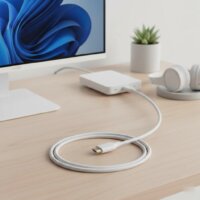
At its core, a USB C to HDMI cable is a single-cable solution designed to transmit both video and audio signals from a device with a USB-C port to a display with an HDMI port. Think of it as a modern translator, allowing your new MacBook, iPad Pro, or Android phone to speak the universal language of TVs, monitors, and projectors.
But how does it work without a bulky adapter? The secret lies in a technology called DisplayPort Alternate Mode, or “DP Alt Mode.”
The Magic of DP Alt Mode
Not all USB-C ports are created equal. For a USB C to HDMI cable to work, the USB-C port on your source device (like your laptop or phone) must support DP Alt Mode. This feature allows the USB-C connector, known for its versatility in charging and data transfer, to carry a native DisplayPort video signal.
The cable then takes this DisplayPort signal and actively converts it into the HDMI format that your TV or monitor understands. It’s a seamless, plug-and-play experience that requires no external power or software drivers.
“The beauty of DP Alt Mode is its integration,” notes tech specialist Jennifer Roswell. “It turned the multi-purpose USB-C port into a universal video-out solution without adding clutter. It’s the unsung hero for anyone with a modern, thin-and-light laptop.”
Before You Buy: The Crucial Compatibility Check
This is the most important step. A common frustration is buying a cable only to find it doesn’t work. The reason is almost always that the source device’s USB-C port lacks video output capability.
So, how can you check if your device is compatible?
- Look for a Symbol: Many manufacturers place a small DisplayPort logo (a ‘D’ inside a ‘P’) or a Thunderbolt logo (a lightning bolt) next to the USB-C port. If you see either of these, you’re good to go.
- Check the Specs: This is the most reliable method. Visit the manufacturer’s website and look up the technical specifications for your specific model. Search for terms like “DisplayPort Alternate Mode,” “DP Alt Mode,” or “Video Output over USB-C.”
- Consult Your Manual: The user manual that came with your device is another excellent source of information regarding the capabilities of its ports.
A quick note on Thunderbolt: If your device has a Thunderbolt 3 or Thunderbolt 4 port (which uses the same physical connector as USB-C), it will always support video output. All Thunderbolt ports are fully compatible with USB C to HDMI cables.
Key Features to Look For in a USB C to HDMI Cable
Once you’ve confirmed compatibility, it’s time to choose the right cable. Not all cables offer the same performance. Here are the critical features to consider.
Resolution and Refresh Rate
|
Our Picks for the Best HDMI Cable in 2026
As an Amazon Associate I earn from qualifying purchases.
|
||
| Num | Product | Action |
|---|---|---|
| 1 | Highwings 4K HDMI Cable 6.6FT/2m - High-Speed HDMI 2.0 Quality Cord 4K@60Hz, Braided Nylon & Gold Connectors, HDR, Ethernet, ARC, 3D, HDCP 2.2, Compatible for PS-5/4/3/ HDTV/Monitor/DVD/Streaming |

|
| 2 | Highwings Long HDMI Cable 15 FT, 4K 8K 10K HDMI 2.1 Cord Ultra High Speed [in-Wall CL3 Rated, 8K@60Hz 4K@120Hz Video 48Gbps], Fit, Durable, Flexible, eARC, HDCP, Compatible for Ethernet SoundBar |
|
| 3 | Anker HDMI Cable 8K@60Hz, 6FT Ultra HD 4K@120Hz HDMI Cord,48 Gbps Certified Ultra High-Speed,Compatible with PlayStation 5,Xbox,Samsung TVs,and More |
|
| 4 | Highwings 8K@60 HDMI Cable 10FT/3M, 48Gbps 2.1 High Speed HDMI Braided Nylon 4K120 144Hz RTX 3090 eARC HDR10 4:4:4 HDCP 2.2&2.3 Compatible for PS5, PS4, UHD TV and PC |
|
| 5 | 10K 8K HDMI 2.1 Cable 2-Pack 6.6FT, Highwings Certified 48Gbps Ultra High Speed Slim HDMI Cord,Support 4K@120Hz 8K@60Hz, HDCP 2.2&2.3, Dynamic HDR,eARC,DTS:X, Compatible with Roku TV/HDTV/PS5/Blu-ray |
|
| 6 | Highwings High Speed 8K 60Hz HDMI Cable 3.3FT/1M, 2.1 48Gbps HDMI Braided Cable-4K@120Hz 7680P,DTS:X,HDCP 2.2 & 2.3, HDR 10,eARC,Dynamic HDR,Compatible for Laptop, Monitor, Roku TV |
|
| 7 | Highwings Long HDMI Cable 20 FT, 10K 8K 4K Ultra HD High Speed 2.1 HDMI Cable 48Gbps Braided Cord-4K@120Hz 8K@60Hz, DTS:X, HDCP 2.2&2.3, Dynamic HDR 10 Compatible with Roku TV/PS5/HDTV/Blu-ray |
|
| 8 | 15 Pack of 10 Foot hdmi Cables |
|
| 9 | Highwings 8K 10K 4K HDMI Cable 48Gbps 6.6FT/2M, Certified Ultra High Speed HDMI Cable Braided Cord-4K@120Hz 8K@60Hz, DTS:X, HDCP 2.2 & 2.3, HDR 10 Compatible with Roku TV/PS5/HDTV/Blu-ray |
|
| 10 | Short HDMI Cable 1 FT 2-Pack, 8K HDMI 2.1 48Gbps Ultra High Speed Braided HDMI Cords, 1 Foot HDMI Cable for Camera, Field Monitor, External Recorder, Laptop, PC |
|
This is perhaps the most significant differentiator. It determines the clarity and smoothness of your picture.
- 4K at 60Hz: This is the gold standard for most modern applications. It delivers an ultra-high-definition picture that refreshes 60 times per second, resulting in smooth, fluid motion. It’s ideal for gaming, streaming high-action movies, and general desktop use on a 4K monitor.
- 4K at 30Hz: These cables are typically older or more budget-friendly. While they still provide a 4K image, the lower refresh rate can make mouse movements feel laggy and video appear choppy. It’s acceptable for watching films (which are often shot at 24 frames per second) or for static presentations, but it’s not recommended for interactive use.
- 1080p (Full HD): Virtually any modern USB C to HDMI cable will support 1080p at 60Hz or even higher. If you only have a 1080p display, you don’t need to overspend, but buying a 4K@60Hz cable provides excellent future-proofing.
HDR (High Dynamic Range)
HDR dramatically enhances picture quality by expanding the range of both contrast and color. You get brighter whites, deeper blacks, and a more vibrant, lifelike image. For the best movie-watching and gaming experience on an HDR-compatible TV, make sure your cable explicitly states it supports HDR.
Build Quality and Length
A cable is only as good as its construction. Look for features that enhance durability:
- Braided Nylon Jacket: This provides superior protection against kinking, fraying, and daily wear and tear compared to standard PVC jackets.
- Reinforced Connectors: The point where the cable meets the connector head is a common point of failure. Look for cables with sturdy, reinforced housing.
- Gold-Plated Connectors: While not a deal-breaker, gold plating can offer better corrosion resistance over time.
Consider the length you need. A 6-foot (about 1.8 meters) cable is a versatile choice for most desk or living room setups. Avoid buying an excessively long cable, as it can be cumbersome and, in some rare cases, lead to signal degradation.
Troubleshooting: What to Do When It’s Not Working
Encountering a blank screen can be frustrating, but the fix is often simple. If your USB C to HDMI cable isn’t working, run through this checklist.
- Confirm Compatibility: Double-check that your device’s USB-C port supports DP Alt Mode. This is the cause of the problem 90% of the time.
- Check All Connections: Ensure the cable is firmly plugged into both the source device and the display. A loose connection is a common culprit.
- Select the Correct Input: Use your TV or monitor remote to cycle through the HDMI inputs (HDMI 1, HDMI 2, etc.) and make sure you’ve selected the one the cable is plugged into.
- Restart Your Devices: A classic for a reason. A simple reboot of both your source device and your display can often resolve handshake issues between them.
- Update Your Drivers: For laptop users, ensure your graphics drivers and system firmware are up to date. Manufacturers often release updates that improve stability and compatibility.
Frequently Asked Questions (FAQ)
Do all USB-C ports support HDMI output?
No, this is a common misconception. A USB-C port must specifically support DisplayPort Alternate Mode (DP Alt Mode) or Thunderbolt 3/4 to output a video signal. Always check your device’s specifications.
Can I charge my device while using a USB C to HDMI cable?
A standard USB C to HDMI cable occupies the USB-C port, so you cannot charge through it. If you need to charge and display video simultaneously, you will need a USB-C multi-port hub or adapter that has an HDMI port and a USB-C Power Delivery (PD) pass-through port.
What’s the difference between a cable and an adapter?
A cable is a single, integrated solution with a USB-C connector on one end and an HDMI connector on the other. An adapter is a small dongle with a female HDMI port, which then requires a separate, standard HDMI cable to connect to your display. Cables are generally more convenient and create less clutter.
Do I need to install any software or drivers?
No. USB C to HDMI cables are designed to be plug-and-play. Your device’s operating system has all the necessary software built-in to handle the connection automatically.
Will this cable work with my phone?
It depends on the phone. High-end phones, particularly those with desktop-mode features like Samsung DeX, often support video out over USB-C. However, many mid-range and budget phones do not. Always verify your specific phone model’s capabilities before purchasing.
The Final Connection
The USB C to HDMI cable is more than just an accessory; it’s an essential tool for unlocking the full potential of your modern devices. It offers a simple, high-quality way to share, present, and enjoy your content on a bigger canvas. By understanding the importance of DP Alt Mode, knowing which features to prioritize, and choosing a well-built product, you can ensure a flawless connection every time. So go ahead, plug in, and expand your digital world beyond the confines of a small screen.
Frequently Asked Questions
Do all USB-C ports support HDMI output?
No, not all USB-C ports support HDMI output. A USB-C port must specifically support DisplayPort Alternate Mode (DP Alt Mode) or Thunderbolt 3/4 to transmit a video signal. Always check your device's technical specifications or look for a DisplayPort or Thunderbolt logo next to the port.
Can I charge my device while using a USB C to HDMI cable?
A standard USB C to HDMI cable occupies the USB-C port, preventing simultaneous charging through that port. To charge and display video concurrently, you will need a USB-C multi-port hub or adapter that includes both an HDMI port and a USB-C Power Delivery (PD) pass-through port. These hubs typically offer 60W to 100W of power delivery.
What is the difference between a USB C to HDMI cable and an adapter?
A USB C to HDMI cable is a single, integrated unit with a USB-C connector on one end and an HDMI connector on the other. An adapter is a small dongle with a female HDMI port that requires a separate, standard HDMI cable to connect to your display. Cables generally offer a more convenient and less cluttered setup.
Do I need to install any software or drivers for a USB C to HDMI cable?
No, USB C to HDMI cables are designed for plug-and-play functionality. Your device's operating system typically has all the necessary software built-in to automatically handle the connection and video output without requiring additional driver installations.
Will a USB C to HDMI cable work with my smartphone?
Compatibility with smartphones varies. High-end phones, especially those with desktop-mode features like Samsung DeX, often support video output over USB-C. However, many mid-range and budget phones do not have this capability. It is crucial to verify your specific phone model's specifications before purchasing a cable.
Troubleshoot a USB C to HDMI Cable Not Working
If your USB C to HDMI cable isn't displaying video, follow these steps to diagnose and resolve common issues.
Verify that your source device's USB-C port supports DisplayPort Alternate Mode (DP Alt Mode) or Thunderbolt 3/4. This is the most frequent cause of connection problems, accounting for approximately 90% of issues.
Ensure the USB C to HDMI cable is firmly and securely plugged into both your source device and the display. A loose connection can easily prevent the signal from being transmitted properly.
Using your TV or monitor remote, cycle through all available HDMI inputs (e.g., HDMI 1, HDMI 2, HDMI 3). Make sure you have selected the specific input port where your USB C to HDMI cable is connected.
Perform a simple reboot of both your source device (laptop, phone) and your display (TV, monitor). This can often resolve temporary handshake issues or software glitches between the connected devices.
For laptop users, ensure your graphics drivers and system firmware are fully updated. Manufacturers frequently release updates that improve compatibility and stability for external display connections.
Get our weekly buyer guide
Practical specs, not advice. Unsubscribe anytime.
I’ve been looking for a reliable way to connect my iPad Pro to my TV for streaming movies, and this cable is a game-changer. The plug-and-play functionality is exactly what I needed, no extra drivers or power bricks. The 4K streaming is super crisp, really impressed with the video quality.
Finally, a simple solution for my gaming laptop! I was tired of dealing with docks and dongles to connect to my external monitor. This cable leverages the DisplayPort Alternate Mode perfectly, delivering a stable signal without any lag. Highly recommend for anyone needing a direct connection.
This USB C to HDMI cable works great with my new MacBook. I use it for presentations at work and it’s so much easier than carrying multiple adapters. The audio and video transmit perfectly. My only minor gripe is that the cable itself feels a little stiff, but it’s not a dealbreaker.
I got this to connect my Android phone to an older monitor, and while it mostly works, I sometimes get a slight flicker when I first plug it in. It usually stabilizes after a few seconds, but it’s a bit annoying. I appreciate the single-cable solution, but I was hoping for completely seamless performance right away.