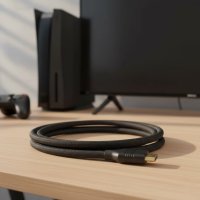
So, you’ve got a shiny new laptop with a sleek USB-C port and a trusty monitor or TV with an HDMI input. The logical next step seems simple: just grab an hdmi cable to type c and connect them, right? If only it were that straightforward. This seemingly simple connection is one of the most common points of confusion for tech users today, often leading to the wrong purchase and a frustrating “no signal” screen. Welcome to Iecfl Tech, your go-to source for demystifying modern tech. In this guide, we’ll unravel the complexities of this connection, ensuring you buy the right cable the first time and get your displays working perfectly.
What Exactly is an HDMI to Type C Cable?
At its core, a USB-C to HDMI cable or adapter is a bridge between two different generations of technology. It allows a modern device with a USB-C output—like a MacBook, a Windows ultrabook, an iPad, or even a smartphone—to send video and audio signals to a display that uses the universally recognized HDMI standard, such as your television, desktop monitor, or projector.
While we often search for “hdmi cable to type c,” the vast majority of these products work in one direction: from a USB-C source device to an HDMI display. Think of it as translating a new language (USB-C video signal) into a language your TV already understands (HDMI).
The Most Important Rule: One-Way Traffic Only
Imagine a one-way street. Traffic can only flow in a single, designated direction. The connection between USB-C and HDMI works in much the same way. Getting this wrong is the number one reason these setups fail. Let’s break down the two distinct paths.
The Common Route: USB-C Source to HDMI Display
This is the scenario for over 95% of users. You want to mirror your laptop screen for a presentation or extend your desktop to a larger monitor.
For this to work, your source device’s USB-C port must support a feature called DisplayPort Alternate Mode (DP Alt Mode) or be a Thunderbolt 3 or 4 port. This special capability allows the USB-C port to transmit more than just data or power; it can send a native video signal. The cable or adapter then simply converts this signal into the HDMI format your display can accept.
Devices that typically support this:
- Apple MacBooks (Pro, Air) and iPads (Pro, Air)
- Dell XPS and Latitude series laptops
- HP Spectre and Envy laptops
- Microsoft Surface Pro and Laptop models
- High-end Android phones that support video out (like Samsung with DeX)
“The first thing I ask a client is, ‘What device are you connecting?'” says John Albright, a professional home theater installer. “Before you even look at cables, you have to confirm your laptop or phone’s USB-C port supports video output. It’s the step everyone skips, and it’s the most critical one.”
The Rare Reverse: HDMI Source to USB-C Display
|
Our Picks for the Best HDMI Cable in 2026
As an Amazon Associate I earn from qualifying purchases.
|
||
| Num | Product | Action |
|---|---|---|
| 1 | Highwings 4K HDMI Cable 6.6FT/2m - High-Speed HDMI 2.0 Quality Cord 4K@60Hz, Braided Nylon & Gold Connectors, HDR, Ethernet, ARC, 3D, HDCP 2.2, Compatible for PS-5/4/3/ HDTV/Monitor/DVD/Streaming |

|
| 2 | Highwings 8K 10K 4K HDMI Cable 48Gbps 6.6FT/2M, Certified Ultra High Speed HDMI Cable Braided Cord-4K@120Hz 8K@60Hz, DTS:X, HDCP 2.2 & 2.3, HDR 10 Compatible with Roku TV/PS5/HDTV/Blu-ray |
|
| 3 | Short HDMI Cable 1 FT 2-Pack, 8K HDMI 2.1 48Gbps Ultra High Speed Braided HDMI Cords, 1 Foot HDMI Cable for Camera, Field Monitor, External Recorder, Laptop, PC |
|
| 4 | Anker HDMI Cable 8K@60Hz, 6FT Ultra HD 4K@120Hz HDMI Cord,48 Gbps Certified Ultra High-Speed,Compatible with PlayStation 5,Xbox,Samsung TVs,and More |
|
| 5 | Highwings 8K@60 HDMI Cable 10FT/3M, 48Gbps 2.1 High Speed HDMI Braided Nylon 4K120 144Hz RTX 3090 eARC HDR10 4:4:4 HDCP 2.2&2.3 Compatible for PS5, PS4, UHD TV and PC |
|
| 6 | 15 Pack of 10 Foot hdmi Cables |
|
| 7 | Highwings Long HDMI Cable 20 FT, 10K 8K 4K Ultra HD High Speed 2.1 HDMI Cable 48Gbps Braided Cord-4K@120Hz 8K@60Hz, DTS:X, HDCP 2.2&2.3, Dynamic HDR 10 Compatible with Roku TV/PS5/HDTV/Blu-ray |
|
| 8 | 10K 8K HDMI 2.1 Cable 2-Pack 6.6FT, Highwings Certified 48Gbps Ultra High Speed Slim HDMI Cord,Support 4K@120Hz 8K@60Hz, HDCP 2.2&2.3, Dynamic HDR,eARC,DTS:X, Compatible with Roku TV/HDTV/PS5/Blu-ray |
|
| 9 | Highwings Long HDMI Cable 15 FT, 4K 8K 10K HDMI 2.1 Cord Ultra High Speed [in-Wall CL3 Rated, 8K@60Hz 4K@120Hz Video 48Gbps], Fit, Durable, Flexible, eARC, HDCP, Compatible for Ethernet SoundBar |
|
| 10 | Highwings High Speed 8K 60Hz HDMI Cable 3.3FT/1M, 2.1 48Gbps HDMI Braided Cable-4K@120Hz 7680P,DTS:X,HDCP 2.2 & 2.3, HDR 10,eARC,Dynamic HDR,Compatible for Laptop, Monitor, Roku TV |
|
Now, let’s flip it. What if you want to connect a gaming console like a PlayStation 5 (which has an HDMI output) to a new, portable monitor that only has a USB-C input?
This is a completely different ballgame. A standard USB-C to HDMI cable will not work in reverse. For this setup, you need a specialized active converter. This device takes the HDMI signal, actively processes it, and converts it into a DisplayPort signal that the USB-C monitor can understand. These converters are more expensive and almost always require a separate USB cable for power to perform the conversion.
How to Choose the Right HDMI to Type C Cable
Now that you understand the directionality, picking the right cable becomes much easier. It’s a matter of matching the cable’s capabilities to your specific hardware and needs.
Step 1: Check Your Source Device!
Before you even open a new tab to shop, investigate your device. How do you know if its USB-C port supports video? Look for a symbol next to the port itself:
- A lightning bolt icon indicates a Thunderbolt 3 or 4 port, which always supports video.
- A “D” symbol (for DisplayPort) indicates it supports DP Alt Mode.
- If there’s only a USB symbol or no symbol, consult your device’s user manual or the manufacturer’s website. Search for “technical specifications” and look for terms like “video output,” “DisplayPort Alternate Mode,” or “Thunderbolt.”
Step 2: Match the Specs to Your Needs
Not all cables are created equal. The specs determine whether you’ll get a crisp, smooth image or a flickering, low-resolution one.
-
Resolution and Refresh Rate: This is the most important specification.
- 4K at 30Hz: This is the baseline. It’s fine for static presentations or movies, but mouse movements and animations will feel choppy.
- 4K at 60Hz: This is the gold standard for most users. It provides a smooth, fluid experience for video streaming, general productivity, and casual gaming. It requires support for HDMI 2.0.
- 4K at 120Hz or 8K at 60Hz: This is for high-end gaming and professional video editing. It requires a very powerful source device and an HDMI 2.1 compatible cable and display.
-
HDR (High Dynamic Range): If you plan on streaming movies from services like Netflix or Disney+ on an HDR-compatible TV, make sure your cable supports it. HDR provides brighter whites, darker blacks, and a wider range of colors for a more immersive picture.
-
HDCP 2.2/2.3 (High-bandwidth Digital Content Protection): This is non-negotiable for streaming protected 4K content. If your cable doesn’t support the latest HDCP standards, your streaming service will downgrade the quality to 1080p to prevent piracy.
-
Cable vs. Adapter:
- Cable: A single, all-in-one solution that reduces clutter. It’s a direct connection from your device to the display.
- Adapter: A small dongle with a USB-C plug on one end and an HDMI port on the other. This offers more flexibility, allowing you to use any standard HDMI cable you already own, but it adds another connection point that could potentially fail.
Troubleshooting: “Why Isn’t My Cable Working?”
If you’ve connected everything and are greeted with a black screen, don’t panic. Run through this quick checklist.
- Is it the right cable for the job? Double-check that your device’s USB-C port supports video out (DP Alt Mode).
- Is the direction correct? If you are trying to connect an HDMI source to a USB-C display, you need a specific, powered active converter, not a standard cable.
- Is the right input selected? Use your monitor or TV remote to make sure you’ve selected the correct HDMI input (e.g., HDMI 1, HDMI 2).
- Are your drivers updated? For Windows users, ensure your graphics and motherboard drivers are up to date.
- Could the cable be faulty? Try the cable with a different device and display to isolate the problem. Sometimes, a simple restart of both the source device and the display can resolve handshake issues.
FAQ: Your HDMI to Type C Questions Answered
Can I connect my Nintendo Switch to a TV with this?
No. The Nintendo Switch’s USB-C port does not support standard DP Alt Mode. You must use the official Nintendo Switch Dock or a third-party dock specifically designed for it.
Will a USB-C to HDMI cable charge my laptop?
Generally, no. A standard cable is designed for video and audio signals only. However, some multi-port adapters or hubs include an HDMI port and a separate USB-C Power Delivery (PD) port, which allows you to charge your device while it’s connected to a display.
Do I need to install any software or drivers?
For most modern operating systems like Windows 10/11, macOS, and ChromeOS, these cables are plug-and-play. No additional software is required.
What’s the difference between Thunderbolt and USB-C for video?
Thunderbolt 3 and 4 are super-powered versions of the USB-C port that are required to support video output. So, if you have a Thunderbolt port, you can be certain that a USB-C to HDMI cable will work. All Thunderbolt ports are USB-C, but not all USB-C ports have Thunderbolt capabilities.
Will I get audio through the cable?
Yes, the HDMI standard carries both video and audio signals. As long as your display has built-in speakers or is connected to a sound system, the audio from your source device should play automatically. If not, check the sound output settings on your computer.
Your Final Takeaway
Connecting modern tech shouldn’t be a gamble. When it comes to the hdmi cable to type c, success boils down to three simple steps: first, confirm your source device’s USB-C port supports video. Second, understand the direction of your connection—most likely from a USB-C laptop to an HDMI monitor. And third, choose a cable with the specs that match your needs, with 4K@60Hz being the sweet spot for most people. Armed with this knowledge, you can now make an informed decision and enjoy a perfect picture every time.
Get our weekly buyer guide
Practical specs, not advice. Unsubscribe anytime.