So, you’ve got a brilliant monitor and a powerful computer, but they don’t speak the same language. Your laptop has a sleek USB-C port, while your trusty monitor is waiting for a DisplayPort or even an old-school VGA connection. The goal is to connect them to an HDMI port, the universal standard for high-definition video and audio. This is where the world of the computer monitor cable to HDMI comes into play, and it can feel like a tangled mess of acronyms and standards. But don’t worry, we’re here to untangle it for you.
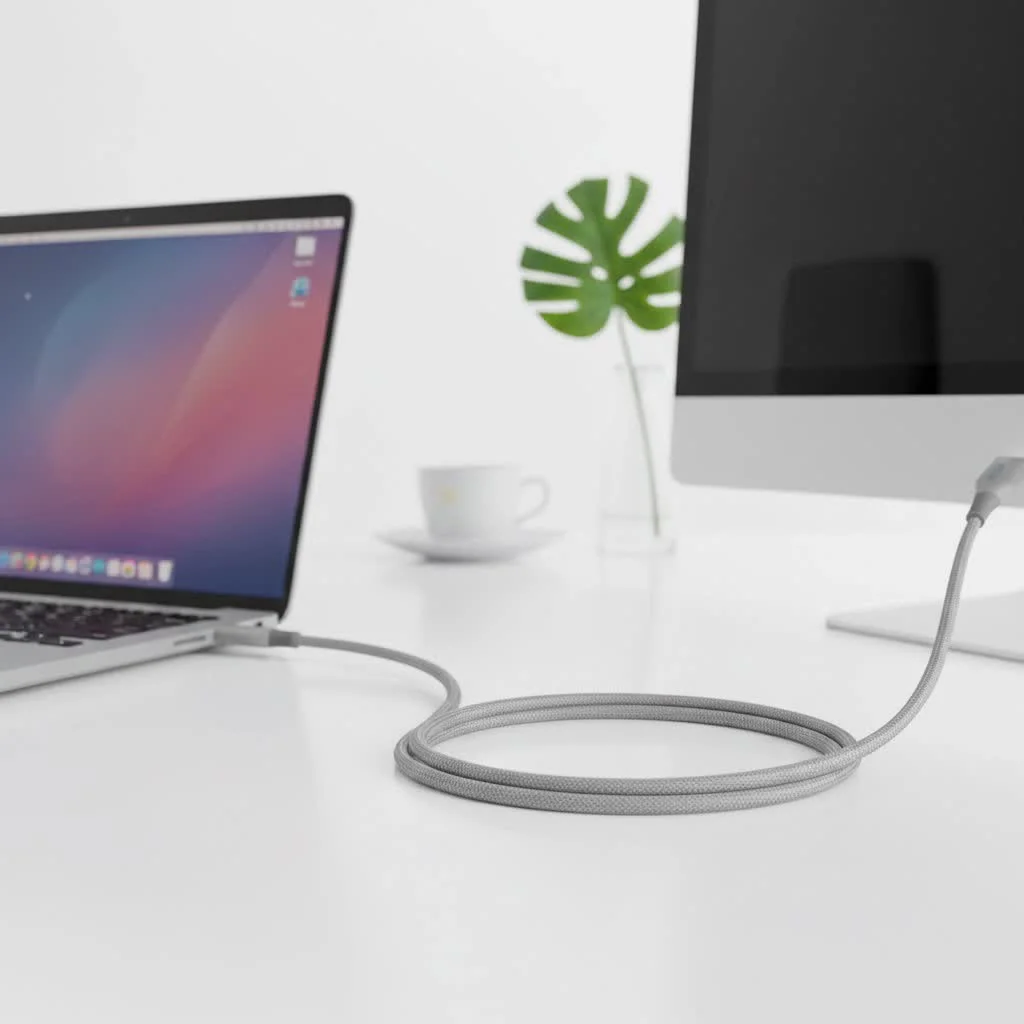
Whether you’re a gamer chasing high refresh rates, a creative professional demanding perfect color accuracy, or just someone trying to set up a dual-monitor workstation, choosing the right cable or adapter is crucial. Using the wrong one can lead to a fuzzy picture, limited resolution, screen flickering, or no signal at all. This comprehensive guide will walk you through everything you need to know to make the perfect connection every time.
Understanding the Ports: Your Connection’s Starting Point
Before you can find the right cable, you need to identify the ports on your computer and monitor. HDMI is our destination, but where are we coming from?
The Most Common Video Ports on Computers
- HDMI (High-Definition Multimedia Interface): The most common standard. If your computer and monitor both have HDMI, you just need a standard HDMI cable. Easy.
- DisplayPort (DP): A popular standard on gaming monitors and dedicated graphics cards. It looks similar to HDMI but has one angled corner. It often supports higher refresh rates and resolutions than HDMI at the same price point.
- USB-C / Thunderbolt: The versatile, oval-shaped port found on almost all modern laptops, MacBooks, and even some desktop motherboards. Not all USB-C ports carry video, but if yours has a lightning bolt (Thunderbolt) or a “DP” symbol next to it, you’re in luck.
- DVI (Digital Visual Interface): An older digital standard, recognizable by its large, white rectangular connector with screw pins. It’s less common now but still found on many office monitors.
- VGA (Video Graphics Array): The classic 15-pin blue analog connector. It’s a legacy port that doesn’t support high resolutions or digital features well. Connecting VGA to HDMI requires a special type of adapter.
The Ultimate Guide to Monitor to HDMI Connections
Now that you’ve identified your ports, let’s find your perfect match. Connecting a computer monitor cable to HDMI is all about bridging the gap between your device’s native output and the HDMI input on your screen.
DisplayPort to HDMI
|
Our Picks for the Best HDMI Cable in 2026
As an Amazon Associate I earn from qualifying purchases.
|
||
| Num | Product | Action |
|---|---|---|
| 1 | 10K 8K HDMI 2.1 Cable 2-Pack 6.6FT, Highwings Certified 48Gbps Ultra High Speed Slim HDMI Cord,Support 4K@120Hz 8K@60Hz, HDCP 2.2&2.3, Dynamic HDR,eARC,DTS:X, Compatible with Roku TV/HDTV/PS5/Blu-ray |

|
| 2 | Highwings 4K HDMI Cable 6.6FT/2m - High-Speed HDMI 2.0 Quality Cord 4K@60Hz, Braided Nylon & Gold Connectors, HDR, Ethernet, ARC, 3D, HDCP 2.2, Compatible for PS-5/4/3/ HDTV/Monitor/DVD/Streaming |
|
| 3 | Highwings Long HDMI Cable 15 FT, 4K 8K 10K HDMI 2.1 Cord Ultra High Speed [in-Wall CL3 Rated, 8K@60Hz 4K@120Hz Video 48Gbps], Fit, Durable, Flexible, eARC, HDCP, Compatible for Ethernet SoundBar |
|
| 4 | Highwings 8K 10K 4K HDMI Cable 48Gbps 6.6FT/2M, Certified Ultra High Speed HDMI Cable Braided Cord-4K@120Hz 8K@60Hz, DTS:X, HDCP 2.2 & 2.3, HDR 10 Compatible with Roku TV/PS5/HDTV/Blu-ray |
|
| 5 | Anker HDMI Cable 8K@60Hz, 6FT Ultra HD 4K@120Hz HDMI Cord,48 Gbps Certified Ultra High-Speed,Compatible with PlayStation 5,Xbox,Samsung TVs,and More |
|
| 6 | Highwings Long HDMI Cable 20 FT, 10K 8K 4K Ultra HD High Speed 2.1 HDMI Cable 48Gbps Braided Cord-4K@120Hz 8K@60Hz, DTS:X, HDCP 2.2&2.3, Dynamic HDR 10 Compatible with Roku TV/PS5/HDTV/Blu-ray |
|
| 7 | Highwings High Speed 8K 60Hz HDMI Cable 3.3FT/1M, 2.1 48Gbps HDMI Braided Cable-4K@120Hz 7680P,DTS:X,HDCP 2.2 & 2.3, HDR 10,eARC,Dynamic HDR,Compatible for Laptop, Monitor, Roku TV |
|
| 8 | Short HDMI Cable 1 FT 2-Pack, 8K HDMI 2.1 48Gbps Ultra High Speed Braided HDMI Cords, 1 Foot HDMI Cable for Camera, Field Monitor, External Recorder, Laptop, PC |
|
| 9 | Highwings 8K@60 HDMI Cable 10FT/3M, 48Gbps 2.1 High Speed HDMI Braided Nylon 4K120 144Hz RTX 3090 eARC HDR10 4:4:4 HDCP 2.2&2.3 Compatible for PS5, PS4, UHD TV and PC |
|
| 10 | 15 Pack of 10 Foot hdmi Cables |
|
This is one of the most common scenarios, especially for desktop PC users with dedicated graphics cards.
- What you need: A DisplayPort to HDMI cable or a small adapter.
- How it works: These are typically passive adapters, meaning they simply remap the pins from one connector to the other, as DisplayPort has a “Dual-Mode” feature that allows it to send an HDMI signal.
- Keep in mind: Most of these cables are uni-directional. They are designed to send a signal from a DisplayPort source (your computer) to an HDMI display (your monitor). They will not work in reverse. Pay close attention to the product description to ensure it matches your setup.
“I see this all the time,” says James Peterson, a professional A/V installer. “People buy a DisplayPort to HDMI cable to connect their new HDMI-only laptop to a DisplayPort monitor, and it doesn’t work. Remember, the source port is what matters. The cable must be specifically designed for your signal path.”
USB-C to HDMI
This is the go-to solution for modern laptops, including MacBooks, Dell XPS, and Microsoft Surface devices.
- What you need: A USB-C to HDMI cable or a multi-port hub that includes an HDMI output.
- How it works: This connection relies on a feature called “DisplayPort Alternate Mode” (DP Alt Mode), where the USB-C port can natively output a DisplayPort video signal. The cable or adapter then converts this signal to HDMI.
- Key Considerations:
- Resolution and Refresh Rate: Cheaper adapters might be limited to 4K at 30Hz. For a smooth experience on a 4K monitor, look for a cable that explicitly supports 4K at 60Hz. Gamers with high-refresh-rate monitors (e.g., 1080p at 144Hz) should verify that the adapter supports these specifications.
- Power Delivery (PD): Some USB-C to HDMI adapters also include a USB-C Power Delivery port, allowing you to charge your laptop through the adapter while it’s connected to the monitor.
DVI to HDMI
Connecting a device with an older DVI port to a modern HDMI screen is straightforward because both are digital signals.
- What you need: A DVI to HDMI cable or a DVI to HDMI adapter plug.
- How it works: Since the underlying video signal (TMDS) is compatible, these are simple passive adapters.
- The Catch: DVI does not natively carry audio. While some graphics cards could push audio over DVI, it was never a standard feature. In most cases, you will need a separate audio cable to get sound from your computer to your monitor or external speakers.
VGA to HDMI
This is the trickiest connection because it involves converting an analog signal (VGA) to a digital one (HDMI).
- What you need: An active VGA to HDMI converter. A simple passive cable will not work.
- How it works: The converter box contains a small chip that actively processes the analog video from the VGA source and digitizes it into an HDMI signal. These converters almost always require external power, usually via an included USB cable.
- Expectations: The quality will be limited by the source VGA signal. You cannot get a crystal-clear 4K image from a VGA port. This solution is best for basic display needs and should be considered a last resort for connecting legacy hardware.
Features That Matter: Beyond Just Getting a Picture
Choosing the right type of computer monitor cable to HDMI adapter is only half the battle. To unlock the full potential of your monitor, you need to pay attention to the specifications.
Bandwidth, Resolution, and Refresh Rate
These three factors are interconnected. Bandwidth is the amount of data a cable can carry, which determines the maximum resolution and refresh rate it can support.
- For General Use (1080p/4K at 60Hz): Most standard High-Speed HDMI cables and adapters made in the last decade will work perfectly fine. Look for support for HDMI 2.0.
- For High-Refresh-Rate Gaming (1080p/1440p at 120Hz+): This is where it gets serious. You need to ensure every component in the chain—your graphics card, your cable/adapter, and your monitor—supports the desired refresh rate. Look for adapters that explicitly state support for 120Hz, 144Hz, or higher.
- For 4K at 120Hz or 8K: This requires the latest Ultra High-Speed HDMI 2.1 standard and a compatible adapter. These are less common and more expensive.
Active vs. Passive Adapters Explained
- Passive: A passive adapter simply rearranges the wiring to connect one port type to another. It relies on the source device (like a DisplayPort) to be able to output the correct signal type. They are simple and inexpensive. (e.g., most DisplayPort to HDMI or DVI to HDMI adapters).
- Active: An active adapter contains a chip to convert the signal from one format to another. It’s required when the source signal is fundamentally different from the destination, like converting analog VGA to digital HDMI.
Frequently Asked Questions (FAQ)
1. Can I use any HDMI cable for my computer monitor?
For most standard monitors (1080p or 4K at 60Hz), any High-Speed HDMI cable will work perfectly. If you have a high-end gaming monitor with features like 4K at 120Hz or variable refresh rate (VRR), you will need an Ultra High-Speed HDMI 2.1 cable to use all its features.
2. Will using an adapter reduce my video quality?
When converting between digital signals (DisplayPort, USB-C, DVI, HDMI), a quality adapter will not reduce image quality. However, when converting from analog VGA to digital HDMI, the quality is limited by the original analog signal, and the conversion process can sometimes introduce minor artifacts.
3. Does a DisplayPort to HDMI adapter carry audio?
Yes, DisplayPort is capable of carrying audio, and a DisplayPort to HDMI adapter will transfer the audio signal to your monitor along with the video.
4. Why is my 4K monitor only showing 30Hz with my new adapter?
This is a common issue. Many older or cheaper USB-C and DisplayPort to HDMI adapters lack the bandwidth to support 4K resolution at a 60Hz refresh rate. You must buy an adapter that specifically lists “4K@60Hz” in its specifications.
5. What is better, a single adapter cable or a separate adapter and cable?
Functionally, there is no difference in quality. A single integrated cable (e.g., a 6-foot USB-C to HDMI cable) reduces clutter and provides one less point of failure. A small adapter dongle offers more flexibility, allowing you to use HDMI cables of varying lengths.
The Final Connection
Navigating the world of display cables doesn’t have to be a headache. The key is to start by identifying the ports on your devices and then defining your needs. Are you a casual user who just needs a second screen, or a competitive gamer where every frame counts? By understanding the difference between DisplayPort, USB-C, and legacy ports, and by paying attention to specifications like 4K@60Hz, you can be confident in your purchase. Making the right choice in a computer monitor cable to HDMI will ensure you get the crisp, smooth, and reliable picture you paid for, letting you focus on your work, gaming, or entertainment.
Get our weekly buyer guide
Practical specs, not advice. Unsubscribe anytime.
This guide saved me a lot of headaches. I needed to connect my computer to an HDMI port on my TV for presentations, and I wasn’t sure if I needed an active or passive adapter for my specific setup. The explanation of signal conversion was super clear and helped me pick the right one. Everything looks sharp and sounds great.
I tried the VGA to HDMI adapter mentioned for my really old monitor, and while it does work, the resolution isn’t as good as I hoped. It’s fine for basic tasks, but I still get some screen flickering when I try to watch videos. I guess you can only do so much with an old VGA port.
Finally got my dual-monitor setup working thanks to the advice here! I had an old DisplayPort monitor and a new graphics card with only HDMI. The DisplayPort to HDMI cable recommended was exactly what I needed. The refresh rates are great for gaming, which was my main concern.
I was so confused trying to connect my new laptop’s USB-C to my older monitor’s HDMI. This guide really helped me understand the different adapters. I ended up getting a USB-C to HDMI adapter that supports 4K and it works perfectly. No more fuzzy picture, just crisp visuals for my work.