An HDMI to DVI cable allows you to connect devices with HDMI outputs (like modern laptops or gaming consoles) to displays with DVI inputs (typically older computer monitors), bridging two common digital video standards. This cable transmits high-definition digital video signals without quality loss, but it does not carry audio, requiring a separate audio connection for sound. The conversion is possible because both HDMI and DVI utilize Transition Minimized Differential Signaling (TMDS) for video transmission.
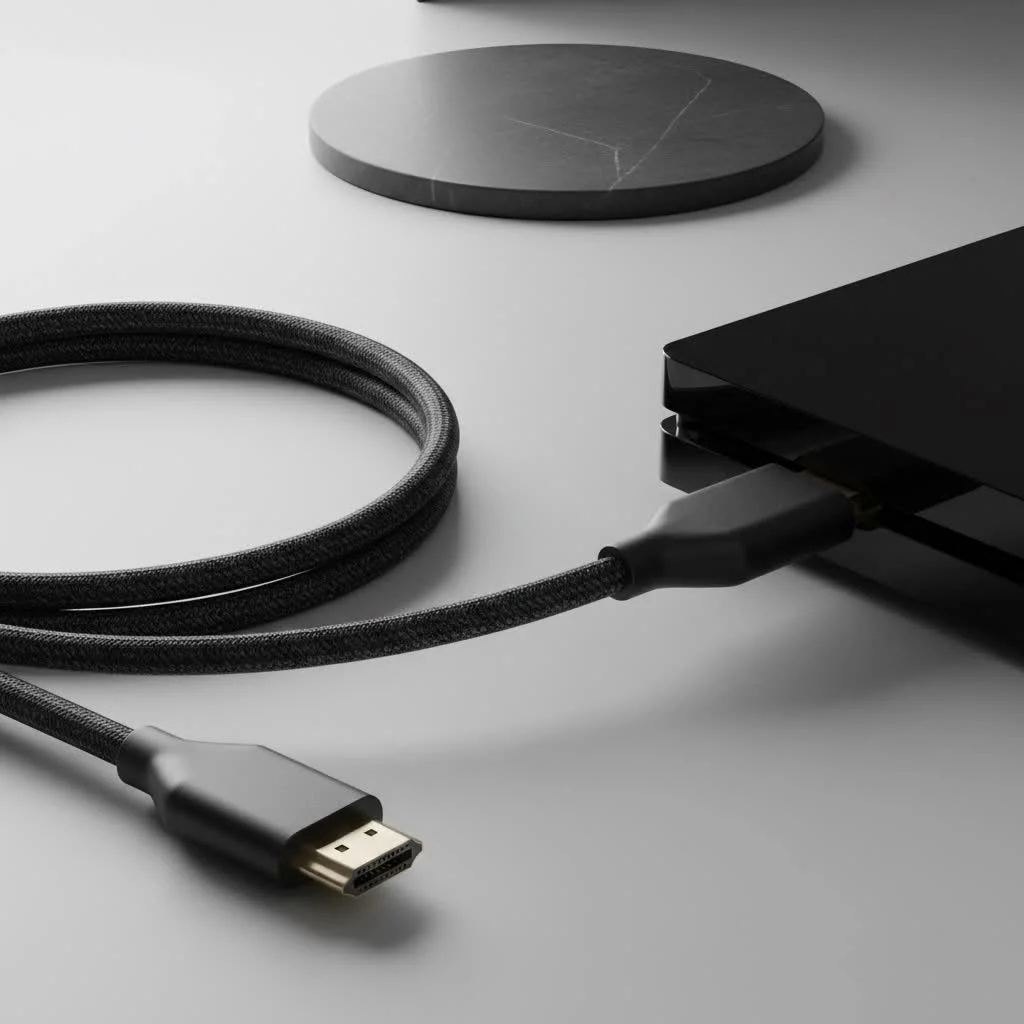
Understanding the capabilities and limitations of this cable is crucial for optimal performance. At Iecfl Tech, we aim to provide you with the knowledge to make informed tech decisions. This guide will cover everything you need to know about HDMI to DVI cables, ensuring seamless digital connectivity. For hdmi cables buying guides on this site.
What Exactly Is an HDMI to DVI Cable?
An HDMI to DVI cable serves as a bridge between two prevalent digital video standards. One end features an HDMI (High-Definition Multimedia Interface) connector, which is the universal standard for contemporary TVs, gaming consoles, and laptops. The other end has a DVI (Digital Visual Interface) connector, which was the primary digital connection for computer monitors for many years.
Since both HDMI and DVI employ a similar digital video signaling method (TMDS – Transition Minimized Differential Signaling), a straightforward cable can translate the video signal between them without any loss in quality. This makes it an incredibly efficient way to:
- Connect a new graphics card (HDMI) to an older monitor (DVI).
- Hook up a modern laptop (HDMI) to a DVI-only display for a second screen.
- Use a PC with a DVI port as a source for a newer television that has spare HDMI inputs.
Expert Insight from James Peterson, Home Theater Installation Specialist:“I see HDMI to DVI cables used all the time. They are lifesavers for clients who have high-quality, older monitors they don’t want to replace. The key thing I always remind them is that while the picture will be perfect, the audio needs a separate plan. It’s a fantastic video solution, but not an all-in-one like a pure HDMI connection.”
The Elephant in the Room: HDMI vs. DVI and the Audio Question
While they share a digital video heritage, HDMI and DVI are not identical. The most significant difference to understand is how they handle audio.
Video: A Perfect Match
For video signals, the conversion is flawless. An HDMI to DVI cable can transmit a high-definition digital video signal without any compression or loss of quality. If your source outputs a 1080p signal, your DVI monitor will receive a 1080p signal. The cable acts as a passive adapter, simply rerouting the pins from one connector shape to the other.
Audio: The Sound of Silence
|
Our Picks for the Best HDMI Cable in 2026
As an Amazon Associate I earn from qualifying purchases.
|
||
| Num | Product | Action |
|---|---|---|
| 1 | Short HDMI Cable 1 FT 2-Pack, 8K HDMI 2.1 48Gbps Ultra High Speed Braided HDMI Cords, 1 Foot HDMI Cable for Camera, Field Monitor, External Recorder, Laptop, PC |

|
| 2 | Highwings Long HDMI Cable 15 FT, 4K 8K 10K HDMI 2.1 Cord Ultra High Speed [in-Wall CL3 Rated, 8K@60Hz 4K@120Hz Video 48Gbps], Fit, Durable, Flexible, eARC, HDCP, Compatible for Ethernet SoundBar |
|
| 3 | 10K 8K HDMI 2.1 Cable 2-Pack 6.6FT, Highwings Certified 48Gbps Ultra High Speed Slim HDMI Cord,Support 4K@120Hz 8K@60Hz, HDCP 2.2&2.3, Dynamic HDR,eARC,DTS:X, Compatible with Roku TV/HDTV/PS5/Blu-ray |
|
| 4 | Highwings 8K 10K 4K HDMI Cable 48Gbps 6.6FT/2M, Certified Ultra High Speed HDMI Cable Braided Cord-4K@120Hz 8K@60Hz, DTS:X, HDCP 2.2 & 2.3, HDR 10 Compatible with Roku TV/PS5/HDTV/Blu-ray |
|
| 5 | 15 Pack of 10 Foot hdmi Cables |
|
| 6 | Highwings 4K HDMI Cable 6.6FT/2m - High-Speed HDMI 2.0 Quality Cord 4K@60Hz, Braided Nylon & Gold Connectors, HDR, Ethernet, ARC, 3D, HDCP 2.2, Compatible for PS-5/4/3/ HDTV/Monitor/DVD/Streaming |
|
| 7 | Highwings High Speed 8K 60Hz HDMI Cable 3.3FT/1M, 2.1 48Gbps HDMI Braided Cable-4K@120Hz 7680P,DTS:X,HDCP 2.2 & 2.3, HDR 10,eARC,Dynamic HDR,Compatible for Laptop, Monitor, Roku TV |
|
| 8 | Anker HDMI Cable 8K@60Hz, 6FT Ultra HD 4K@120Hz HDMI Cord,48 Gbps Certified Ultra High-Speed,Compatible with PlayStation 5,Xbox,Samsung TVs,and More |
|
| 9 | Highwings Long HDMI Cable 20 FT, 10K 8K 4K Ultra HD High Speed 2.1 HDMI Cable 48Gbps Braided Cord-4K@120Hz 8K@60Hz, DTS:X, HDCP 2.2&2.3, Dynamic HDR 10 Compatible with Roku TV/PS5/HDTV/Blu-ray |
|
| 10 | Highwings 8K@60 HDMI Cable 10FT/3M, 48Gbps 2.1 High Speed HDMI Braided Nylon 4K120 144Hz RTX 3090 eARC HDR10 4:4:4 HDCP 2.2&2.3 Compatible for PS5, PS4, UHD TV and PC |
|
Here’s the critical limitation: DVI was designed purely for video. It does not carry an audio signal. Consequently, an HDMI to DVI cable cannot transmit sound. When you connect an HDMI source like a Blu-ray player or a PlayStation 5 to a DVI monitor, you will get a crisp image but complete silence.
So, how do you get sound? You’ll need to run a separate audio cable. Most devices with HDMI output also have a dedicated audio output, such as:
- A 3.5mm headphone jack (common on laptops and PCs).
- An optical audio (S/PDIF) port.
- RCA stereo audio jacks (red and white).
You will need to connect this audio output from your source device directly to your speakers, soundbar, or A/V receiver.
Understanding DVI Connector Types
Before purchasing a cable, it’s essential to examine the DVI port on your device. Not all DVI ports are the same, and selecting the wrong cable can lead to frustration.
The Three Flavors of DVI
- DVI-D (Digital): This is the most common type for computer monitors. It transmits a purely digital signal and is what you need for an HDMI to DVI connection. The connector has a single flat pin on one side.
- DVI-A (Analog): This is an older, legacy format for CRT monitors. It is not compatible with HDMI.
- DVI-I (Integrated): This versatile connector can carry both digital (DVI-D) and analog (DVI-A) signals in the same port. A DVI-I port will work perfectly with an HDMI to DVI-D cable. This connector has the flat pin plus four additional pins surrounding it.
For an HDMI to DVI connection, you will be using a DVI-D connector. It will fit perfectly into both DVI-D and DVI-I ports, as it only uses the digital portion of the connection.
How to Choose the Right HDMI to DVI Cable
Choosing an HDMI to DVI cable is generally straightforward, but a few factors can ensure you get the best performance and longevity.
Bi-Directional vs. Uni-Directional
Most HDMI to DVI cables are bi-directional. This means you can connect an HDMI source to a DVI display, or a DVI source to an HDMI display. It’s a versatile solution that works both ways, making it a great tool to have in your tech drawer. Always check the product description, but the vast majority of passive cables support this.
Cable Length and Quality
- Length: For digital signals, signal degradation over long distances can be a concern. For most desktop setups (under 15 feet or 5 meters), any well-made cable will perform flawlessly. If you need a longer run, invest in a higher-quality cable with better shielding to prevent signal loss.
- Build Quality: Look for cables with gold-plated connectors, which resist corrosion and ensure a solid connection over time. A sturdy cable jacket and robust strain relief at the connector ends will also contribute to the cable’s durability.
What About 4K and High Refresh Rates?
This is where limitations appear. The DVI standard (specifically single-link DVI, the most common variant) maxes out at a resolution of 1920×1200 at a 60Hz refresh rate. While Dual-Link DVI can support higher resolutions, most HDMI to DVI cables and adapters are designed for single-link compatibility.
Therefore, you should not expect to get a 4K resolution or a 144Hz refresh rate over an HDMI to DVI connection. It is best suited for resolutions up to 1080p or 1920×1200 at 60Hz.
Frequently Asked Questions (FAQ)
Q1: Will an HDMI to DVI cable reduce picture quality?
No, it will not. Since both HDMI and DVI are digital formats that use the same core signaling technology for video, the cable simply adapts the connector shape. There is no digital-to-analog conversion, so the picture quality remains identical to the source.
Q2: Can I get audio through an HDMI to DVI cable?
No. The DVI standard does not support audio signals. You must use a separate audio cable connected from your source device to your sound system or speakers.
Q3: Does an HDMI to DVI cable work for gaming?
Yes, it works great for gaming at resolutions up to 1080p and a 60Hz refresh rate. It’s a perfect solution for connecting a console like a PS4, Xbox One, or Nintendo Switch to a standard computer monitor. However, it will not support advanced features like 120Hz/144Hz refresh rates or 4K resolution that modern gaming setups often require.
Q4: What’s better, an HDMI to DVI cable or an adapter?
Functionally, they are the same. A one-piece cable is often a cleaner and more secure solution, as it eliminates an extra connection point that could become loose. However, a small DVI to HDMI adapter can be useful if you already have a spare HDMI cable and want a more versatile, compact option for your travel kit.
Q5: Will my computer’s DVI port work with a new HDMI TV?
Yes, a bi-directional HDMI to DVI cable will allow you to connect your computer’s DVI-D or DVI-I output to one of your TV’s HDMI inputs. Just remember to handle the audio separately, likely with a 3.5mm audio cable from your computer’s headphone jack to the TV’s audio input.
Your Bridge to Modern Connectivity
The HDMI to DVI cable is more than just a simple accessory; it’s a problem-solver. It breathes new life into older, high-quality monitors and provides the flexibility to connect a wide range of devices that otherwise couldn’t communicate. By understanding its capabilities—and its one major limitation regarding audio—you can confidently integrate it into your setup.
Whether you’re creating a dual-monitor workstation or hooking up a media player to a spare screen, this reliable cable ensures you get a perfect, pixel-for-pixel video display every time. Don’t let mismatched ports stand in your way. A simple HDMI to DVI cable is all you need to make the connection.
Frequently Asked Questions
Does an HDMI to DVI cable degrade video quality?
No, an HDMI to DVI cable does not reduce picture quality. Both HDMI and DVI are digital formats that use the same core signaling technology for video, meaning the cable simply adapts the connector shape without any digital-to-analog conversion. The picture quality remains identical to the source, transmitting signals like 1080p without loss.
Can an HDMI to DVI cable transmit audio?
No, an HDMI to DVI cable cannot transmit audio. The DVI standard was designed purely for video and does not support audio signals. To get sound, you must use a separate audio cable connected from your source device (e.g., via a 3.5mm headphone jack or optical audio port) to your sound system or speakers.
Is an HDMI to DVI cable suitable for gaming setups?
Yes, an HDMI to DVI cable works well for gaming at resolutions up to 1080p and a 60Hz refresh rate, making it suitable for connecting consoles like a PS4 or Xbox One to a standard computer monitor. However, it will not support advanced gaming features such as 120Hz/144Hz refresh rates or 4K resolution, which are often required by modern gaming setups.
What is the difference between DVI-D, DVI-A, and DVI-I connectors?
DVI-D (Digital) is the most common type for computer monitors, transmitting a purely digital signal and is compatible with HDMI. DVI-A (Analog) is an older format for CRT monitors and is not compatible with HDMI. DVI-I (Integrated) is a versatile connector that carries both digital and analog signals, and it will work perfectly with an HDMI to DVI-D cable.
What are the resolution and refresh rate limitations of HDMI to DVI connections?
An HDMI to DVI connection, particularly with single-link DVI, typically maxes out at a resolution of 1920x1200 at a 60Hz refresh rate. While Dual-Link DVI can support higher resolutions, most HDMI to DVI cables and adapters are designed for single-link compatibility. Therefore, 4K resolution or 144Hz refresh rates are generally not supported.
How to Choose the Right HDMI to DVI Cable
Selecting the correct HDMI to DVI cable ensures optimal performance and durability for connecting your devices.
Before buying, identify the DVI port on your device. Ensure you select a cable with a DVI-D connector, as it is compatible with both DVI-D and DVI-I ports for digital video transmission. DVI-A is an older analog format and will not work with HDMI.
Most HDMI to DVI cables are bi-directional, allowing connections from HDMI to DVI displays or DVI sources to HDMI displays. Verify the product description to confirm this versatility, as it provides greater flexibility for various setups.
For distances under 15 feet (5 meters), most well-made cables perform flawlessly. For longer runs, invest in a higher-quality cable with better shielding to prevent signal degradation. Look for features like gold-plated connectors for corrosion resistance and a sturdy build for durability.
HDMI to DVI connections are best suited for resolutions up to 1080p or 1920x1200 at a 60Hz refresh rate. Do not expect 4K resolution or high refresh rates like 144Hz, as the DVI standard, especially single-link DVI, has these limitations.
Get our weekly buyer guide
Practical specs, not advice. Unsubscribe anytime.
I needed to connect my new Roku stick to an older TV that only had DVI, and this cable did the trick perfectly. The picture is great, and it was super easy to set up. It saved me from having to buy a brand new TV just for streaming. Very happy with this purchase!
I recently upgraded my gaming setup but still had my trusty old monitor with a DVI input. This cable was a lifesaver! I can now connect my PS5 to it without any issues, and the video quality is surprisingly crisp. Definitely recommend it if you’re in a similar situation and don’t want to buy a whole new display.
The cable works fine for video, no complaints there. I used it to hook up my laptop to an older projector for a presentation, and the picture was clear. My only minor gripe is that I forgot it doesn’t carry audio, so I had to scramble for a separate audio cable last minute. Wish I’d remembered that detail before I started.
I appreciate how this cable leverages the TMDS signaling for video transmission. It’s a smart way to get older DVI monitors to work with newer HDMI devices. I’ve been using it to extend my desktop to an old secondary monitor, and it’s been rock solid for productivity tasks. Good value for the price.