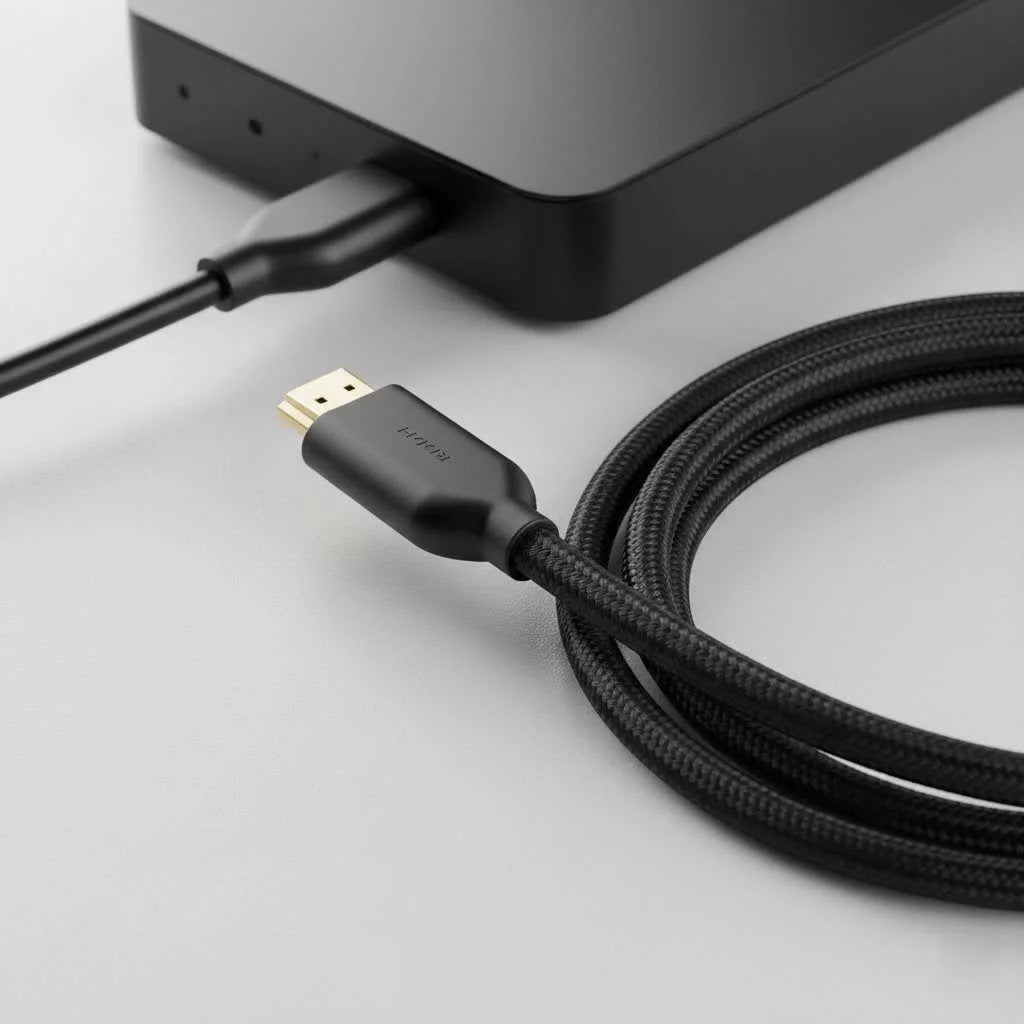
To connect an Xbox 360 to a modern TV, use an Xbox 360 HDMI cable, which is a standard HDMI cable. This cable transmits uncompressed digital video and audio signals, enabling high-definition resolutions up to 1080p and digital surround sound from your console to an HDTV or monitor.
Connecting your console correctly is the first step to reliving those epic Halo 3 sessions or exploring the vast world of Skyrim. While the console originally launched with composite cables (those red, white, and yellow things), the introduction of an HDMI port in later models was a major upgrade, literally. It unlocked higher-quality video and audio, making it the definitive way to experience the 360’s incredible library.
What Exactly Is an Xbox 360 HDMI Cable?
At its core, an Xbox 360 HDMI cable is simply a standard HDMI cable used to connect your Xbox 360 console to a high-definition display, like an HDTV or a monitor. HDMI, which stands for High-Definition Multimedia Interface, transmits uncompressed digital video and audio signals through a single cable.
This was a significant upgrade from the analog cables that came with the original Xbox 360 models. Instead of three separate plugs for video and two for audio, you get a cleaner, all-in-one solution that delivers a far superior picture and sound.
“When the HDMI port was added to the Xbox 360, it elevated the console from a standard-definition machine to a true HD gaming powerhouse. For the first time, gamers could easily get a crisp 1080p picture and digital surround sound with just one cable. It simplified setups and maximized quality,” says David Chen, a home theater installation expert.
Do All Xbox 360 Models Have an HDMI Port?
This is a crucial question, and the answer is no. Not every Xbox 360 can use an HDMI cable. Here’s a quick breakdown of the different models:
- Original Xbox 360 (2005-2010): The very first “fat” models did not have an HDMI port. However, Microsoft introduced the port to later versions of this model starting around 2007 (specifically, the “Zephyr” and later motherboards). If you have an original model, you must check the back to see if an HDMI port is present next to the standard A/V port.
- Xbox 360 S (Slim) (2010-2016): Yes, all Slim models come standard with an HDMI port.
- Xbox 360 E (Super Slim) (2013-2016): Yes, all “E” models also have an HDMI port. the E model removed the old A/V port, making HDMI the primary connection method.
To be sure, just look at the back of your console. The HDMI port is a small, trapezoid-shaped slot that’s impossible to miss.
Choosing the Right HDMI Cable for Your Xbox 360
Here’s the good news: you don’t need a super-expensive, gold-plated, “4K Ultra HD Premium Certified” cable for your Xbox 360. The console’s technology predates the latest HDMI standards like 2.0 and 2.1.
What HDMI Version Do You Need?
|
Our Picks for the Best HDMI Cable in 2026
As an Amazon Associate I earn from qualifying purchases.
|
||
| Num | Product | Action |
|---|---|---|
| 1 | Highwings 8K 10K 4K HDMI Cable 48Gbps 6.6FT/2M, Certified Ultra High Speed HDMI Cable Braided Cord-4K@120Hz 8K@60Hz, DTS:X, HDCP 2.2 & 2.3, HDR 10 Compatible with Roku TV/PS5/HDTV/Blu-ray |

|
| 2 | Short HDMI Cable 1 FT 2-Pack, 8K HDMI 2.1 48Gbps Ultra High Speed Braided HDMI Cords, 1 Foot HDMI Cable for Camera, Field Monitor, External Recorder, Laptop, PC |
|
| 3 | Highwings 4K HDMI Cable 6.6FT/2m - High-Speed HDMI 2.0 Quality Cord 4K@60Hz, Braided Nylon & Gold Connectors, HDR, Ethernet, ARC, 3D, HDCP 2.2, Compatible for PS-5/4/3/ HDTV/Monitor/DVD/Streaming |
|
| 4 | 15 Pack of 10 Foot hdmi Cables |
|
| 5 | Highwings 8K@60 HDMI Cable 10FT/3M, 48Gbps 2.1 High Speed HDMI Braided Nylon 4K120 144Hz RTX 3090 eARC HDR10 4:4:4 HDCP 2.2&2.3 Compatible for PS5, PS4, UHD TV and PC |
|
| 6 | Anker HDMI Cable 8K@60Hz, 6FT Ultra HD 4K@120Hz HDMI Cord,48 Gbps Certified Ultra High-Speed,Compatible with PlayStation 5,Xbox,Samsung TVs,and More |
|
| 7 | 10K 8K HDMI 2.1 Cable 2-Pack 6.6FT, Highwings Certified 48Gbps Ultra High Speed Slim HDMI Cord,Support 4K@120Hz 8K@60Hz, HDCP 2.2&2.3, Dynamic HDR,eARC,DTS:X, Compatible with Roku TV/HDTV/PS5/Blu-ray |
|
| 8 | Highwings High Speed 8K 60Hz HDMI Cable 3.3FT/1M, 2.1 48Gbps HDMI Braided Cable-4K@120Hz 7680P,DTS:X,HDCP 2.2 & 2.3, HDR 10,eARC,Dynamic HDR,Compatible for Laptop, Monitor, Roku TV |
|
| 9 | Highwings Long HDMI Cable 20 FT, 10K 8K 4K Ultra HD High Speed 2.1 HDMI Cable 48Gbps Braided Cord-4K@120Hz 8K@60Hz, DTS:X, HDCP 2.2&2.3, Dynamic HDR 10 Compatible with Roku TV/PS5/HDTV/Blu-ray |
|
| 10 | Highwings Long HDMI Cable 15 FT, 4K 8K 10K HDMI 2.1 Cord Ultra High Speed [in-Wall CL3 Rated, 8K@60Hz 4K@120Hz Video 48Gbps], Fit, Durable, Flexible, eARC, HDCP, Compatible for Ethernet SoundBar |
|
The Xbox 360 uses HDMI 1.2. This standard is more than capable of handling the console’s maximum output, which is a 1080p resolution (1920×1080 pixels) and Dolby Digital 5.1 surround sound.
Any modern HDMI cable you buy today will be backward-compatible. This means a cable labeled “High-Speed” (typically HDMI 1.4) or even “Ultra High-Speed” (HDMI 2.1) will work perfectly with your Xbox 360. The cable will simply operate at the highest specification that the Xbox 360 can support.
Key features to look for:
- High-Speed Certification: This is the most common type of cable available and is more than enough for the 360. It guarantees support for 1080p resolution.
- Proper Length: Choose a cable that is long enough to comfortably reach from your console to your TV without being too taut or having excessive slack. A length of 3 to 6 feet (1 to 2 meters) is usually perfect for most setups.
- Build Quality: Look for a cable with sturdy connectors and a durable jacket. This doesn’t mean you need to spend a fortune, but a well-made cable will last longer and provide a more reliable connection.
You can find a perfectly suitable Xbox 360 HDMI cable from brands like AmazonBasics, Monoprice, or any other reputable electronics manufacturer for a very reasonable price.
How to Connect Your Xbox 360 Using an HDMI Cable
Setting it all up is incredibly straightforward. Just follow these simple steps:
- Power Down: Make sure both your Xbox 360 console and your television are turned off.
- Plug in the Cable: Connect one end of the HDMI cable to the HDMI port on the back of your Xbox 360.
- Connect to TV: Plug the other end of the cable into an available HDMI input port on your TV or monitor. Take note of which port you use (e.g., HDMI 1, HDMI 2).
- Power Up: Turn on your television and then your Xbox 360 console.
- Select the Input: Use your TV remote to switch to the correct HDMI input channel you connected the cable to.
Your Xbox 360 dashboard should now appear on the screen in crisp high definition! The console should automatically detect the HDMI connection and configure the optimal display settings.
Optimizing Your Display Settings
If the picture doesn’t look right, you can manually adjust the settings:
- Navigate to Settings > System Settings > Console Settings > Display.
- From here, you can set the HDTV Settings to your TV’s native resolution, such as 720p, 1080i, or 1080p. For the best quality, always choose the highest progressive scan resolution your TV supports (1080p is ideal).
Common Problems and Troubleshooting Tips
Sometimes, things don’t go as planned. If you’re having trouble getting a picture or sound, here are some common issues and how to fix them.
No Signal or “Invalid Format” Error
This is the most frequent issue. If your screen is blank or shows an error message, try these steps:
- Check Connections: Ensure the HDMI cable is firmly plugged into both the console and the TV. Try a different HDMI port on your TV.
- Reset Display Settings: The console might be stuck on a resolution your TV doesn’t support. You can reset it:
- Remove any disc from the disc tray.
- Turn off the console.
- Turn on the console using the controller. As it boots up, press and hold the Y button while pulling the right trigger (RT).
- This will reset the display settings to the lowest resolution, allowing you to see the picture and reconfigure it correctly in the settings menu.
- Test the Cable: The cable itself might be faulty. Try using the cable with another device (like a Blu-ray player or another console) to see if it works. If it doesn’t, you need a new cable.
Poor Picture Quality or Flickering
If the image is snowy, has strange colors, or flickers on and off, it’s often due to a poor connection or a failing HDMI port.
- Wiggle the Cable: Gently wiggle the connector at both the console and TV end. If this affects the picture, it points to a loose port or a damaged cable.
- Try a Different Cable: This is the easiest way to rule out a faulty Xbox 360 HDMI cable.
- Check TV Settings: Some TVs have “Game Mode” or other picture settings that can impact performance. Make sure these are configured correctly.
Conclusion: The Best Way to Play
For anyone with a compatible console, using an Xbox 360 HDMI cable is a no-brainer. It’s the simplest and most effective way to unlock the console’s full potential on a modern HD or Full HD television. It declutters your setup, streamlines the connection process, and delivers the best possible audio-visual experience the legendary Xbox 360 has to offer.
So, dig out that old console, grab a reliable and affordable HDMI cable, and get ready to dive back into a golden era of gaming with the clarity and quality it always deserved.
Connect Your Xbox 360 Using an HDMI Cable
Follow these simple steps to connect your Xbox 360 console to your television using an HDMI cable for optimal picture and sound.
Ensure both your Xbox 360 console and your television are completely turned off before making any connections. This prevents potential electrical issues or signal conflicts.
Plug one end of the HDMI cable firmly into the HDMI port located on the back of your Xbox 360 console. The port is trapezoid-shaped and easy to identify.
Plug the other end of the HDMI cable into an available HDMI input port on your TV or monitor. Make a note of the specific port number you use (e.g., HDMI 1, HDMI 2) for later selection.
Turn on your television first, then power on your Xbox 360 console. Use your TV remote to switch the input source to the correct HDMI channel where you connected the cable.
Once the Xbox 360 dashboard appears, navigate to Settings > System Settings > Console Settings > Display. Set the HDTV Settings to your TV's native resolution, ideally 1080p, for the best visual quality.
Get our weekly buyer guide
Practical specs, not advice. Unsubscribe anytime.
My kids wanted to play some of my old Xbox 360 games, but I only had the red, white, and yellow cables. This explained exactly why an HDMI connection is so much better for modern TVs. We hooked it up, and the difference in video quality is night and day. Definitely the definitive way to experience the 360’s library.
I was a bit confused about whether I needed a special ‘Xbox 360 HDMI cable’ or just a regular one. This cleared it up perfectly. I used a spare HDMI cable and it worked like a charm for my old Skyrim saves. The digital surround sound is a nice bonus I hadn’t even thought about.
The info about using a standard HDMI cable was helpful, but I wish it had mentioned specific brands that work well. I tried a really cheap cable I had lying around and got some flickering. Had to swap it out for a slightly better one to get a stable 1080p picture. Still, glad I didn’t buy an overpriced ‘official’ cable.
I dug out my old Xbox 360 from the attic and realized my new TV didn’t have the old composite inputs. This guide was a lifesaver! I just used a standard HDMI cable I already had, and now I’m back to playing Halo 3 in glorious 1080p. The picture quality is surprisingly good for such an old console.