So, you’re on the hunt for an Hdmi To Usb A Cable. You’ve got a device with an HDMI port—maybe a camera, a gaming console, or a secondary laptop—and you want to plug it into your computer’s standard USB-A port. It seems like a simple task. You just need a cable that connects the two, right? Well, it’s a bit more complicated than that, but don’t worry. We’re here to clear up the confusion and guide you to the solution you’re actually looking for.
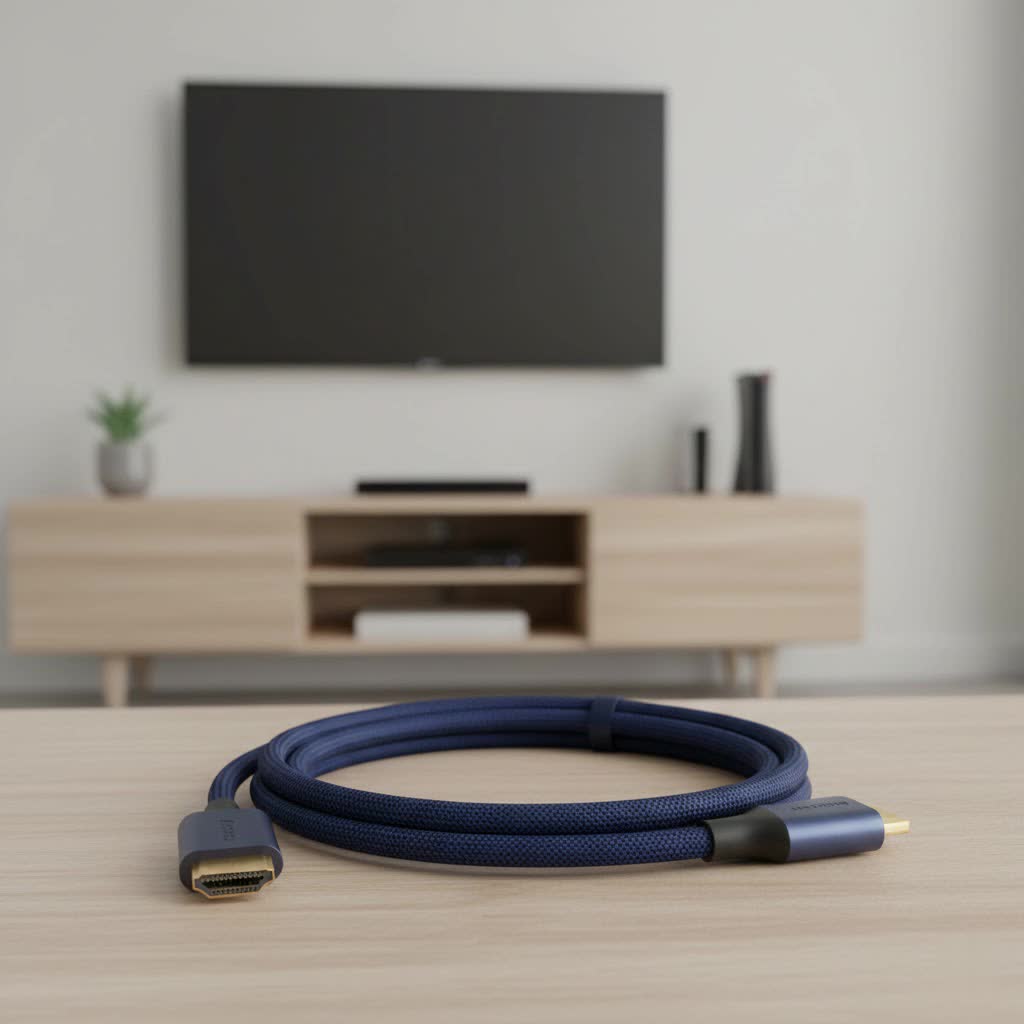
The straight answer is that a simple, passive cable designed to connect an HDMI output directly to a USB-A input for video transfer doesn’t exist. The two ports speak completely different languages. Trying to connect them with a basic cable is like trying to plug a lamp into a water faucet—the connections might look vaguely similar, but they serve fundamentally different purposes and won’t work together.
But that doesn’t mean your goal is impossible. You just need the right piece of equipment: an HDMI to USB video capture device. This small but powerful gadget is the key to unlocking a world of high-quality streaming, recording, and video conferencing.
Why a Simple HDMI to USB A Cable Won’t Work
To understand why you need a special device, it helps to know what HDMI and USB-A ports are designed to do. Think of them as one-way and two-way streets.
- HDMI (High-Definition Multimedia Interface): This is primarily a video and audio output. It’s designed to send a massive amount of high-definition visual and sound data in one direction—from a source like a PlayStation 5 to a display like your TV.
- USB (Universal Serial Bus): This is a data port. It’s designed for transferring files, connecting peripherals like keyboards and mice, and supplying power. While it can handle video data (like a webcam feed), it can’t natively receive or understand the complex, uncompressed signal that comes directly from an HDMI port.
A simple cable can’t translate the high-bandwidth video signal from HDMI into a data format that your computer’s USB port can recognize. It needs a “translator,” and that’s precisely what a capture card does.
The Real Solution: The HDMI to USB Capture Card
An HDMI to USB video capture card, often called a capture adapter or dongle, is the device you’re actually searching for when you look for an hdmi to usb a cable. This piece of hardware acts as an interpreter between your HDMI source and your computer.
Here’s how it works:
- You plug your HDMI source (e.g., a DSLR camera) into the capture card’s HDMI input port.
- The capture card takes that raw video signal and processes it, converting it into a standard digital video format.
- It then sends this newly formatted video data through its USB-A connector into your computer.
- Your computer recognizes the capture card as a video source, just like a built-in webcam.
Suddenly, your professional camera, gaming console, or other HDMI device is available as a selectable camera in software like OBS Studio, Zoom, Google Meet, or Discord.
As technology consultant David Chen puts it, “Users often look for a direct cable, but the magic happens in the conversion. A capture card isn’t just an adapter; it’s a mini-computer dedicated to translating a high-quality video feed into a language your PC can understand and use in real-time.”
Common Uses for an HDMI to USB Capture Device
Once you have the right tool, you can accomplish a variety of tasks that were previously impossible. Here are some of the most popular applications for an HDMI to USB capture adapter.
Elevate Your Livestreaming and Content Creation
|
Our Picks for the Best HDMI Cable in 2026
As an Amazon Associate I earn from qualifying purchases.
|
||
| Num | Product | Action |
|---|---|---|
| 1 | Highwings 4K HDMI Cable 6.6FT/2m - High-Speed HDMI 2.0 Quality Cord 4K@60Hz, Braided Nylon & Gold Connectors, HDR, Ethernet, ARC, 3D, HDCP 2.2, Compatible for PS-5/4/3/ HDTV/Monitor/DVD/Streaming |

|
| 2 | Highwings 8K@60 HDMI Cable 10FT/3M, 48Gbps 2.1 High Speed HDMI Braided Nylon 4K120 144Hz RTX 3090 eARC HDR10 4:4:4 HDCP 2.2&2.3 Compatible for PS5, PS4, UHD TV and PC |
|
| 3 | Highwings High Speed 8K 60Hz HDMI Cable 3.3FT/1M, 2.1 48Gbps HDMI Braided Cable-4K@120Hz 7680P,DTS:X,HDCP 2.2 & 2.3, HDR 10,eARC,Dynamic HDR,Compatible for Laptop, Monitor, Roku TV |
|
| 4 | Highwings 8K 10K 4K HDMI Cable 48Gbps 6.6FT/2M, Certified Ultra High Speed HDMI Cable Braided Cord-4K@120Hz 8K@60Hz, DTS:X, HDCP 2.2 & 2.3, HDR 10 Compatible with Roku TV/PS5/HDTV/Blu-ray |
|
| 5 | 10K 8K HDMI 2.1 Cable 2-Pack 6.6FT, Highwings Certified 48Gbps Ultra High Speed Slim HDMI Cord,Support 4K@120Hz 8K@60Hz, HDCP 2.2&2.3, Dynamic HDR,eARC,DTS:X, Compatible with Roku TV/HDTV/PS5/Blu-ray |
|
| 6 | 15 Pack of 10 Foot hdmi Cables |
|
| 7 | Anker HDMI Cable 8K@60Hz, 6FT Ultra HD 4K@120Hz HDMI Cord,48 Gbps Certified Ultra High-Speed,Compatible with PlayStation 5,Xbox,Samsung TVs,and More |
|
| 8 | Short HDMI Cable 1 FT 2-Pack, 8K HDMI 2.1 48Gbps Ultra High Speed Braided HDMI Cords, 1 Foot HDMI Cable for Camera, Field Monitor, External Recorder, Laptop, PC |
|
| 9 | Highwings Long HDMI Cable 15 FT, 4K 8K 10K HDMI 2.1 Cord Ultra High Speed [in-Wall CL3 Rated, 8K@60Hz 4K@120Hz Video 48Gbps], Fit, Durable, Flexible, eARC, HDCP, Compatible for Ethernet SoundBar |
|
| 10 | Highwings Long HDMI Cable 20 FT, 10K 8K 4K Ultra HD High Speed 2.1 HDMI Cable 48Gbps Braided Cord-4K@120Hz 8K@60Hz, DTS:X, HDCP 2.2&2.3, Dynamic HDR 10 Compatible with Roku TV/PS5/HDTV/Blu-ray |
|
For streamers on platforms like Twitch or YouTube, a capture card is non-negotiable. It allows you to connect a high-quality mirrorless or DSLR camera to your computer, instantly upgrading your facecam from a grainy webcam image to a professional, cinematic look. This gives your stream a polished feel that helps you stand out.
Record Gameplay from Your Favorite Consoles
Want to capture your epic gaming moments from a PS5, Xbox Series X, or Nintendo Switch? A capture card is the answer.
- Connect your console’s HDMI output to the capture card’s input.
- Use an HDMI “passthrough” port on the card to connect to your TV or monitor so you can play with zero lag.
- The USB connection sends the gameplay footage directly to your PC for recording or live streaming.
Transform Your DSLR into a High-Quality Webcam
In an age of remote work and virtual meetings, looking your best on camera matters. The tiny webcam built into your laptop can’t compete with the quality of a dedicated camera. With an HDMI to USB capture device, you can use your DSLR or mirrorless camera as a webcam for Zoom, Microsoft Teams, or Skype calls, ensuring a sharp, professional image.
Share Screens for Presentations and Demos
If you need to share a screen from another device during a presentation or tutorial, a capture card makes it seamless. You can input the HDMI feed from a second laptop, a tablet, or even a smartphone (with the right adapter) and display it as a video source within your main computer’s software.
How to Choose the Right HDMI to USB Adapter
Not all capture devices are created equal. When shopping for one, here are the key features to consider to ensure you get the performance you need.
- Resolution and Frame Rate: This is the most critical factor. For smooth video, look for a device that supports at least 1080p resolution at 60 frames per second (fps). If you’re working with 4K content, you’ll need a 4K-capable card, but be prepared for a higher price point.
- USB Version: To handle the amount of data from high-resolution video, a USB 3.0 (often identifiable by a blue port) or higher connection is strongly recommended. USB 2.0 can work for lower resolutions but may introduce compression and lag.
- Latency: Latency is the delay between what your HDMI source is showing and when it appears on your computer. For gaming, ultra-low latency is essential. For video conferencing, a slight delay is usually acceptable.
- Plug-and-Play: Most modern capture adapters are UVC (USB Video Class) compliant, meaning they are “plug-and-play.” You can connect them to your Windows, macOS, or Linux computer, and they will work automatically without requiring you to install special drivers.
- Build Quality: If you plan to travel with your device, look for one with a sturdy metal casing rather than plastic, which can be more susceptible to damage.
Frequently Asked Questions (FAQ)
1. Can I use an HDMI to USB adapter to connect my laptop to a second monitor?
No, this is a common point of confusion. The devices discussed here are for video input. To connect your laptop to an external monitor, you need a USB to HDMI adapter, which works in the opposite direction, turning a USB port into a video output.
2. What’s the difference between a cheap and an expensive capture card?
The price difference usually comes down to resolution, frame rate, latency, and reliability. Cheaper cards may be limited to 1080p at 30fps and might have higher latency. More expensive models from brands like Elgato or AVerMedia offer features like 4K/60fps capture, HDR passthrough, and virtually zero-latency performance, which are crucial for professional streamers and gamers.
3. Do I need special software to use an HDMI to USB capture device?
No, you don’t need proprietary software to make the card work. Because it’s recognized as a standard webcam, you can use it with any software that accepts a video input, such as OBS, Streamlabs, Zoom, or even your web browser.
4. Will an HDMI to USB-A cable charge my device?
No. These capture adapters are designed for video signal conversion, not for power delivery. HDMI does not carry significant power, and the USB-A connection is used for data transfer.
5. Is there a difference between an HDMI to USB-A and an HDMI to USB-C adapter?
Yes, the physical connector is the main difference. The underlying technology is the same, but you should choose the one that matches the ports available on your computer. USB-C ports often support faster data transfer speeds, which can be beneficial for high-resolution video capture.
Conclusion: The Right Tool for the Job
While the search for a simple hdmi to usb a cable might lead to a dead end, it ultimately points you toward the correct and much more powerful solution: the HDMI to USB video capture card. This essential device bridges the gap between different technologies, allowing you to unlock the full potential of your cameras and game consoles. By understanding that you need a converter, not just a cable, you can confidently choose the right hardware to elevate your streams, recordings, and online presentations to a new level of quality.
