Connecting your Chromebook to an external display typically requires an HDMI cable or a USB-C to HDMI adapter, depending on the specific ports available on your device. Most modern Chromebooks feature a USB-C port that supports DisplayPort Alternate Mode, enabling video output, while some older or larger models may have a standard HDMI, Mini HDMI, or Micro HDMI port. Identifying your Chromebook’s port is the first step to selecting the correct cable for a larger viewing experience.
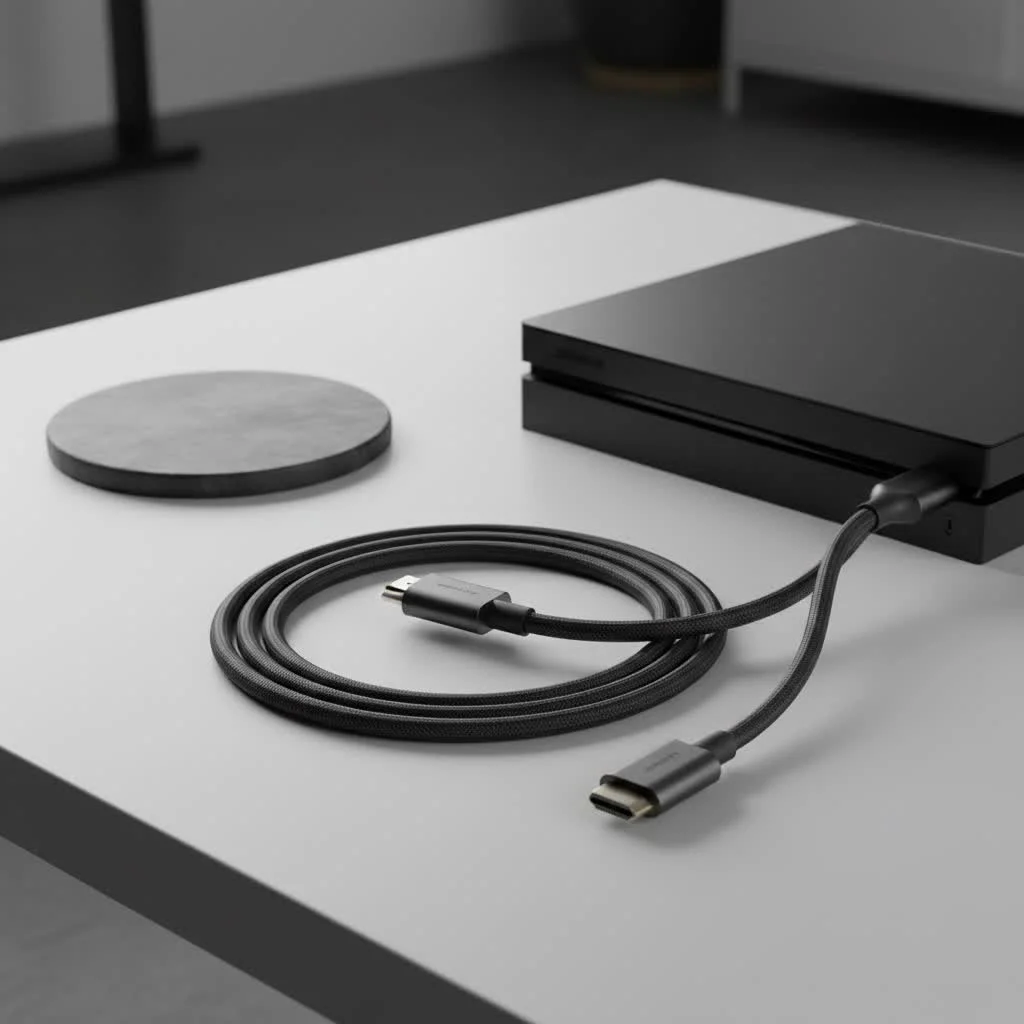
At Iecfl Tech, we simplify the process of connecting your Chromebook to any TV or monitor. This guide will help you understand the necessary connections and configurations, ensuring you find the perfect solution for your setup.
First Things First: What Port Does Your Chromebook Have?
Before purchasing a cable, you need to identify the video output port on your Chromebook. Ports can vary significantly between models and generations. Examine the sides of your device for one of the following:
USB-C: The Modern Standard
If your Chromebook was manufactured within the last few years, it likely has at least one oval-shaped USB-C port. This versatile port typically supports DisplayPort Alternate Mode (DP Alt Mode), which allows it to transmit video signals. This is the most common and flexible method for connecting a contemporary Chromebook to an external display.
Standard HDMI (Type-A)
Some larger or older Chromebook models may include a full-size, trapezoid-shaped HDMI port, identical to those found on TVs or gaming consoles. If your device has this port, connecting to an external display will be straightforward.
Mini HDMI (Type-C) or Micro HDMI (Type-D)
Less common, some thinner or older Chromebooks utilize smaller HDMI port versions to conserve space. A Mini HDMI port is a smaller variant of the standard one, while a Micro HDMI port is even tinier, resembling a micro-USB charging port.
Choosing the Right HDMI Cable for Your Chromebook
Once you’ve identified your Chromebook’s port, select the appropriate cable or adapter.
For Chromebooks with USB-C Ports
This is the most frequent scenario today, offering two primary options:
- A USB-C to HDMI Adapter: This small dongle features a male USB-C plug on one end and a female HDMI port on the other. You connect the adapter to your Chromebook, then use a standard HDMI cable to link the adapter to your TV or monitor. This is a flexible choice if you already own a standard HDMI cable.
- A USB-C to HDMI Cable: This is an integrated solution with a USB-C connector on one end and a standard HDMI connector on the other. It eliminates the need for a separate adapter and cable, resulting in a tidier setup, ideal for portability.
When selecting, prioritize a cable or adapter that supports at least 4K resolution at a 60Hz refresh rate (4K@60Hz). This ensures a smooth, sharp image on current displays and future-proofs your investment.
For Chromebooks with a Standard HDMI Port
|
Our Picks for the Best HDMI Cable in 2026
As an Amazon Associate I earn from qualifying purchases.
|
||
| Num | Product | Action |
|---|---|---|
| 1 | Highwings Long HDMI Cable 15 FT, 4K 8K 10K HDMI 2.1 Cord Ultra High Speed [in-Wall CL3 Rated, 8K@60Hz 4K@120Hz Video 48Gbps], Fit, Durable, Flexible, eARC, HDCP, Compatible for Ethernet SoundBar |
![Check Highwings Long HDMI Cable 15 FT, 4K 8K 10K HDMI 2.1 Cord Ultra High Speed [in-Wall CL3 Rated, 8K@60Hz 4K@120Hz Video 48Gbps], Fit, Durable, Flexible, eARC, HDCP, Compatible for Ethernet SoundBar on Amazon](https://iecfl.com/wp-content/plugins/amazon-tables/assets/images/buy.png)
|
| 2 | Highwings 8K 10K 4K HDMI Cable 48Gbps 6.6FT/2M, Certified Ultra High Speed HDMI Cable Braided Cord-4K@120Hz 8K@60Hz, DTS:X, HDCP 2.2 & 2.3, HDR 10 Compatible with Roku TV/PS5/HDTV/Blu-ray |
|
| 3 | Anker HDMI Cable 8K@60Hz, 6FT Ultra HD 4K@120Hz HDMI Cord,48 Gbps Certified Ultra High-Speed,Compatible with PlayStation 5,Xbox,Samsung TVs,and More |
|
| 4 | Highwings High Speed 8K 60Hz HDMI Cable 3.3FT/1M, 2.1 48Gbps HDMI Braided Cable-4K@120Hz 7680P,DTS:X,HDCP 2.2 & 2.3, HDR 10,eARC,Dynamic HDR,Compatible for Laptop, Monitor, Roku TV |
|
| 5 | Short HDMI Cable 1 FT 2-Pack, 8K HDMI 2.1 48Gbps Ultra High Speed Braided HDMI Cords, 1 Foot HDMI Cable for Camera, Field Monitor, External Recorder, Laptop, PC |
|
| 6 | 10K 8K HDMI 2.1 Cable 2-Pack 6.6FT, Highwings Certified 48Gbps Ultra High Speed Slim HDMI Cord,Support 4K@120Hz 8K@60Hz, HDCP 2.2&2.3, Dynamic HDR,eARC,DTS:X, Compatible with Roku TV/HDTV/PS5/Blu-ray |
|
| 7 | 15 Pack of 10 Foot hdmi Cables |
|
| 8 | Highwings 4K HDMI Cable 6.6FT/2m - High-Speed HDMI 2.0 Quality Cord 4K@60Hz, Braided Nylon & Gold Connectors, HDR, Ethernet, ARC, 3D, HDCP 2.2, Compatible for PS-5/4/3/ HDTV/Monitor/DVD/Streaming |
|
| 9 | Highwings Long HDMI Cable 20 FT, 10K 8K 4K Ultra HD High Speed 2.1 HDMI Cable 48Gbps Braided Cord-4K@120Hz 8K@60Hz, DTS:X, HDCP 2.2&2.3, Dynamic HDR 10 Compatible with Roku TV/PS5/HDTV/Blu-ray |
|
| 10 | Highwings 8K@60 HDMI Cable 10FT/3M, 48Gbps 2.1 High Speed HDMI Braided Nylon 4K120 144Hz RTX 3090 eARC HDR10 4:4:4 HDCP 2.2&2.3 Compatible for PS5, PS4, UHD TV and PC |
|
This is the simplest setup. You only need a standard male-to-male HDMI cable. Plug one end into your Chromebook and the other into your display.
For Chromebooks with Mini or Micro HDMI Ports
If your device has one of these smaller ports, you will need a specific cable:
- A Mini HDMI to HDMI cable
- A Micro HDMI to HDMI cable
These cables feature the smaller connector on one end and the standard, full-size HDMI connector on the other. Verify which mini/micro version you have, as they are not interchangeable.
Expert Insight from Mark Rivera, Home Theater Installer: “I frequently observe situations where individuals purchase an expensive 4K TV and a high-quality Chromebook but connect them with a cheap, unverified adapter. This often leads to a flickering screen or being limited to 1080p resolution. For a USB-C connection, always confirm ‘4K@60Hz’ support. It’s crucial for a seamless viewing experience.”
How to Connect and Configure Your Display
With the correct cable, connecting your display is straightforward.
- Connect the cable securely to your Chromebook.
- Connect the other end to an available HDMI port on your monitor or TV.
- Turn on your monitor or TV and select the correct HDMI input source (e.g., HDMI 1, HDMI 2).
Your Chromebook should automatically detect the second display. By default, it will likely mirror your screen, displaying the same content on both devices. For more workspace, you can switch to extended mode.
To adjust your display settings:
- Click the time in the bottom-right corner of your screen to open the Quick Settings panel.
- Click the Settings cogwheel icon.
- Navigate to Device > Displays.
- Here, you can uncheck the “Mirror Built-in display” option to extend your desktop. You can also rearrange the displays to match their physical arrangement on your desk.
Troubleshooting Common Connection Problems
If you encounter issues like a “No Signal” message, follow this checklist:
- Check the Input Source: Ensure your TV or monitor is set to the correct HDMI input. Cycle through the inputs to confirm.
- Secure the Connections: Unplug and re-plug both ends of the cable. Loose connections are a common cause of display issues.
- Restart Everything: Perform a classic troubleshooting step. Turn off your Chromebook and the display, connect the cable, then power on the display first, followed by your Chromebook.
- Update Your Chromebook: Verify that your ChromeOS is up to date. Go to Settings > About ChromeOS > Check for updates.
- Try a Different Port/Cable: If available, test another HDMI port on your display. If you have another cable, use it to rule out a faulty HDMI cable for Chromebook.
Frequently Asked Questions (FAQ)
Do I need a specific brand of HDMI cable for my Chromebook?
No, you do not. HDMI is a universal standard. As long as you have the correct type of connectors (e.g., USB-C to HDMI, Standard HDMI) and the cable is from a reputable manufacturer, it will work with any brand of Chromebook, from Acer to HP to Google’s own Pixelbooks.
Can any USB-C port be used for video output?
Not necessarily. The USB-C port must support DisplayPort Alternate Mode to output video. While most modern Chromebooks do, some very budget-oriented models might have USB-C ports that are for charging and data only. Check your device’s specifications if you are unsure.
Will a USB-C to HDMI adapter charge my Chromebook?
Most simple USB-C to HDMI adapters will not. They are designed only for video and audio output. However, you can buy a multi-port USB-C hub that includes an HDMI port, USB-A ports, and a USB-C Power Delivery (PD) pass-through port, which allows you to charge your Chromebook while using the external display.
How do I get audio to play through my TV’s speakers?
Your Chromebook should automatically switch the audio output to the HDMI device. If it doesn’t, click the Quick Settings panel (by the time), click the > arrow next to the volume slider, and select your TV or monitor from the list of output devices.
What is the difference between mirroring and extending my display?
Mirroring shows the exact same content on your Chromebook and the external screen. It’s great for presentations. Extending treats the external screen as a separate, additional desktop, allowing you to drag windows from one screen to the other. It’s ideal for productivity and multitasking.
The Final Connection
Expanding your Chromebook’s digital real estate is a major upgrade for both work and play. It all comes down to a simple three-step process: identify your port, buy the corresponding cable or adapter, and plug it in. Don’t get lost in the sea of technical terms. By focusing on your device’s specific needs, you can easily find the perfect HDMI cable for Chromebook and unlock a much bigger, better viewing experience.
Frequently Asked Questions
Do I need a specific brand of HDMI cable for my Chromebook?
No, you do not need a specific brand. HDMI is a universal standard, so any reputable cable with the correct connectors (e.g., USB-C to HDMI, Standard HDMI) will work with any Chromebook brand, including Acer, HP, or Google Pixelbooks.
Can any USB-C port on a Chromebook be used for video output?
Not all USB-C ports support video output. The USB-C port must specifically support DisplayPort Alternate Mode to transmit video. While most modern Chromebooks include this feature, some budget models may have USB-C ports solely for charging and data transfer. Always check your device's specifications if you are uncertain.
Will a USB-C to HDMI adapter also charge my Chromebook?
Most basic USB-C to HDMI adapters are designed only for video and audio output and do not provide charging capabilities. However, multi-port USB-C hubs are available that include an HDMI port, USB-A ports, and a USB-C Power Delivery (PD) pass-through port, allowing you to charge your Chromebook while connected to an external display.
How do I get audio to play through my TV's speakers when connected?
Your Chromebook should automatically route audio to the HDMI device. If it doesn't, click the Quick Settings panel (near the time), then click the '>' arrow next to the volume slider, and select your TV or monitor from the list of available output devices. This ensures sound plays through your external display's speakers.
What is the difference between mirroring and extending a Chromebook display?
Mirroring displays the exact same content on both your Chromebook and the external screen, which is useful for presentations. Extending treats the external screen as a separate, additional desktop space, allowing you to drag windows between screens, which is ideal for productivity and multitasking. You can switch between these modes in your Chromebook's display settings.
Connect Your Chromebook to an External Display
This guide outlines the steps to connect your Chromebook to a TV or monitor using the appropriate HDMI cable or adapter and configure the display settings.
Examine the sides of your Chromebook to determine if it has a USB-C, standard HDMI, Mini HDMI, or Micro HDMI port. This step is crucial for selecting the correct cable or adapter. Most modern Chromebooks use USB-C with DisplayPort Alternate Mode.
Based on your identified port, select either a USB-C to HDMI adapter/cable, a standard HDMI cable, or a specific Mini/Micro HDMI to HDMI cable. Ensure any USB-C solution supports 4K resolution at 60Hz for optimal performance. This ensures compatibility and high-quality video output.
Securely plug one end of the chosen cable or adapter into your Chromebook and the other end into an available HDMI port on your monitor or TV. Make sure all connections are firm to prevent signal issues. Then, turn on your external display and select the correct HDMI input source.
After connecting, your Chromebook should automatically detect the display. To adjust settings, click the time in the bottom-right corner, then the Settings cogwheel, and navigate to Device > Displays. Here, you can choose to mirror or extend your display and rearrange screen positions. Uncheck 'Mirror Built-in display' for extended desktop mode.
Get our weekly buyer guide
Practical specs, not advice. Unsubscribe anytime.
My new Chromebook only has USB-C ports, so I was looking for a good adapter. I ended up getting a USB-C to HDMI adapter based on the info here, and it’s been solid. No lag or anything when I’m streaming to my TV. It’s a bit more expensive than a regular HDMI cable, but totally worth it for the versatility.
I bought a standard HDMI cable for my Chromebook, thinking it would work, but turns out I needed a Micro HDMI. My bad for not checking my specific model first. The cable itself seems fine, but I had to return it and get the right one. Wish there was a clearer warning about the different HDMI sizes right at the top.
I was so confused about what kind of cable I needed for my older Acer Chromebook. This guide really helped me figure out that I needed a Mini HDMI to HDMI cable. It works perfectly with my monitor now, and the picture quality is great. Definitely recommend checking your ports first like they said!
This was super helpful for connecting my Chromebook to my external display for work. I have a newer model with a USB-C port, and the explanation of DisplayPort Alternate Mode made so much sense. I got the recommended adapter, and it’s been flawless for presentations and extending my workspace. Great advice!