Ever been huddled around a tiny phone screen with friends, trying to show them a hilarious video? Or maybe you’ve wished you could play your favorite iPhone game on your big-screen TV. It’s a common frustration, but there’s a simple, powerful solution: the Hdmi Iphone Cable. This handy accessory is your golden ticket to unlocking a bigger, better viewing experience for everything on your iPhone.
In a world of wireless streaming, a dedicated cable might seem old-fashioned, but it offers a level of stability and quality that Wi-Fi can’t always guarantee. Whether you’re a movie lover, a mobile gamer, a presenter, or just someone who loves sharing photos, understanding how to connect your iPhone to an HDMI display is a game-changer. Let’s dive into everything you need to know.
What Exactly is an HDMI iPhone Cable?
First things first, let’s clear up a common point of confusion. An “HDMI iPhone cable” isn’t typically a single cable with a Lightning connector on one end and an HDMI connector on the other. Instead, it’s a two-part system:
- A Lightning to Digital AV Adapter: This is the key component. It’s a small dongle that plugs into your iPhone’s Lightning port.
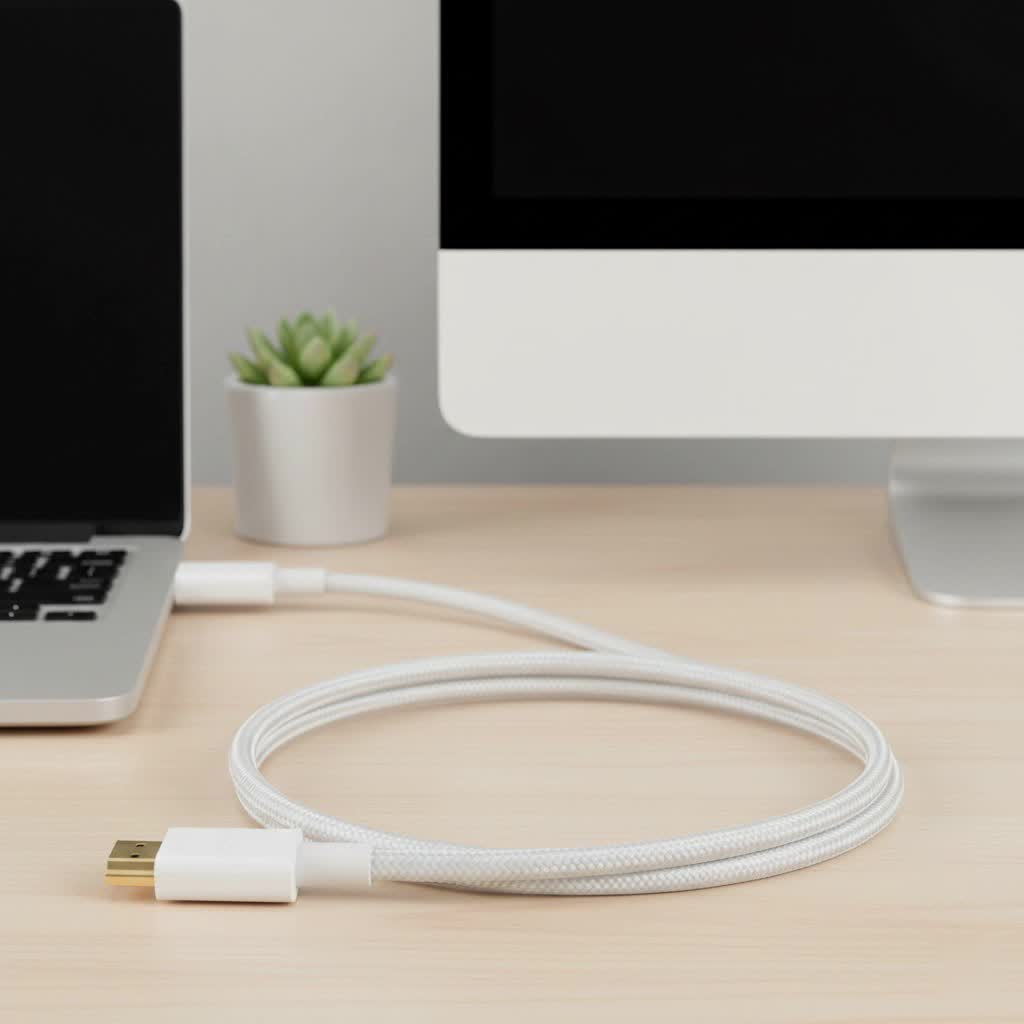
- A Standard HDMI Cable: This is the same type of cable you use for your Blu-ray player or game console.
The adapter has two ports: one for the HDMI cable and another Lightning port for power. You plug the adapter into your iPhone, connect a standard HDMI cable from the adapter to your TV or monitor, and you’re ready to go. The most well-known version is Apple’s own Lightning Digital AV Adapter, but many third-party options are also available.
Why You Need an HDMI Adapter for Your iPhone
While wireless solutions like AirPlay are convenient, a wired connection using an HDMI iPhone cable adapter offers distinct advantages that make it indispensable for many situations.
- Rock-Solid Stability: A physical cable provides a direct, uninterrupted signal. This means no lag, stuttering, or buffering, which is crucial for fast-paced gaming or watching high-action movies.
- Universal Compatibility: Nearly every modern TV, projector, and computer monitor has an HDMI port. You don’t need a smart TV or an Apple TV device; if it has an HDMI input, you can connect your iPhone.
- Superior Image Quality: A wired connection ensures the best possible video and audio quality your device can output, typically up to 1080p HD, without the compression artifacts that can sometimes affect wireless streams.
- No Wi-Fi Needed: This is a huge benefit when you’re traveling, at a friend’s house with a weak signal, or in a hotel. As long as you have your adapter and cable, you can connect to any TV without needing to log into a network.
- Zero-Latency Screen Mirroring: For presentations or live demos, what you see on your iPhone is what you see on the big screen, instantly.
“For professionals who rely on their iPhone for presentations, the stability of a wired HDMI connection is non-negotiable,” notes technology consultant David Miller. “You can’t risk a dropped wireless signal in the middle of a client meeting. The Lightning to HDMI adapter is a must-have tool in my bag.”
How to Connect Your iPhone to a TV Using an HDMI Cable
Getting your iPhone’s screen onto a TV is incredibly simple. Just follow these steps for a flawless setup.
- Plug the Adapter into Your iPhone: Insert the Lightning connector of the Digital AV Adapter firmly into your iPhone’s charging port.
- Connect the HDMI Cable: Plug one end of your HDMI cable into the HDMI port on the adapter. Plug the other end into an available HDMI input on your TV, monitor, or projector.
- Power Up (Recommended): Connect your standard Lightning charging cable to the second port on the adapter and plug it into a wall outlet. While not always required, this prevents your iPhone’s battery from draining, especially during a long movie or gaming session.
- Turn on Your TV: Power on your television or display.
- Switch to the Correct Input: Use your TV remote to change the input source (e.g., HDMI 1, HDMI 2) to the one you connected the cable to. Your iPhone’s screen should now be mirrored on the display.
Choosing the Best HDMI iPhone Cable Adapter
When you shop for a solution, you’ll face a primary choice: go with Apple’s official adapter or a third-party model? Here’s what you need to consider.
The Official Apple Lightning Digital AV Adapter
This is the benchmark for performance and reliability.
- Pros:
- Guaranteed Compatibility: It’s made by Apple, for Apple devices. It will work seamlessly with your iPhone and will continue to work after iOS updates.
- HDCP Compliance: It is fully compliant with High-bandwidth Digital Content Protection (HDCP), which is essential for streaming content from apps like Netflix, Disney+, and HBO Max.
- Reliable Performance: It consistently delivers a stable 1080p signal without issues.
- Cons:
- Price: It is significantly more expensive than third-party alternatives.
|
Our Picks for the Best HDMI Cable in 2026
As an Amazon Associate I earn from qualifying purchases.
|
||
| Num | Product | Action |
|---|---|---|
| 1 | Anker HDMI Cable 8K@60Hz, 6FT Ultra HD 4K@120Hz HDMI Cord,48 Gbps Certified Ultra High-Speed,Compatible with PlayStation 5,Xbox,Samsung TVs,and More |

|
| 2 | Highwings 8K@60 HDMI Cable 10FT/3M, 48Gbps 2.1 High Speed HDMI Braided Nylon 4K120 144Hz RTX 3090 eARC HDR10 4:4:4 HDCP 2.2&2.3 Compatible for PS5, PS4, UHD TV and PC |
|
| 3 | Highwings Long HDMI Cable 20 FT, 10K 8K 4K Ultra HD High Speed 2.1 HDMI Cable 48Gbps Braided Cord-4K@120Hz 8K@60Hz, DTS:X, HDCP 2.2&2.3, Dynamic HDR 10 Compatible with Roku TV/PS5/HDTV/Blu-ray |
|
| 4 | Highwings Long HDMI Cable 15 FT, 4K 8K 10K HDMI 2.1 Cord Ultra High Speed [in-Wall CL3 Rated, 8K@60Hz 4K@120Hz Video 48Gbps], Fit, Durable, Flexible, eARC, HDCP, Compatible for Ethernet SoundBar |
|
| 5 | Highwings High Speed 8K 60Hz HDMI Cable 3.3FT/1M, 2.1 48Gbps HDMI Braided Cable-4K@120Hz 7680P,DTS:X,HDCP 2.2 & 2.3, HDR 10,eARC,Dynamic HDR,Compatible for Laptop, Monitor, Roku TV |
|
| 6 | Highwings 8K 10K 4K HDMI Cable 48Gbps 6.6FT/2M, Certified Ultra High Speed HDMI Cable Braided Cord-4K@120Hz 8K@60Hz, DTS:X, HDCP 2.2 & 2.3, HDR 10 Compatible with Roku TV/PS5/HDTV/Blu-ray |
|
| 7 | 10K 8K HDMI 2.1 Cable 2-Pack 6.6FT, Highwings Certified 48Gbps Ultra High Speed Slim HDMI Cord,Support 4K@120Hz 8K@60Hz, HDCP 2.2&2.3, Dynamic HDR,eARC,DTS:X, Compatible with Roku TV/HDTV/PS5/Blu-ray |
|
| 8 | Highwings 4K HDMI Cable 6.6FT/2m - High-Speed HDMI 2.0 Quality Cord 4K@60Hz, Braided Nylon & Gold Connectors, HDR, Ethernet, ARC, 3D, HDCP 2.2, Compatible for PS-5/4/3/ HDTV/Monitor/DVD/Streaming |
|
| 9 | Short HDMI Cable 1 FT 2-Pack, 8K HDMI 2.1 48Gbps Ultra High Speed Braided HDMI Cords, 1 Foot HDMI Cable for Camera, Field Monitor, External Recorder, Laptop, PC |
|
| 10 | 15 Pack of 10 Foot hdmi Cables |
|
Third-Party Adapters: A Good Alternative?
There are countless third-party adapters on the market, often at a fraction of the price.
- Pros:
- Affordability: You can save a considerable amount of money.
- Variety: Some models offer different form factors or extra ports.
- Cons:
- HDCP Issues: This is the biggest risk. Many cheaper adapters are not HDCP compliant, meaning they will not play protected content from major streaming services. You’ll get an error message or a black screen.
- iOS Update Bricking: A future iOS update can easily render a non-certified adapter useless.
- Inconsistent Quality: Build quality and performance can be a gamble, with some adapters overheating or failing prematurely.
Key Features to Look For
Whether you choose official or third-party, keep these features in mind:
- Resolution: Ensure the adapter supports at least 1080p Full HD.
- HDCP Compliance: If you plan to watch streaming services, this is non-negotiable. Look for this certification explicitly in the product description.
- Power Passthrough: A dedicated Lightning port for charging is a critical feature for extended use.
- Build Quality: Look for sturdy connectors and a durable cable to ensure longevity.
Common Problems and How to Fix Them
Even with a simple setup, you might run into a snag. Here are some common issues and their solutions.
- No Signal on TV: Double-check that all cables are securely plugged in. Ensure your TV is on the correct HDMI input channel. Try a different HDMI port on your TV or a different HDMI cable.
- “An error occurred loading this content” (HDCP Error): This almost always means your adapter is not HDCP compliant or the app itself blocks HDMI output. The most reliable fix is using an official Apple adapter.
- Adapter is Hot: It is normal for the adapter to get warm during use. However, if it becomes excessively hot to the touch, unplug it immediately and let it cool down. This may indicate a faulty unit.
- It Stopped Working After an iOS Update: This is a common fate for non-certified third-party adapters. Unfortunately, the only solution is to purchase a new, compatible adapter.
Frequently Asked Questions (FAQ)
Can I watch Netflix with an iPhone to HDMI adapter?
Yes, but only if you use an HDCP-compliant adapter, such as the official Apple Lightning Digital AV Adapter. Many third-party adapters will not work.
Does the Apple adapter support 4K video?
No, the official Apple Lightning Digital AV Adapter mirrors your screen and outputs a maximum resolution of 1080p, even if you are playing 4K content.
Do I need Wi-Fi to use an HDMI iPhone cable?
Absolutely not. A wired HDMI connection is completely independent of any Wi-Fi or cellular network, making it a perfect solution for travel or areas with poor connectivity.
Will using the adapter drain my iPhone’s battery quickly?
Yes, video output is a power-intensive task. This is why it is highly recommended to choose an adapter with a power passthrough port and keep your iPhone charging while it’s connected to the TV.
Can I use the same adapter to connect my iPad to a TV?
Yes, if your iPad uses a Lightning port, the same adapter will work perfectly for mirroring its screen as well.
The Final Verdict
For anyone looking to break free from the small screen, an HDMI iPhone cable and adapter system is an essential accessory. It provides a simple, reliable, and high-quality way to enjoy your content on any display with an HDMI port.
While budget-friendly third-party adapters are tempting, the official Apple Lightning Digital AV Adapter remains the top recommendation for its flawless compatibility and support for protected content. It’s a worthwhile investment for a frustration-free experience. By choosing the right cable, you can transform your iPhone into a powerful media hub for your home entertainment system.
