Are you dusting off your classic PlayStation 3 for a nostalgia trip, only to find yourself puzzled by which cable to use? You’re not alone. In a world of 4K, 8K, and ever-advancing tech, figuring out the right Ps3 Hdmi Cable can feel surprisingly complex. But here’s the good news: it’s much simpler than you think. Welcome to the definitive guide where we’ll cut through the jargon and tell you exactly what you need to get back to gaming.
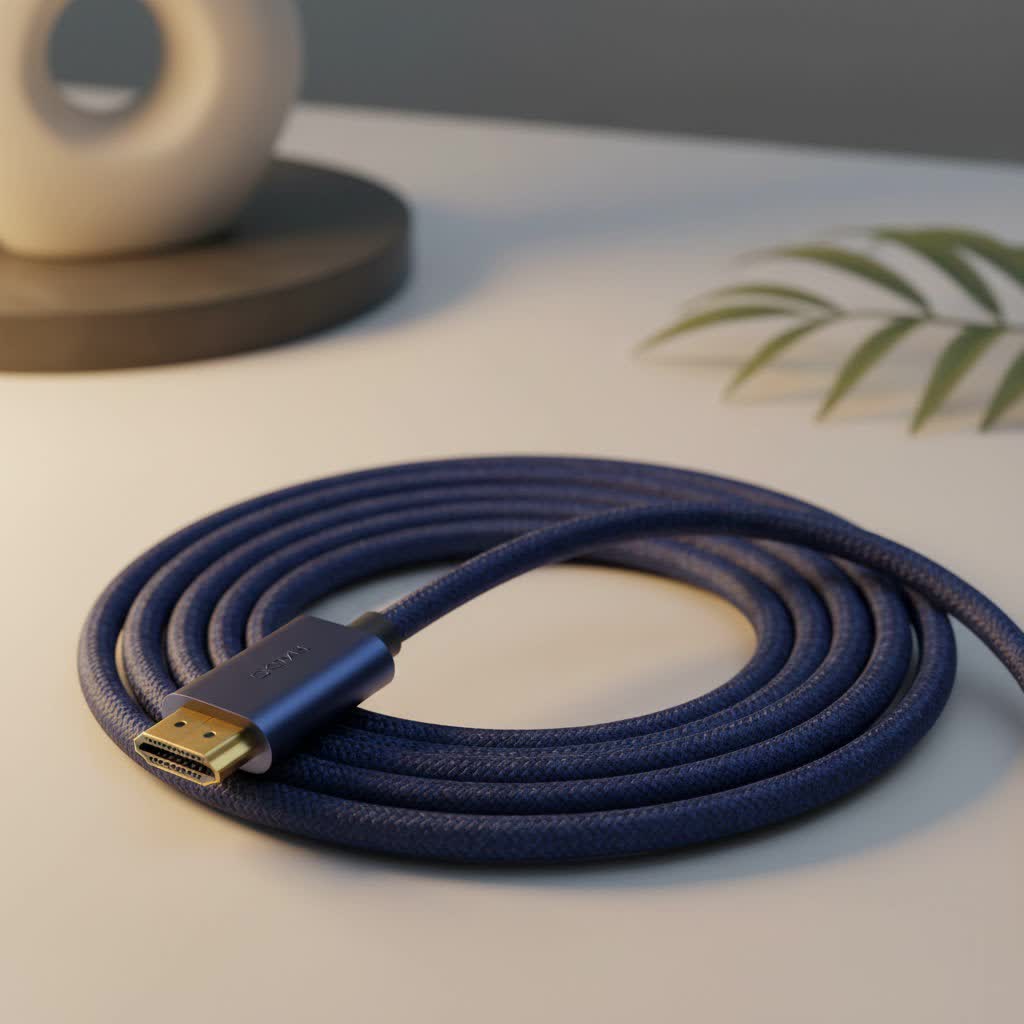
The PlayStation 3 was a marvel of its time, being one of the first consoles to bring high-definition gaming into living rooms across the globe. Its inclusion of an HDMI port was a game-changer, replacing the old, messy analog cables with a single, streamlined digital connection for both video and audio. Let’s dive into everything you need to know about the humble yet essential PS3 HDMI cable.
What Kind of HDMI Cable Does the PS3 Use?
Let’s get straight to the point. The PlayStation 3 is equipped with an HDMI 1.3 port. While that might sound dated, the beauty of HDMI technology lies in its backward compatibility.
This means you do not need to hunt down a vintage “HDMI 1.3” cable. In fact, any modern HDMI cable you buy today will work perfectly with your PS3.
Here are the types of cables you’ll encounter and why they work:
- High-Speed HDMI Cable: This is the most common and affordable type of HDMI cable on the market today. It’s designed to handle the 1080p resolution and high-quality audio formats that the PS3 is capable of producing. This is the recommended choice for your console.
- Premium High-Speed HDMI Cable: This is certified for 4K resolution at 60Hz. It’s overkill for a PS3, but if you have one lying around, it will work flawlessly.
- Ultra High-Speed HDMI Cable: This is the latest standard, built for 8K resolution and features found in the PlayStation 5 and Xbox Series X, like 4K at 120Hz. Again, it’s complete overkill but will work perfectly due to backward compatibility.
“I often see customers stressing about finding the ‘right’ version of an HDMI cable for older devices like the PS3,” notes David Chen, a professional home theater installer with over a decade of experience. “I always tell them to relax. The HDMI standard was designed so that any new cable works with any old device. Just grab a standard High-Speed cable, and you’re golden. Save your money for the games.”
So, the simple answer is: any HDMI cable you can buy new today is the right PS3 HDMI cable.
Do I Need an Expensive “Gaming” HDMI Cable for My PS3?
Absolutely not. This is one of the most persistent myths in the tech world. Marketing terms like “gold-plated,” “4K-ready,” or “gaming-optimized” are designed to make you spend more money on features your PlayStation 3 cannot use.
The signal sent through an HDMI cable is digital, which means it either works, or it doesn’t. A $5 cable and a $50 cable will deliver the exact same 1080p picture and sound from your PS3. The console’s maximum output is 1080p, and a basic High-Speed HDMI cable has more than enough bandwidth to handle that signal perfectly. An expensive cable offers zero performance benefits for a PS3.
Key PS3 HDMI Specifications
- HDMI Version: 1.3a
- Maximum Video Resolution: 1920 x 1080 pixels (1080p)
- Maximum Color Depth: Deep Color (up to 36-bit)
- Supported Audio Formats: Dolby Digital 5.1, DTS 5.1, Dolby Digital Plus, Dolby TrueHD, DTS-HD Master Audio, LPCM 7.1ch
|
Our Picks for the Best HDMI Cable in 2026
As an Amazon Associate I earn from qualifying purchases.
|
||
| Num | Product | Action |
|---|---|---|
| 1 | Highwings Long HDMI Cable 15 FT, 4K 8K 10K HDMI 2.1 Cord Ultra High Speed [in-Wall CL3 Rated, 8K@60Hz 4K@120Hz Video 48Gbps], Fit, Durable, Flexible, eARC, HDCP, Compatible for Ethernet SoundBar |
![Check Highwings Long HDMI Cable 15 FT, 4K 8K 10K HDMI 2.1 Cord Ultra High Speed [in-Wall CL3 Rated, 8K@60Hz 4K@120Hz Video 48Gbps], Fit, Durable, Flexible, eARC, HDCP, Compatible for Ethernet SoundBar on Amazon](https://iecfl.com/wp-content/plugins/amazon-tables/assets/images/buy.png)
|
| 2 | Highwings High Speed 8K 60Hz HDMI Cable 3.3FT/1M, 2.1 48Gbps HDMI Braided Cable-4K@120Hz 7680P,DTS:X,HDCP 2.2 & 2.3, HDR 10,eARC,Dynamic HDR,Compatible for Laptop, Monitor, Roku TV |
|
| 3 | Highwings Long HDMI Cable 20 FT, 10K 8K 4K Ultra HD High Speed 2.1 HDMI Cable 48Gbps Braided Cord-4K@120Hz 8K@60Hz, DTS:X, HDCP 2.2&2.3, Dynamic HDR 10 Compatible with Roku TV/PS5/HDTV/Blu-ray |
|
| 4 | 15 Pack of 10 Foot hdmi Cables |
|
| 5 | 10K 8K HDMI 2.1 Cable 2-Pack 6.6FT, Highwings Certified 48Gbps Ultra High Speed Slim HDMI Cord,Support 4K@120Hz 8K@60Hz, HDCP 2.2&2.3, Dynamic HDR,eARC,DTS:X, Compatible with Roku TV/HDTV/PS5/Blu-ray |
|
| 6 | Short HDMI Cable 1 FT 2-Pack, 8K HDMI 2.1 48Gbps Ultra High Speed Braided HDMI Cords, 1 Foot HDMI Cable for Camera, Field Monitor, External Recorder, Laptop, PC |
|
| 7 | Highwings 8K 10K 4K HDMI Cable 48Gbps 6.6FT/2M, Certified Ultra High Speed HDMI Cable Braided Cord-4K@120Hz 8K@60Hz, DTS:X, HDCP 2.2 & 2.3, HDR 10 Compatible with Roku TV/PS5/HDTV/Blu-ray |
|
| 8 | Anker HDMI Cable 8K@60Hz, 6FT Ultra HD 4K@120Hz HDMI Cord,48 Gbps Certified Ultra High-Speed,Compatible with PlayStation 5,Xbox,Samsung TVs,and More |
|
| 9 | Highwings 8K@60 HDMI Cable 10FT/3M, 48Gbps 2.1 High Speed HDMI Braided Nylon 4K120 144Hz RTX 3090 eARC HDR10 4:4:4 HDCP 2.2&2.3 Compatible for PS5, PS4, UHD TV and PC |
|
| 10 | Highwings 4K HDMI Cable 6.6FT/2m - High-Speed HDMI 2.0 Quality Cord 4K@60Hz, Braided Nylon & Gold Connectors, HDR, Ethernet, ARC, 3D, HDCP 2.2, Compatible for PS-5/4/3/ HDTV/Monitor/DVD/Streaming |
|
A standard High-Speed PS3 HDMI cable easily supports all of these features.
How to Connect Your PS3 to a TV with an HDMI Cable
Setting up your PS3 with an HDMI cable is a straightforward process. Follow these simple steps to get started.
- Turn Off Devices: Ensure both your PlayStation 3 and your TV are turned off before connecting any cables.
- Connect the Cable: Plug one end of the HDMI cable into the “HDMI OUT” port on the back of your PS3. It’s a distinct, trapezoid-shaped port that the cable only fits into one way.
- Connect to the TV: Plug the other end of the cable into an available “HDMI IN” port on your TV. Take note of which port you use (e.g., HDMI 1, HDMI 2).
- Power On: Turn on your TV first, then turn on your PlayStation 3.
- Select the Input: Use your TV remote to switch to the correct HDMI input channel you connected the cable to.
- Configure PS3 Settings: The PS3 should automatically detect the HDMI connection and ask if you want to configure it for the best settings. Select “Yes” and follow the on-screen prompts.
Troubleshooting Common PS3 HDMI Issues
Sometimes, technology doesn’t cooperate. If you connect your PS3 HDMI cable and get a black screen or a “No Signal” message, don’t panic. This is a common issue, especially if the console was previously connected with a different type of cable.
The Video Output Reset Trick
The most common fix is to reset the PS3’s video output settings. This forces the console to detect the connected display and choose the best resolution.
- Turn the PS3 Off: Make sure the console is fully off (the power light should be red).
- Press and Hold: Press and hold the power button on the front of the PS3.
- Wait for the Beeps: You will hear the first beep when the console turns on. Keep holding the button.
- Second Beep: After about 5-7 seconds, you will hear a second beep. Release the power button immediately after this second beep.
- Configuration Screen: Your TV should now display a message asking you to configure the video output for HDMI. Select “Yes” and allow the console to automatically set the optimal resolution.
This simple procedure resolves over 90% of HDMI connection problems with the PS3.
Other Potential Fixes
- Check the Cable: Try a different HDMI cable to rule out a faulty one.
- Try a Different TV Port: Plug the cable into a different HDMI port on your TV. The port itself could be faulty.
- Update System Software: Ensure your PS3 is running the latest system software, as updates can include compatibility fixes.
Choosing the Right PS3 HDMI Cable for Your Setup
While we’ve established that any modern cable will work, there are a couple of practical things to consider when buying one.
Cable Length
Think about how far your PS3 is from your TV. It’s wise to get a cable that’s slightly longer than you think you need to avoid strain on the ports. A 6-foot (about 2 meters) cable is a versatile choice for most setups. For signals like the PS3’s 1080p, you can run an HDMI cable up to 50 feet without any signal degradation.
Build Quality
You don’t need gold-plated connectors, but choosing a cable with a durable braided jacket or sturdy connector housing can be a good idea if you plan on plugging and unplugging it frequently. However, for a standard set-it-and-forget-it connection, a basic, well-reviewed cable will be perfectly fine.
Frequently Asked Questions (FAQ)
Can the PS3 output 4K?
No, the PlayStation 3’s hardware is limited to a maximum output resolution of 1080p for games and Blu-ray movies. You do not need a 4K-capable HDMI cable.
Does the PS3 support HDR?
No, High Dynamic Range (HDR) technology was introduced with later HDMI standards and console generations. The PS3 does not support it.
What’s the difference between using HDMI and the old AV cables?
The difference is night and day. The multi-out AV cable that came with the PS3 only supports standard definition (480i). An HDMI cable provides a pure digital high-definition signal (up to 1080p) and high-resolution digital audio in one convenient cable, offering vastly superior picture and sound quality.
My PS3 Slim doesn’t have an HDMI port, what do I do?
This is a misconception. All models of the PlayStation 3, including the original “fat” model, the Slim, and the Super Slim, come equipped with an HDMI port. It is located on the back of the console.
Will a new HDMI 2.1 cable make my PS3 games look better?
No, an HDMI 2.1 cable will not improve the picture quality of your PS3. The visual quality is determined by the source (the PS3) and the display (your TV). The cable is just a pipe, and a basic High-Speed cable is already more than big enough for what the PS3 can send through it.
The Final Word on Your PS3 HDMI Cable
Connecting your PlayStation 3 in the modern era is incredibly simple. Don’t fall for confusing marketing or overpriced cables. All you need is a standard, reliable High-Speed PS3 HDMI cable to enjoy the entire library of classic games and Blu-ray movies in glorious 1080p high definition.
So grab any modern HDMI cable you have on hand, reset your video settings if needed, and get ready to relive some of the best moments from the seventh console generation. Happy gaming
