In today’s ever-connecting world, we’re constantly plugging one device into another. Usually, it’s a straightforward process, but sometimes you hit a snag. Have you ever found yourself with a device that outputs video via HDMI, like a PlayStation or a Blu-ray player, but your shiny new portable monitor only has a USB-C input? That’s where the Hdmi To C Type Cable comes in, a specific but crucial tool for the modern tech enthusiast. But buyer beware—it’s not as simple as grabbing any cable off the shelf.
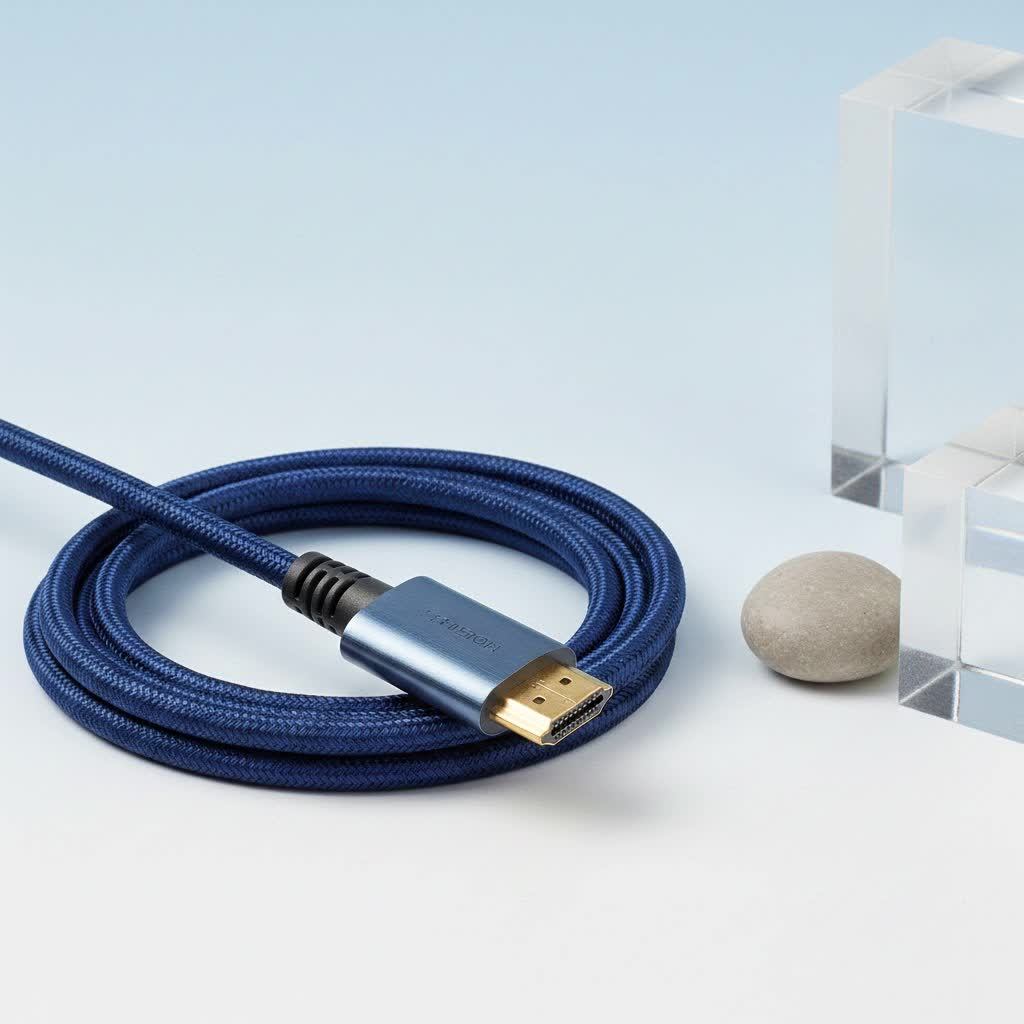
What is an HDMI to USB-C Cable?
An HDMI to USB-C cable is a specialized adapter designed to do one specific job: transmit video and audio signals from a source device with an HDMI output to a display device with a USB-C input. Think of it as a translator, converting the signal from the language of HDMI to one that a USB-C port can understand for video display.
This is the opposite of the much more common USB-C to HDMI cable, which connects a USB-C source (like a laptop or smartphone) to an HDMI display (like a TV or standard monitor). Understanding this direction is the single most important factor when shopping.
The Critical Difference: Direction Matters
Imagine water flowing through a one-way pipe. You can’t make the water flow backward. Most video adapter cables work the same way. The vast majority of cables advertised as “USB-C HDMI” are unidirectional and only work in one direction:
- USB-C to HDMI: Sends signal FROM a USB-C device (e.g., MacBook, Samsung Galaxy) TO an HDMI device (e.g., TV, projector). This is the most common type.
- HDMI to USB-C: Sends signal FROM an HDMI device (e.g., PS5, Xbox, camera) TO a USB-C device (e.g., portable monitor, some newer desktop monitors). This is a less common and more specialized cable.
A true HDMI to C type cable isn’t just a simple wire; it contains an active chipset that converts the HDMI signal. This is why they are often more expensive and harder to find than their USB-C to HDMI counterparts.
“I see this all the time in home theater setups,” says Michael Chen, a professional AV installer. “People buy a cable thinking it’s bidirectional, but it’s not. For connecting a gaming console to a USB-C portable monitor, you need a specific converter cable. Always check the product description for ‘HDMI Source to USB-C Display’ to ensure you’re getting the right tool for the job.”
When Do You Need an HDMI to Type C Cable?
This specific cable solves a modern connectivity puzzle. You’ll likely need one in these scenarios:
- Portable Monitors: This is the most popular use case. Many slim, portable monitors designed for travel use USB-C for both power and video input. If you want to connect a gaming console like a Nintendo Switch (from its HDMI dock) or a PS5, this cable is essential.
- Newer Desktop Monitors: Some modern monitors are embracing USB-C as a primary input. To connect older graphics cards, cameras, or other HDMI-only devices, you’ll need this type of converter.
- Virtual Reality (VR) Headsets: Certain VR systems might utilize a USB-C input, requiring an adapter to connect to a computer’s HDMI graphics port.
Key Features to Look For in Your Cable
Not all cables are created equal. To avoid a blurry picture or a blank screen, you need to match the cable’s capabilities with your devices.
Resolution and Refresh Rate
This is the clarity and smoothness of your video. Look for specifications that match or exceed your needs:
- 4K@60Hz: The gold standard for modern TVs and monitors, offering ultra-high definition with smooth motion. This is ideal for streaming 4K movies or playing modern console games.
- 1080p@120Hz/144Hz: If you’re a competitive gamer using a high-refresh-rate monitor, you’ll want a cable that can support these speeds for a fluid gaming experience.
- 8K@30Hz: For future-proofing and high-end displays, though less common for this specific cable type.
|
Our Picks for the Best HDMI Cable in 2026
As an Amazon Associate I earn from qualifying purchases.
|
||
| Num | Product | Action |
|---|---|---|
| 1 | 10K 8K HDMI 2.1 Cable 2-Pack 6.6FT, Highwings Certified 48Gbps Ultra High Speed Slim HDMI Cord,Support 4K@120Hz 8K@60Hz, HDCP 2.2&2.3, Dynamic HDR,eARC,DTS:X, Compatible with Roku TV/HDTV/PS5/Blu-ray |

|
| 2 | Anker HDMI Cable 8K@60Hz, 6FT Ultra HD 4K@120Hz HDMI Cord,48 Gbps Certified Ultra High-Speed,Compatible with PlayStation 5,Xbox,Samsung TVs,and More |
|
| 3 | Short HDMI Cable 1 FT 2-Pack, 8K HDMI 2.1 48Gbps Ultra High Speed Braided HDMI Cords, 1 Foot HDMI Cable for Camera, Field Monitor, External Recorder, Laptop, PC |
|
| 4 | Highwings Long HDMI Cable 15 FT, 4K 8K 10K HDMI 2.1 Cord Ultra High Speed [in-Wall CL3 Rated, 8K@60Hz 4K@120Hz Video 48Gbps], Fit, Durable, Flexible, eARC, HDCP, Compatible for Ethernet SoundBar |
|
| 5 | Highwings Long HDMI Cable 20 FT, 10K 8K 4K Ultra HD High Speed 2.1 HDMI Cable 48Gbps Braided Cord-4K@120Hz 8K@60Hz, DTS:X, HDCP 2.2&2.3, Dynamic HDR 10 Compatible with Roku TV/PS5/HDTV/Blu-ray |
|
| 6 | Highwings 8K 10K 4K HDMI Cable 48Gbps 6.6FT/2M, Certified Ultra High Speed HDMI Cable Braided Cord-4K@120Hz 8K@60Hz, DTS:X, HDCP 2.2 & 2.3, HDR 10 Compatible with Roku TV/PS5/HDTV/Blu-ray |
|
| 7 | Highwings High Speed 8K 60Hz HDMI Cable 3.3FT/1M, 2.1 48Gbps HDMI Braided Cable-4K@120Hz 7680P,DTS:X,HDCP 2.2 & 2.3, HDR 10,eARC,Dynamic HDR,Compatible for Laptop, Monitor, Roku TV |
|
| 8 | Highwings 4K HDMI Cable 6.6FT/2m - High-Speed HDMI 2.0 Quality Cord 4K@60Hz, Braided Nylon & Gold Connectors, HDR, Ethernet, ARC, 3D, HDCP 2.2, Compatible for PS-5/4/3/ HDTV/Monitor/DVD/Streaming |
|
| 9 | 15 Pack of 10 Foot hdmi Cables |
|
| 10 | Highwings 8K@60 HDMI Cable 10FT/3M, 48Gbps 2.1 High Speed HDMI Braided Nylon 4K120 144Hz RTX 3090 eARC HDR10 4:4:4 HDCP 2.2&2.3 Compatible for PS5, PS4, UHD TV and PC |
|
High Dynamic Range (HDR)
HDR provides a wider range of colors and better contrast, making the picture more vibrant and lifelike. If your source device (like a PS5) and your display both support HDR, ensure your HDMI to C type cable does too, or you’ll miss out on the stunning visuals.
HDCP Compliance
High-bandwidth Digital Content Protection (HDCP) is a form of copy protection required by streaming services like Netflix, Hulu, and Disney+. If your cable is not HDCP compliant, you may get an error or a black screen when trying to watch protected content. Look for HDCP 2.2 or higher for 4K streaming.
Build Quality and Durability
- Braided Cable: A nylon-braided exterior adds significant durability and prevents tangling.
- Gold-Plated Connectors: These resist corrosion and ensure a reliable, long-lasting connection.
- Strain Relief: Look for robust reinforcement where the cable meets the connector head, as this is a common point of failure.
How to Choose the Right HDMI to USB-C Cable
Follow this simple checklist to ensure you buy the correct cable the first time.
- Confirm Your Direction: Re-read this if you have to! Make sure you need to go from an HDMI source to a USB-C display.
- Check Your Display’s Port: The USB-C port on your monitor MUST support DisplayPort Alternate Mode (DP Alt Mode). This feature allows the USB-C port to receive an incoming video signal. Check your monitor’s manual or the manufacturer’s website. If it doesn’t support DP Alt Mode, the cable will not work.
- Match the Specs: Check the HDMI version of your source device (e.g., HDMI 2.0 for 4K@60Hz) and buy a cable that supports its full capability.
- Consider Power: Many HDMI to USB-C converters require external power via a separate USB cable. Check the product description to see if you need a spare USB port or wall adapter to power the converter chip inside the cable.
Frequently Asked Questions (FAQ)
Can I use an HDMI to C type cable to connect my PS5 to a MacBook screen?
No, this is not possible. The USB-C (Thunderbolt) ports on MacBooks are for video output, not video input. You cannot use a MacBook as an external monitor for a gaming console in this way.
Will this cable also charge my portable monitor?
Typically, no. The HDMI to USB-C cable is designed for video and audio signal transmission. You will usually need a separate USB-C cable connected to a power source to power your portable monitor.
Do I need to install any drivers for this cable to work?
In most cases, no. These cables are designed to be plug-and-play. As long as your hardware is compatible (especially the monitor’s DP Alt Mode support), it should work automatically.
What’s the difference between an adapter and a cable?
Functionally, they do the same thing. A cable is an all-in-one solution. An adapter is a small dongle that has an HDMI female port on one end and a USB-C male connector on the other, requiring you to use a separate HDMI cable. Cables are generally tidier, while adapters can be more versatile.
Why is my screen flickering or showing ‘No Signal’?
This could be due to several reasons. First, double-check that you have the right unidirectional cable. Second, ensure the converter is receiving enough power if it has a separate USB power input. Finally, make sure both your source and display are set to the correct output/input channels.
The Right Connection for a Modern Setup
Choosing the right cable can feel daunting, but it doesn’t have to be. The key to mastering your setup is understanding exactly what you need. For connecting an HDMI source to a newer USB-C display, the HDMI to C type cable is an indispensable tool. By paying close attention to the direction of the signal, verifying your monitor’s capabilities, and selecting a cable with the right specifications, you can ensure a flawless, high-quality connection every time. Now you can get back to what matters most: enjoying your games, movies, and content on any screen you choose.
