So, you’re ready to level up your productivity or gaming setup with a second screen, but you’ve run into a common snag: how do you connect two monitors with HDMI? You might be looking for a specific Dual Monitor Cable Hdmi solution, thinking it’s a simple plug-and-play affair. It’s a question we get all the time at Iecfl Tech, and while it’s absolutely achievable, it’s a bit more nuanced than just splitting a cable. Let’s dive into how you can create that perfect dual-display workspace.
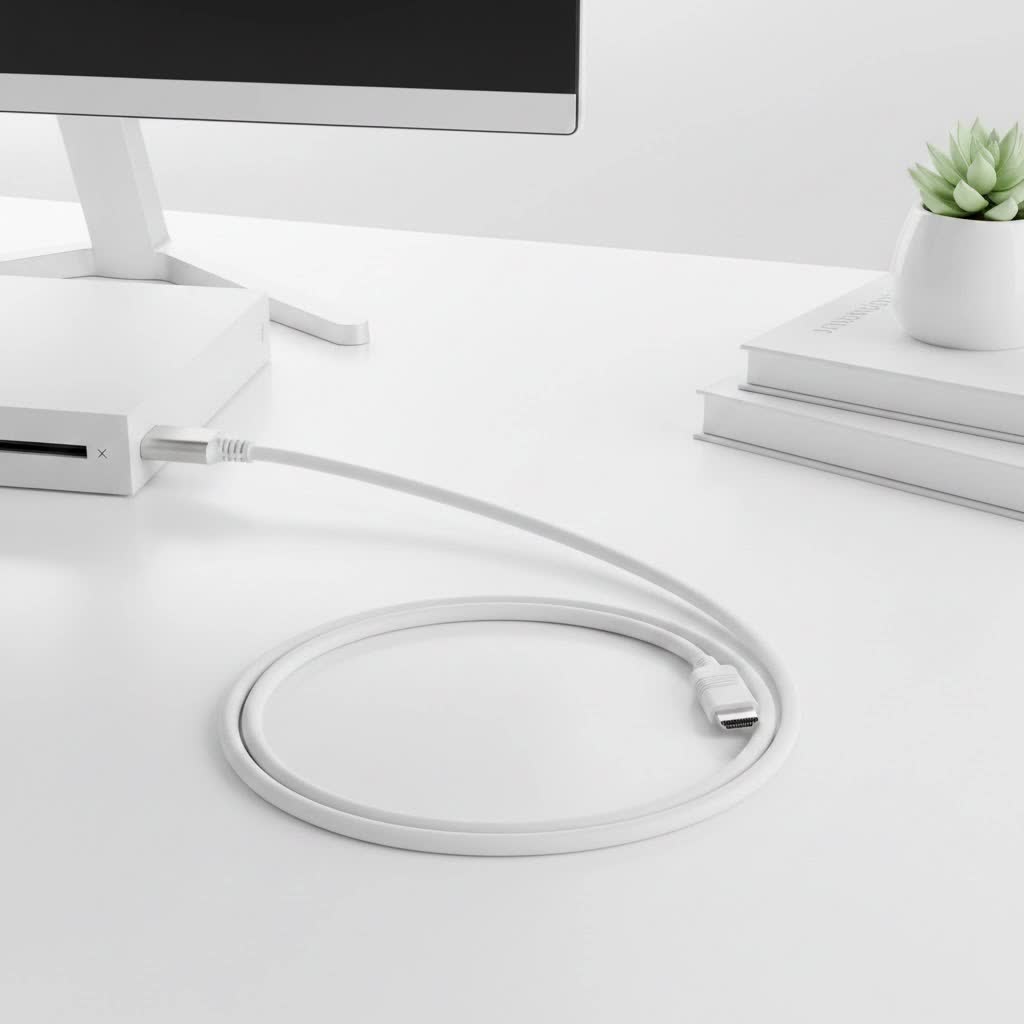
Can You Really Use One HDMI Port for Two Monitors?
This is the first and most important question to address. In nearly all cases, you cannot run two different, extended displays from a single HDMI port on your computer. A standard HDMI port is designed to send out a single video stream to a single display.
Many people assume they can buy a simple HDMI splitter, but this leads to disappointment. An HDMI splitter takes one signal and duplicates it, sending the exact same image to both monitors. If you want to mirror your display, a splitter works perfectly. But for a true, extended desktop where you can drag windows from one screen to another, a splitter is not the tool for the job.
Step 1: Check Your Computer’s Video Ports
Before you buy any cables or adapters, the most crucial step is to look at the back or sides of your computer or laptop. What video outputs do you have? This will determine the easiest and most effective path forward.
- Multiple Video Ports: Most desktop computers have a graphics card with multiple ports. You might see one HDMI port alongside one or more DisplayPort or DVI ports. This is the ideal scenario.
- One HDMI Port (Common on Laptops): Many laptops, especially slim models, come with a single HDMI port and often a USB-C port.
- USB-C with DisplayPort Alt Mode or Thunderbolt: Modern laptops often feature powerful USB-C ports. If the port has a lightning bolt symbol (Thunderbolt) or a “DP” logo (DisplayPort Alt Mode), it can output video, and it’s your key to an easy dual monitor setup.
Step 2: Choose Your Dual Monitor Connection Method
Based on your available ports, here are the most effective ways to set up your dual HDMI monitors.
The Best Solution: A Docking Station or USB-C Hub
|
Our Picks for the Best HDMI Cable in 2026
As an Amazon Associate I earn from qualifying purchases.
|
||
| Num | Product | Action |
|---|---|---|
| 1 | Highwings High Speed 8K 60Hz HDMI Cable 3.3FT/1M, 2.1 48Gbps HDMI Braided Cable-4K@120Hz 7680P,DTS:X,HDCP 2.2 & 2.3, HDR 10,eARC,Dynamic HDR,Compatible for Laptop, Monitor, Roku TV |

|
| 2 | Highwings Long HDMI Cable 15 FT, 4K 8K 10K HDMI 2.1 Cord Ultra High Speed [in-Wall CL3 Rated, 8K@60Hz 4K@120Hz Video 48Gbps], Fit, Durable, Flexible, eARC, HDCP, Compatible for Ethernet SoundBar |
|
| 3 | Highwings 8K@60 HDMI Cable 10FT/3M, 48Gbps 2.1 High Speed HDMI Braided Nylon 4K120 144Hz RTX 3090 eARC HDR10 4:4:4 HDCP 2.2&2.3 Compatible for PS5, PS4, UHD TV and PC |
|
| 4 | Highwings 8K 10K 4K HDMI Cable 48Gbps 6.6FT/2M, Certified Ultra High Speed HDMI Cable Braided Cord-4K@120Hz 8K@60Hz, DTS:X, HDCP 2.2 & 2.3, HDR 10 Compatible with Roku TV/PS5/HDTV/Blu-ray |
|
| 5 | Short HDMI Cable 1 FT 2-Pack, 8K HDMI 2.1 48Gbps Ultra High Speed Braided HDMI Cords, 1 Foot HDMI Cable for Camera, Field Monitor, External Recorder, Laptop, PC |
|
| 6 | Highwings 4K HDMI Cable 6.6FT/2m - High-Speed HDMI 2.0 Quality Cord 4K@60Hz, Braided Nylon & Gold Connectors, HDR, Ethernet, ARC, 3D, HDCP 2.2, Compatible for PS-5/4/3/ HDTV/Monitor/DVD/Streaming |
|
| 7 | 10K 8K HDMI 2.1 Cable 2-Pack 6.6FT, Highwings Certified 48Gbps Ultra High Speed Slim HDMI Cord,Support 4K@120Hz 8K@60Hz, HDCP 2.2&2.3, Dynamic HDR,eARC,DTS:X, Compatible with Roku TV/HDTV/PS5/Blu-ray |
|
| 8 | Anker HDMI Cable 8K@60Hz, 6FT Ultra HD 4K@120Hz HDMI Cord,48 Gbps Certified Ultra High-Speed,Compatible with PlayStation 5,Xbox,Samsung TVs,and More |
|
| 9 | 15 Pack of 10 Foot hdmi Cables |
|
| 10 | Highwings Long HDMI Cable 20 FT, 10K 8K 4K Ultra HD High Speed 2.1 HDMI Cable 48Gbps Braided Cord-4K@120Hz 8K@60Hz, DTS:X, HDCP 2.2&2.3, Dynamic HDR 10 Compatible with Roku TV/PS5/HDTV/Blu-ray |
|
For laptop users, a docking station or a multi-port USB-C hub is the most elegant and powerful solution. This single device connects to your computer, typically via USB-C, and provides multiple video outputs.
A good quality hub will feature two or more HDMI ports, allowing you to run two extended displays effortlessly. It acts as an external graphics adapter, processing the signal from your laptop and splitting it into two independent video streams.
“I always recommend a docking station for clients who want a clean, powerful dual monitor setup with their laptop,” says tech consultant Maria Chen. “It not only solves the display issue but also adds extra USB ports, Ethernet, and charging, turning a portable laptop into a full desktop workstation with a single cable.”
How it works:
- Connect the docking station to a power source (if required).
- Connect the dock to a compatible USB-C Thunderbolt or DisplayPort Alt Mode port on your laptop.
- Plug two standard HDMI cables from the dock’s HDMI ports into each of your monitors.
- Your computer will recognize both external displays, allowing you to configure them in extended mode.
The Adapter Approach: Using Your Other Video Ports
If you have a desktop PC with one HDMI port and one DisplayPort, the solution is simple and cost-effective. You don’t need a special dual monitor cable HDMI splitter; you just need to use both ports.
- Monitor 1: Connect directly using a standard HDMI cable.
- Monitor 2: Use a DisplayPort to HDMI adapter or a direct DisplayPort to HDMI cable. Connect the DisplayPort end to your computer and the HDMI end to your second monitor.
This method uses your computer’s native graphics capabilities to drive two separate displays, ensuring the best performance for gaming or video editing.
The USB Graphics Adapter: A Universal Fix
What if you only have a single HDMI port and standard USB-A ports? In this case, a USB-A to HDMI graphics adapter is a viable option. These adapters contain a small, external graphics chip that creates a video signal over USB.
Keep in mind:
- Performance: These are best for general productivity, browsing, and office work. They are not suitable for high-refresh-rate gaming or intensive graphics tasks, as the signal conversion can introduce lag.
- Drivers: You will almost always need to install specific drivers for the adapter to function correctly.
Setting Up Your Displays in Your Operating System
Once everything is physically connected, the final step is to configure your displays.
For Windows Users:
- Right-click on your desktop and select Display settings.
- Windows should automatically detect all connected monitors. If not, click the Detect button.
- Scroll down to the Multiple displays section.
- From the dropdown menu, select Extend these displays.
- You can drag the monitor icons at the top of the window to match their physical position on your desk. This ensures your mouse moves correctly between screens.
- Click Apply.
For macOS Users:
- Open System Settings (or System Preferences on older versions) and go to Displays.
- Your Mac should show all connected displays.
- Ensure that Mirror Displays is unchecked to use extended mode.
- In the arrangement tab, you can drag and drop the display icons to match their physical layout. The white bar at the top of one icon indicates the primary display.
Frequently Asked Questions (FAQ)
What is the best HDMI cable for a dual monitor setup?
For the cables themselves, there is no special “dual monitor” version. The key is to choose a cable that matches your monitor’s capabilities. A High-Speed HDMI cable is sufficient for 1080p and 4K at 60Hz. For 4K at 120Hz or 8K, you will need an Ultra High-Speed HDMI 2.1 cable.
Will a cheap HDMI splitter give me an extended desktop?
No. A simple HDMI splitter can only duplicate a single source, showing the same image on both screens. It cannot create an extended desktop.
Can I use a DisplayPort to HDMI and an HDMI to DisplayPort adapter together?
It’s best to match the cable/adapter to the direction of the signal. Use a DisplayPort (source) to HDMI (monitor) adapter. Bi-directional adapters exist but are less common and more expensive.
Does a dual monitor setup slow down my computer?
Running a second display requires additional graphics processing power. For everyday tasks, the impact is negligible on modern computers. However, for demanding activities like gaming or 3D rendering, you may see a slight performance decrease.
Why is my second monitor not being detected?
First, check all physical connections. Ensure the monitor is on and set to the correct HDMI input. Try updating your computer’s graphics drivers. If you’re using a hub or adapter, ensure it’s compatible with your computer and that any necessary drivers are installed.
The Right Connection for Your Vision
Building the perfect dual monitor setup is a game-changer for workflow and immersion. While a single dual monitor cable HDMI solution doesn’t quite exist in the way most people imagine, understanding your device’s ports is the key to unlocking your multi-display potential. Whether you opt for a versatile docking station, a simple adapter, or use multiple native ports on your desktop, you can easily achieve a seamless and expansive digital workspace.
